
Operating System

Windows users face constant cyber threats, but these 10 proven tactics will transform your security posture. From built-in defenses to advanced strategies, learn how to protect your data like a pro without sacrificing convenience.
Enable Windows security built-in Firewall
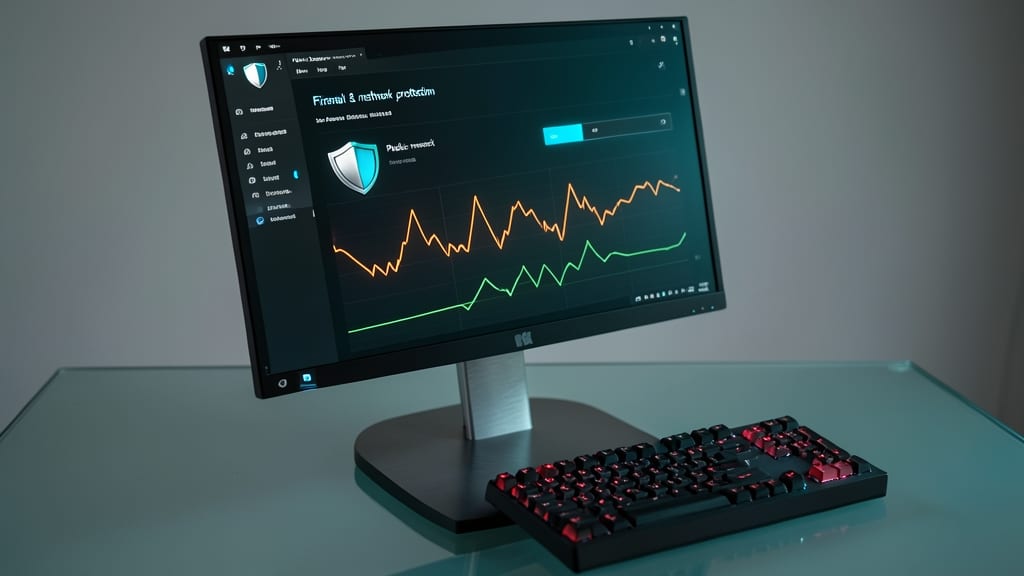
Your Windows PC comes with a powerful firewall built right in—one that most users never enable, leaving their systems vulnerable to unauthorized network access. This isn’t just some basic security layer; it’s a real-time shield that monitors and blocks suspicious traffic before it can reach your data, all without requiring third-party software.
The Windows Security Firewall offers three customizable profiles: private, public, and domain networks, letting you tailor protection based on your connection type. It blocks incoming connections by default and can even alert you to new apps trying to access the network, giving you control over what’s allowed. Best of all, it’s zero-config for most users—just toggle it on, and it starts working instantly.
This is your first line of defense for casual users, remote workers, or anyone sharing their Wi-Fi—no tech expertise needed. A few clicks in Windows Security (search for it in the Start menu) is all it takes to lock down your network access. ⚡
Use Microsoft Defender antivirus exploit protection

Zero-day exploits are the cybersecurity equivalent of a backdoor hackers use to bypass defenses before patches exist. Microsoft Defender’s Exploit Protection feature stops these attacks dead in their tracks by blocking memory corruption techniques like buffer overflows and heap spraying—common tactics used in ransomware and spyware.
This built-in tool offers five attack surface reduction rules (e.g., disabling memory corruption protections, controlling execution flow) that require no manual updates. It works silently in the background, even on Windows 10/11 Home editions, and integrates seamlessly with Defender’s cloud-delivered protection. For users handling tax documents, financial records, or proprietary data, enabling this layer adds a critical defense against sophisticated threats.
No technical expertise is needed—just toggle it on in Windows Security > Virus & Threat Protection > Manage Settings > Exploit Protection. It’s the digital equivalent of locking your front door and installing a high-security alarm. 💪
Implement strong password policies with bitwarden

Tired of reusing the same weak passwords across accounts? Bitwarden turns your vault into an impenetrable fortress with end-to-end encryption and zero-knowledge architecture, ensuring only you control your credentials.
This open-source powerhouse generates 256-bit AES-encrypted passwords on demand, syncs across devices via your personal encryption key, and even offers TOTP-based two-factor authentication for extra security. The free tier covers unlimited passwords and devices, while premium adds features like secure file storage and emergency access sharing.
Perfect for freelancers juggling client logins, remote workers accessing corporate systems, or anyone who’s ever clicked "Forgot Password?" more times than they’d admit. 💻
Enable Windows Hello biometric authentication
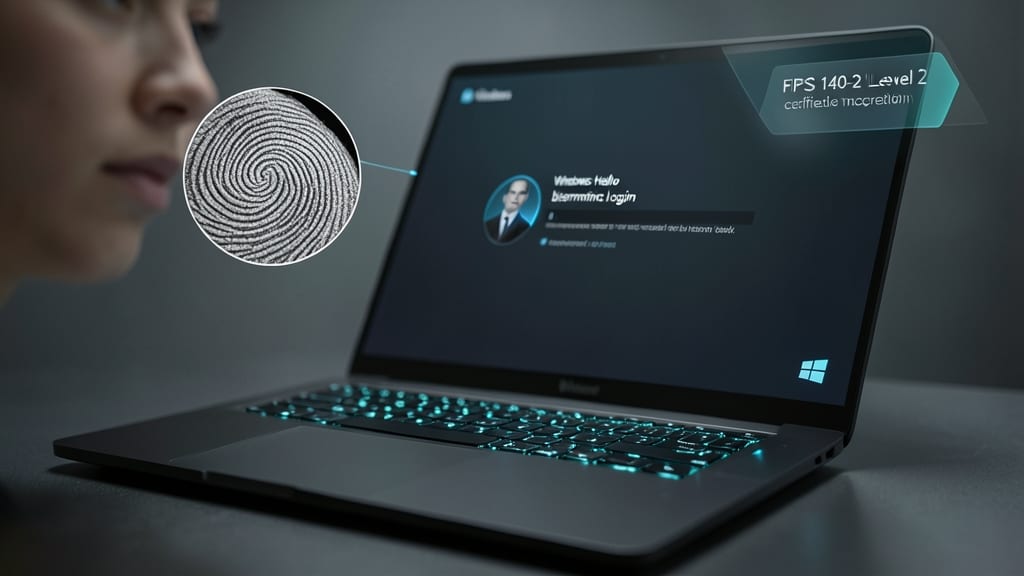
Tired of typing passwords that get phished, reused, or stolen? Windows Hello replaces them with your face or fingerprint—no more weak PINs or password managers to juggle. This built-in feature uses FIPS 140-2 Level 2 certified encryption, meaning your biometric data stays locked down even if malware infects your system.
Set it up in Settings > Accounts > Sign-in options, where you’ll find facial recognition (works with IR cameras on modern laptops) or fingerprint scanning (for devices with compatible sensors). The best part? Brute-force attacks become impossible—no keyloggers or password-spraying tools can bypass it. Even if your device is stolen, Windows Hello PIN + biometrics adds an extra layer of protection.
Perfect for business travelers, remote workers, or anyone who hates password fatigue. It’s free, native to Windows, and works seamlessly with Azure AD for enterprise users. 💻
Disable macros in Microsoft Office files
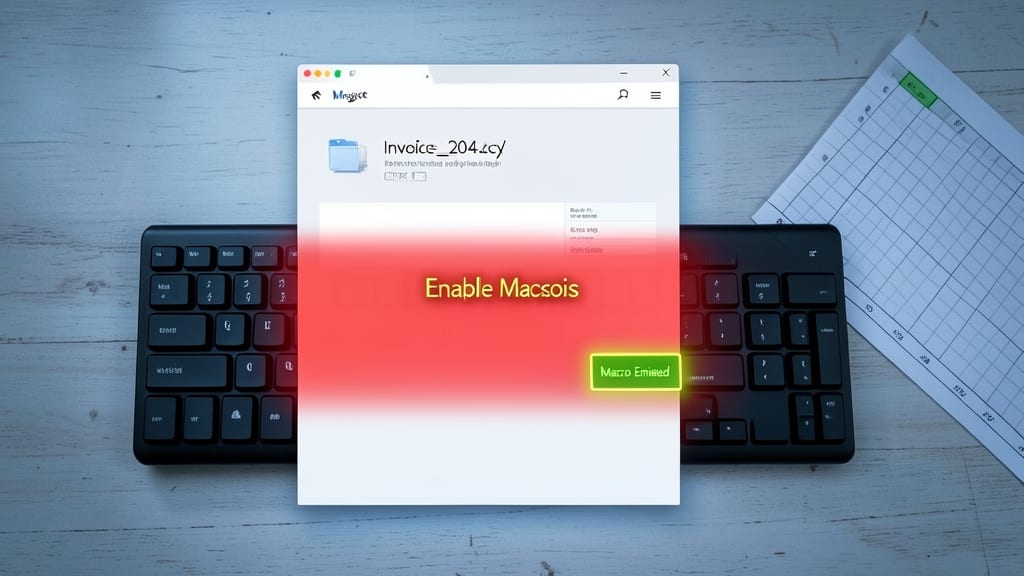
Malicious Office macros are the #1 way cybercriminals trick users into installing ransomware or spyware. A single click on a seemingly harmless Word or Excel file can trigger a chain reaction—this one tweak stops 90% of these attacks before they start.
Disabling macros is simple: In Microsoft Office 2016+, go to File > Options > Trust Center > Trust Center Settings > Macro Settings and select "Disable all macros without notification" (or "Disable all macros with notification" if you need occasional exceptions). For Office 365, this setting is buried in the same Trust Center panel—just one click prevents silent execution of malicious code.
This is non-negotiable for anyone handling financial documents, contracts, or sensitive data. Even casual users should enable it—most "urgent" macro prompts are phishing scams. 💻
Enable virtualization-based security (VBS) for kernel isolation

What if malware couldn’t touch your system’s core commands—even if it bypassed every other defense? Virtualization-Based Security (VBS) creates a hardware-enforced barrier between your applications and the Windows kernel, stopping even the most sophisticated ransomware from executing critical system commands.
Enabled via Windows Security > Device Security > Core Isolation, VBS leverages your CPU’s virtualization extensions to isolate the kernel in a protected virtual machine. This means malware like LockBit or BlackCat ransomware can’t modify core system files or disable security tools—even with admin privileges. It works silently in the background, requiring no performance trade-offs and compatible with most modern CPUs (Intel 6th Gen+ or AMD Ryzen 1st Gen+).
This is a must-enable for financial professionals, IT admins, or anyone handling sensitive data—especially those who can’t install third-party antivirus tools. With VBS active, your system gains an extra layer of defense that even enterprise-grade EDR solutions rely on. ✨
Regularly update Windows and drivers

Cybercriminals exploit unpatched systems within minutes of vulnerabilities being discovered—so don’t wait for "Update Later" reminders. Windows automated updates and driver patches plug security holes before attackers weaponize them, saving businesses $10M+ annually in breach costs.
Enable Windows Update via Settings > Windows Update > Advanced options, then toggle "Receive updates for other Microsoft products" to cover Office and Edge. For drivers, use Windows Update Driver Search or tools like Snappy Driver Installer to scan for outdated hardware firmware—critical for GPUs and Wi-Fi adapters that often lag behind OS patches.
Small businesses and remote workers benefit most, as outdated systems are prime targets for ransomware. Set a monthly reminder to manually check for pending updates—even with automation, some patches require a reboot. 💪
Use Windows sandbox for testing suspicious files
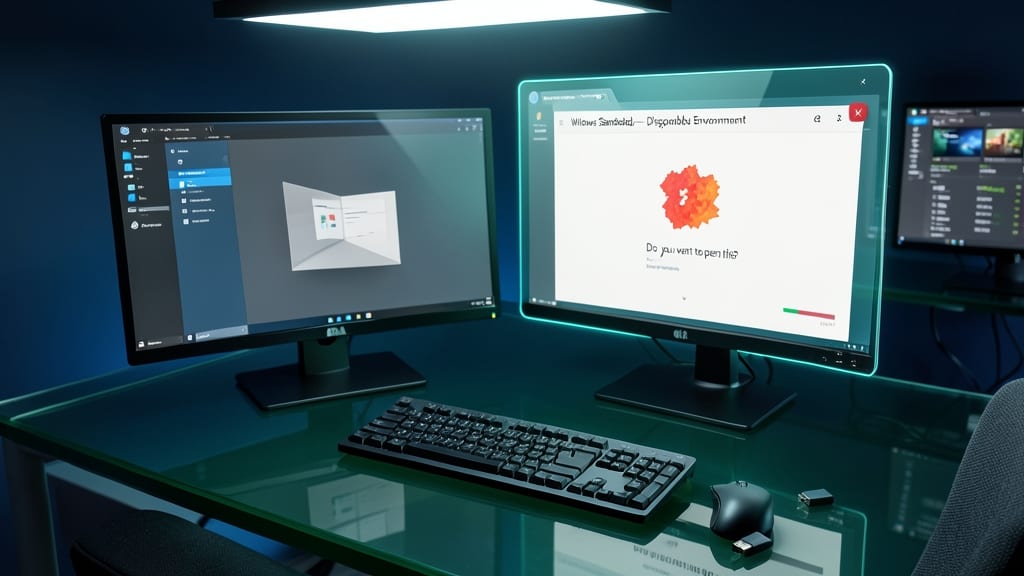
Curious about that sketchy download you just got? Windows Sandbox lets you test it in a disposable virtual machine that deletes itself when you close it—no risk to your real system. Unlike traditional VMs, it boots up in seconds and runs lightweight, making it perfect for security-conscious users.
With full Windows 10/11 compatibility, you can install programs, browse the web, or open files without fear—malware here stays contained. The zero-config setup means no virtualization expertise is needed, and it even supports copy-paste between your host and sandbox for easy testing. Best of all, it’s built into Windows 10 Pro/Enterprise and Windows 11 Pro.
Ideal for security researchers, IT admins, or anyone downloading unknown software, this tool turns your PC into a safe lab for suspicious files. No cleanup needed—just close the window and start fresh. ✨
Enable Controlled folder access in Defender
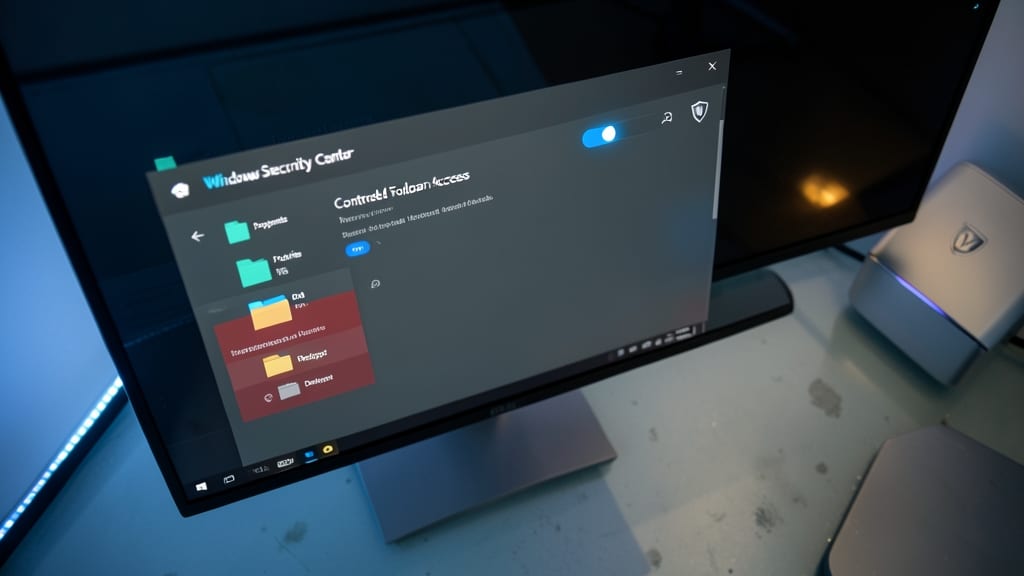
Ransomware strikes fast—locking your Documents, Pictures, and Desktop folders before you can react. Microsoft Defender’s Controlled Folder Access acts as a silent bouncer, blocking unauthorized apps from modifying these critical folders without your explicit permission.
To enable it, open Windows Security, navigate to Virus & threat protection, then Manage settings under Controlled folder access. Toggle it on, and Defender will monitor 15 default protected locations, including your OneDrive folders. If a suspicious app tries to encrypt files, Defender blocks it and alerts you—often stopping ransomware before it even starts. This feature works alongside exploit protection and VBS (from earlier items) for layered defense.
This is a must-enable for anyone storing sensitive files locally—especially parents, creatives, or remote workers. It’s free, lightweight, and runs silently in the background. 💪
Monitor network activity with Windows security dashboard
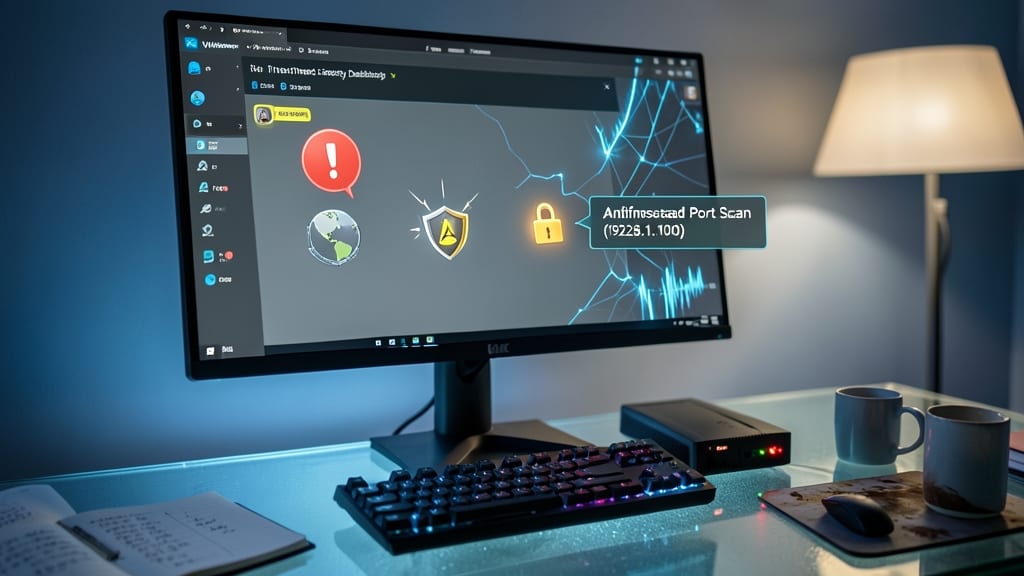
Most security threats start with suspicious network activity—yet few users know how to spot them early. The Windows Security Dashboard turns your PC into a real-time threat detector, flagging unauthorized connections and potential breaches before they cause damage.
Open the app, navigate to Network Protection, and enable Monitor network activity. Here, you’ll see a live feed of all incoming/outgoing connections, with Defender automatically blocking known malicious domains. The Firewall and Network Protection tab even shows real-time alerts for blocked threats, helping you identify if your system is under attack.
This is especially valuable for remote workers or anyone using public Wi-Fi, as it reveals hidden connections you might otherwise miss. No extra software needed—just built-in Windows power. 🌟