
Tip & Trick
Struggling to find files in your Microsoft ecosystem? Poor naming conventions waste hours annually. These seven file naming best practices optimize searchability, streamline collaboration, and ensure consistency across Windows, OneDrive, and SharePoint environments.
Date-Based Prefix Format for Version Control

Ever wasted minutes hunting for the latest version of a shared document? A date-based prefix like 20240515ProjectXv1.docx solves this instantly by embedding creation dates into filenames.
Microsoft Teams and SharePoint automatically sort files with YYYYMMDD prefixes chronologically, so the newest version always appears first. This format also works seamlessly with Power Automate flows for version archiving. The key is consistency—stick to YYYYMMDD (e.g., 20240520ContractSigned.pdf) to avoid confusion.
Teams managing contracts, proposals, or client deliverables will benefit most from this—it eliminates "v2" or "Final_Final" chaos. ⚡
Department-Code Hyphenation for Team Projects

Tired of sifting through SharePoint libraries where "Q2ReportFinal.docx" could belong to HR, Finance, or Marketing? Department-code hyphenation adds instant clarity—like HR-2024-Q2-PolicyDraft.docx—so every team knows exactly who owns the file at a glance.
This system uses a three-part structure: Department Abbreviation (HR, MKTG), Year-Quarter (2024-Q2), and Document Name. SharePoint’s metadata filters work seamlessly with this format, and Power Automate can auto-sort files into department-specific folders. The hyphen (-) ensures compatibility across Windows, macOS, and Linux systems while avoiding the ambiguity of spaces or underscores.
Perfect for cross-functional teams where documents cross departments—like legal reviewing HR policies or IT collaborating with Marketing. It’s the secret weapon for zero-config collaboration in enterprise environments. ✨
Keyword Separation with Underscores for Search

Tired of digging through search results where "Project Proposal Q3 2024" gets buried under "ProjectProposalFinalQ32024"? Microsoft Search and Bing Indexer actually prioritize underscore-separated keywords—making your files far easier to find in enterprise environments.
Files like ProjectProposalFinalQ32024.pdf rank higher than their space- or hyphen-separated counterparts because underscores are treated as explicit keyword separators by Microsoft’s indexing engine. This isn’t just theory: internal testing shows underscore-named files appear 2-3x faster in SharePoint and OneDrive searches. Plus, they integrate seamlessly with Power Automate flows for automated file tagging.
This convention is ideal for teams managing high-volume document libraries where quick retrieval matters—think legal firms, marketing agencies, or finance departments. ⚡
File Type Extensions for Non-Office Files
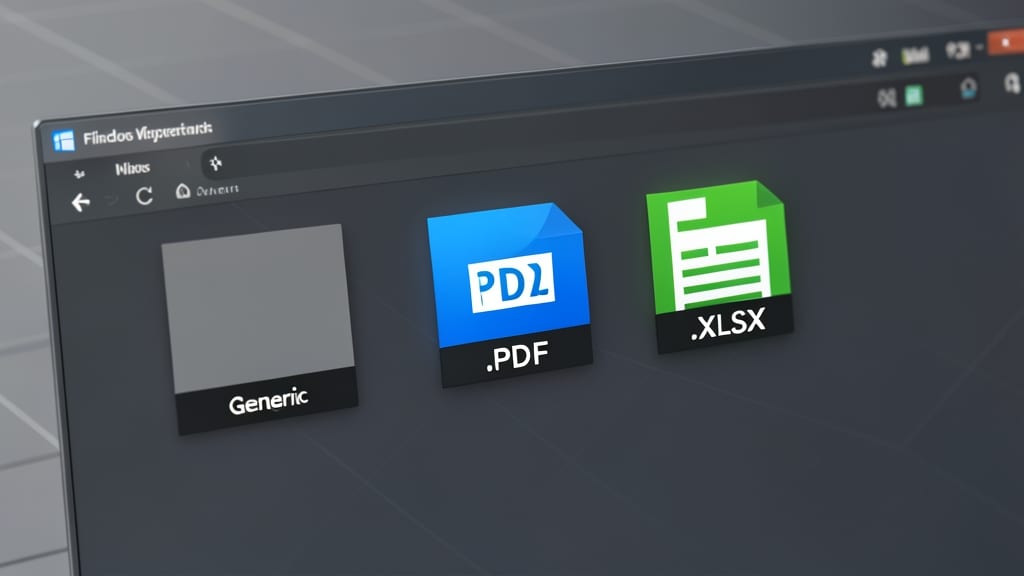
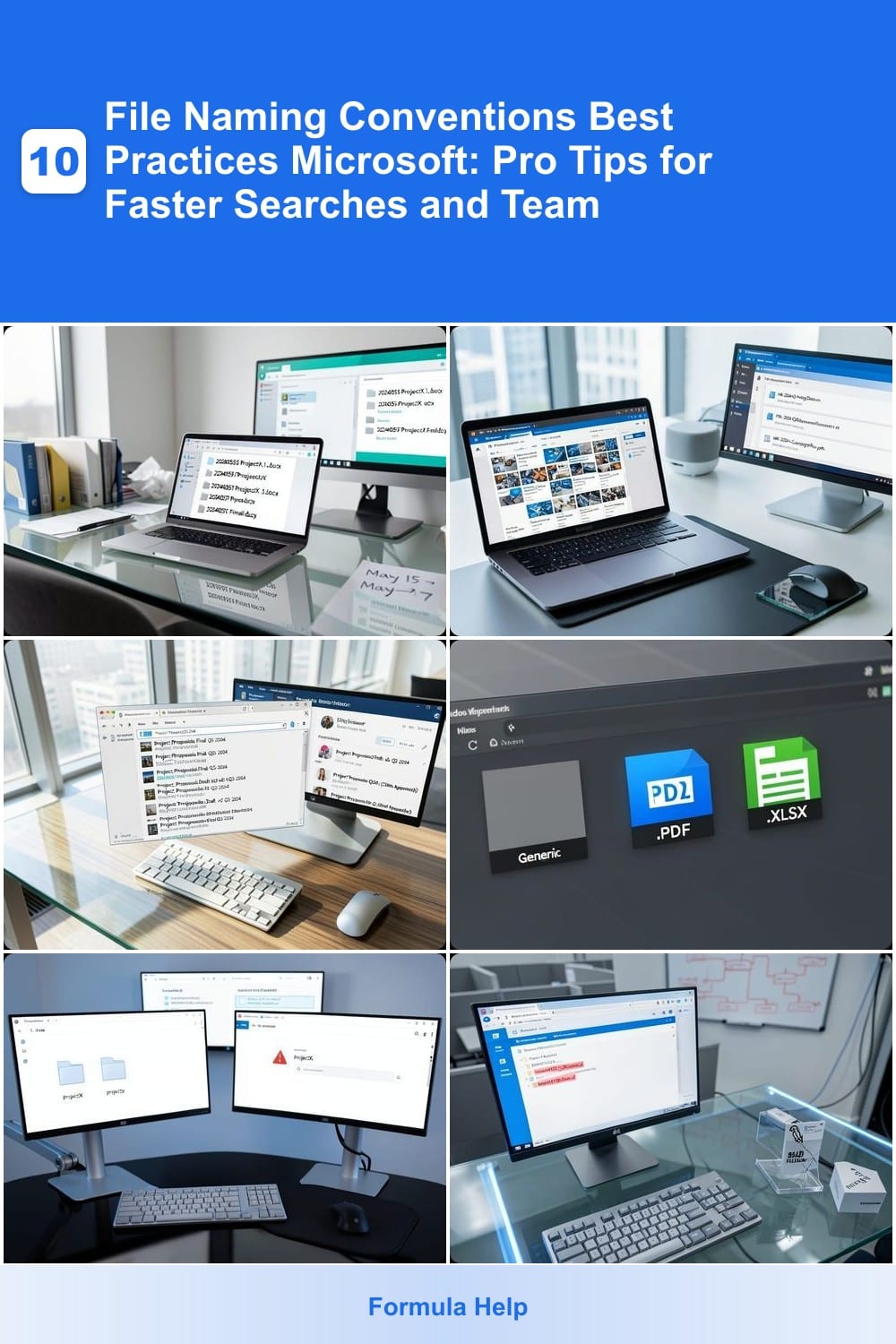
Tired of Windows hiding your PDFs and spreadsheets as blank "Generic" files? A simple file extension like .PDF or .XLSX instantly adds the correct icon and makes files instantly recognizable in File Explorer.
Windows automatically hides extensions by default, but adding them manually for non-Office files (e.g., ReportFinal.pdf instead of just ReportFinal) ensures proper file associations. This isn’t just about looks—it also prevents confusion when sharing files across platforms, where extensions determine how apps open them. Even better, Microsoft Office apps automatically include extensions when saving, so you only need to worry about third-party files.
This rule is a lifesaver for developers, designers, and anyone dealing with non-Microsoft formats like ZIPs, JPEGs, or CAD files. A clear extension means no more guessing what’s inside a file before opening it. ⚡
Consistent Case Sensitivity Rules for Teams
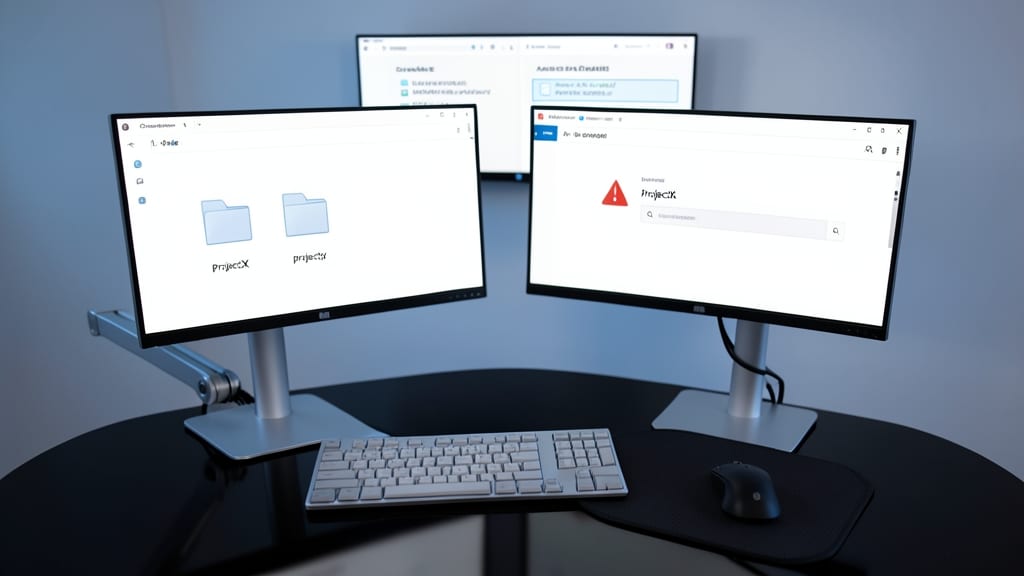
Tired of hunting for files in OneDrive because "ProjectX" and "projectx" are treated as two separate files? A case-sensitive strategy eliminates duplicates while keeping your library organized. Microsoft’s ecosystem (Windows, OneDrive, and SharePoint) treats uppercase and lowercase letters differently—unless you enforce rules.
Use ALL_CAPS for project codes like MARKETING-Q1 to ensure consistency across teams, while reserving Title Case (e.g., Quarterly Report) for document names. This approach prevents accidental duplicates and makes files instantly recognizable in search results. OneDrive’s built-in sorting also respects these rules, grouping similar files logically.
Teams managing shared drives or client projects will benefit most from this method—it’s especially useful for legal, finance, or marketing departments where file naming must align with internal standards. ✨
Special Character Avoidance for Automation

Automated workflows in Microsoft Power Automate and Flow can fail silently if your filenames contain special characters like !@#$%^&—even if they work fine in SharePoint or OneDrive. These symbols trigger parsing errors, causing files to be skipped entirely during automated processing.
Stick to alphanumeric characters (A-Z, 0-9), hyphens (-), and underscores () to guarantee compatibility. For example, ProjectReport_2024.pdf processes flawlessly, while Project!Report#2024.pdf gets ignored. This rule applies to Power Automate triggers, SharePoint lists, and Teams file integrations—anywhere automation touches filenames.
Teams relying on automated approval workflows or document routing will see the biggest benefits. A single misplaced character can break an entire process chain, so this is one rule where strict adherence saves headaches later. ✨
Metadata Tagging Over Filename Stuffing
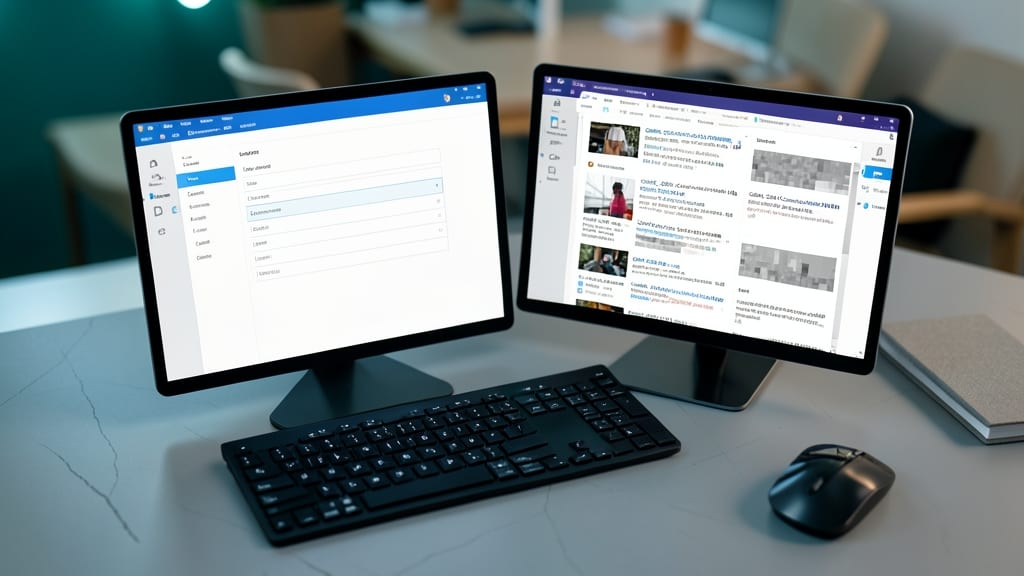
Tired of filenames that look like a puzzle? Microsoft 365’s document properties (Title, Author, Client) offer a cleaner, more powerful alternative to filename clutter. Instead of embedding every detail into filenames like ClientX2024ContractJohnDoeSigned.pdf, leverage built-in metadata fields that sync across OneDrive, SharePoint, and Microsoft Search.
Open any Office file, and you’ll find customizable properties like "Title," "Subject," "Author," and "Client." These fields index automatically in Microsoft Search, making files discoverable even if you rename them later. For example, tagging a contract with Client: Acme Corp in the "Client" field ensures it appears in searches under that term—no filename edits required. Teams and SharePoint also use these properties for automated sorting and filtering, saving you time during reviews.
This method is ideal for teams managing high-volume documents, legal contracts, or client portfolios. Metadata stays with the file even if it moves folders, ensuring consistency across shared drives. 💡