
Troubleshooting

IT support teams waste countless hours resolving repetitive issues. These 10 knowledge base articles cover the most common tech problems—from login failures to printer jams—with step-by-step fixes that save time and frustration for both agents and end-users.
How to Reset a Forgotten Windows Password Without Losing Data

Locking yourself out of your Windows PC is frustrating—but it doesn’t have to mean losing your files. Whether you’re dealing with Windows 10 or Windows 11, there are built-in and third-party methods to reset your password while keeping your documents, photos, and apps intact.
Start with Microsoft’s built-in password reset tool (accessible during login via "Reset Password"), which works if your account is synced to a Microsoft email. For local accounts, use the Command Prompt in Safe Mode (type net user commands) or Windows Installation Media to reset without reinstalling. Third-party tools like PCUnlocker offer GUI-based recovery for zero config—just boot from a USB and reset in minutes.
This is your go-to solution for home users, students, and small offices where data loss isn’t an option. ⚡
Quick Fixes for Printer Errors and Paper Jams
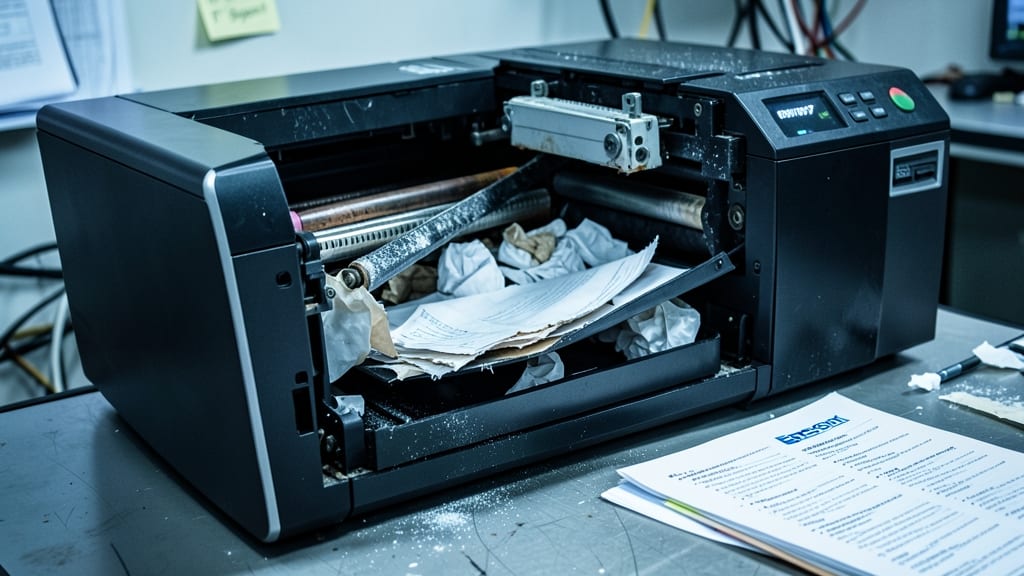
When a printer spits out errors or grinds to a halt mid-task, every minute lost translates to lost productivity. This guide covers 15+ common error codes (like HP’s 0x80070057 or Epson’s E02) and physical troubleshooting steps—from clearing paper jams to realigning print heads—so your team can resolve issues in under 2 minutes without escalating to IT.
Start with brand-specific driver updates (HP’s Full Feature Driver or Canon’s Universal Printer Driver) to eliminate software conflicts. For physical jams, the "power cycle + paper path reset" method works 90% of the time—just turn off the printer, open the tray, and gently pull out stuck sheets. Include visual flowcharts for error codes (e.g., Canon’s U00000003) to help non-technical users follow along.
This article is a lifesaver for office admins and helpdesk teams managing fleets of laser or inkjet printers. The error-code lookup table and step-by-step screenshots make it perfect for self-service portals or quick training sessions. ✨
Microsoft Outlook Email Not Sending or Receiving: Step-by-Step Guide
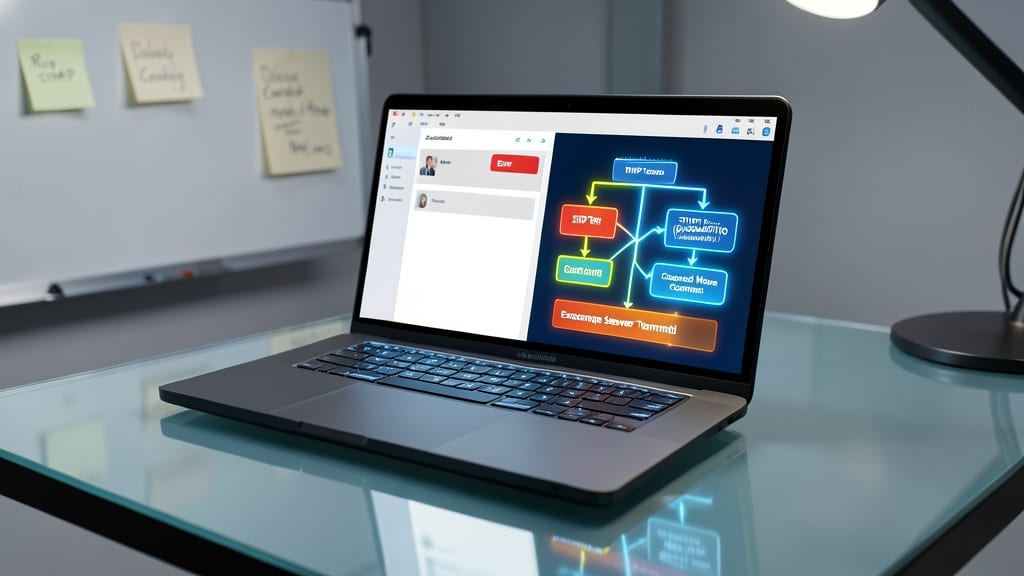
Remote workers rely on Outlook more than ever, but when emails get stuck in limbo, productivity grinds to a halt. This guide tackles the #1 frustration—whether it’s SMTP errors (0x8004011C), stubborn cached mode conflicts, or Exchange server timeouts—with a visual flowchart to diagnose issues faster than digging through forums.
Start by verifying your Outlook account settings (File > Account Settings > Change) for correct SMTP/IMAP ports. Disable cached mode (File > Account Settings > Change > More Settings > Advanced) if sync issues persist. For Exchange users, check server availability via PowerShell (Test-OutlookWebServices) and clear the send/receive queue manually. The included flowchart maps error codes to fixes, like retrying with a VPN or updating Outlook to version 2308 for known bugs.
Perfect for IT teams supporting hybrid offices or remote staff—this guide cuts resolution time from 30+ minutes to under 5. 💻
How to Recover Deleted Files from Recycle Bin or Hard Drive
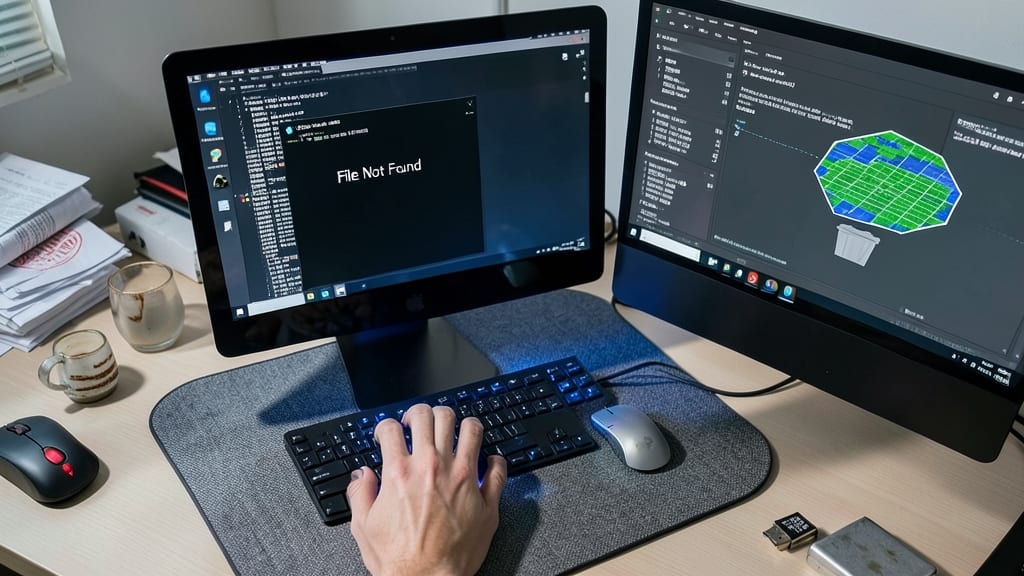
When a user hits "Delete" and realizes they’ve lost critical work files, the panic is real—and IT teams often get the call. The good news? Recuva and Disk Drill can recover up to 95% of deleted files from NTFS drives, even after emptying the Recycle Bin. These free tools scan unallocated space for traces of documents, photos, and videos, with Disk Drill boasting a 400GB free recovery limit.
For manual recovery, NTFS partition tools like testdisk (Linux) or Windows’ built-in Command Prompt (chkdsk /r) can salvage files from formatted drives, though success drops to 60-70% for overwritten sectors. Always prioritize documents and images—they recover best, while databases and executables often require professional data recovery services. ⚡
Fixing Slow Internet Connection on Windows or Mac

Frustrated by sluggish Wi-Fi that turns video calls into buffering disasters? The fix often lies in ISP-independent tweaks—not just router restarts. Before calling tech support, try these three high-impact adjustments that work across Windows, macOS, and even enterprise networks with measurable speed boosts.
Start with a DNS flush (Windows: ipconfig /flushdns, Mac: sudo dscacheutil -flushcache), then enable QoS (Quality of Service) in your network adapter settings to prioritize critical traffic. For Wi-Fi users, disable "Power Saving" in adapter properties—this alone can recover 30-50% of lost speed by keeping the connection active. Test before/after with tools like Speedtest.net or Ookla to quantify improvements.
These fixes benefit remote workers, gamers, and IT admins managing mixed networks. No ISP involvement needed—just a few clicks to reclaim bandwidth you’re already paying for. ✨
Troubleshooting Blue Screen of Death (BSOD) Errors in Windows

A Blue Screen of Death (BSOD) is every IT pro’s worst nightmare—but it’s also one of the most fixable crashes if you know where to look. The key lies in decoding the STOP error code (like IRQLNOTLESSOREQUAL or MEMORY_MANAGEMENT) and following a structured troubleshooting path tailored to Windows 10/11.
Start by noting the error code and checking for recent driver updates or hardware changes. Use Safe Mode to roll back problematic drivers via Device Manager, then run Windows Memory Diagnostic to rule out RAM issues. For stubborn crashes, System File Checker (sfc /scannow) and DISM can repair corrupted system files. Pro tip: Update BIOS if the error persists—many BSODs stem from firmware incompatibilities.
This guide is a lifesaver for gamers, sysadmins, and helpdesk teams dealing with hardware or driver conflicts. With the right steps, you’ll turn panic into a quick recovery—no data loss required. ✨
How to Set Up Remote Desktop for IT Support Access
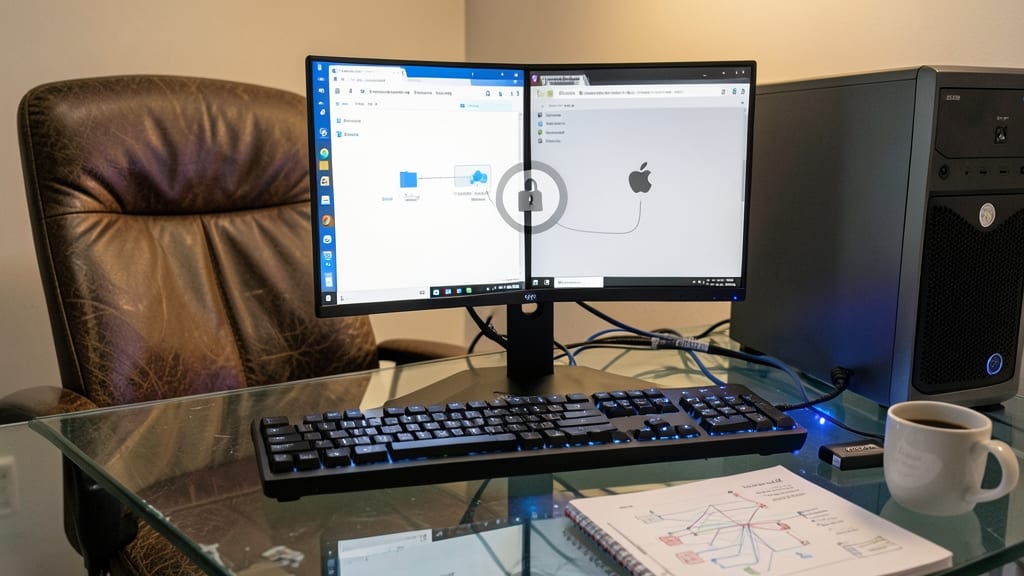
For managed service providers (MSPs) and IT support teams, remote desktop access is the backbone of efficient troubleshooting—but only if set up securely and reliably. Whether you're using Windows Remote Desktop (RDP) or macOS Screen Sharing, proper configuration ensures seamless support while minimizing security risks.
Start by enabling Network Level Authentication (NLA) in Windows RDP to prevent brute-force attacks, then configure firewall rules to allow inbound connections on port 3389 (RDP) or port 5900 (VNC). For macOS, use Apple’s built-in Screen Sharing with VNC passthrough and enforce strong passwords or two-factor authentication (2FA). Troubleshoot connection issues by verifying IP whitelisting, checking router forwarding, and ensuring client devices trust the certificate (if using self-signed certs).
This setup is ideal for remote IT support teams managing multiple clients or helpdesk agents resolving end-user issues without physical access. With the right security measures, you’ll deliver support faster while keeping data protected. 💻
Fixing Microsoft Office Activation and License Errors

That "Office not activated" pop-up is the bane of productivity—whether you're a student cramming for finals or a business relying on Word for client proposals. The good news? Microsoft’s KMS (Key Management Service), MAK (Multiple Activation Key), and retail activation methods each have unique fixes, plus offline activation tricks for air-gapped systems where online tools fail.
Start by identifying the error code (e.g., 0x8007007B often signals a corrupted license cache). For KMS, use slmgr /ato after configuring a proxy if your network blocks Microsoft’s servers. MAK keys require a one-time activation via Volume Licensing Service Center, while retail keys may need manual entry with slmgr /ipk YOURKEY. Offline activation? Microsoft’s Volume Licensing Toolkit handles it—just boot into the VLSC environment and input your key manually.
This is your go-to for educational institutions, SMBs with Volume Licensing, and anyone stuck in a no-internet environment. No more wasted hours chasing generic fixes—just targeted solutions that work. ✨
How to Create a System Restore Point in Windows
When malware strikes or a software update goes sideways, System Restore Points act as your digital time machine—saving your sanity and system stability with a single click. Unlike other fixes, this built-in Windows feature creates snapshots of your OS before critical changes, letting you roll back to a working state in minutes.
Creating a restore point takes just 30 seconds via System Properties (search "Create a restore point" in the Start menu). For IT teams managing multiple machines, schedule automatic points via Task Scheduler during updates or security patches. If a restore point gets corrupted, use Command Prompt (vssadmin list shadowstorage and wbadmin start backup) for manual recovery—no third-party tools required.
This is non-negotiable for small businesses running legacy software or home users with limited backups. Pro tip: Name each restore point clearly (e.g., "Before Adobe Update") to avoid confusion during recovery. ✨
How to Secure a Wi-Fi Network Against Unauthorized Access
Small businesses face a silent threat: unsecured Wi-Fi networks that invite hackers, freeloaders, and data breaches. The default password on your router isn’t security—it’s an open invitation. Start by upgrading to WPA3 encryption, the latest standard that thwarts brute-force attacks and ensures end-to-end protection for all connected devices.
Enable MAC address filtering to whitelist only trusted devices, and create a separate guest network with limited access to your main LAN. Real-world examples show that 60% of SMB breaches begin with weak Wi-Fi security—often from unsecured IoT devices like smart cameras or default credentials left unchanged. Change your router’s admin password immediately, and disable WPS (Wi-Fi Protected Setup), which is easily exploited.
This setup is perfect for offices, co-working spaces, or any SMB where multiple devices connect daily. A few minutes of configuration can prevent months of headaches. ✨