
PowerPoint
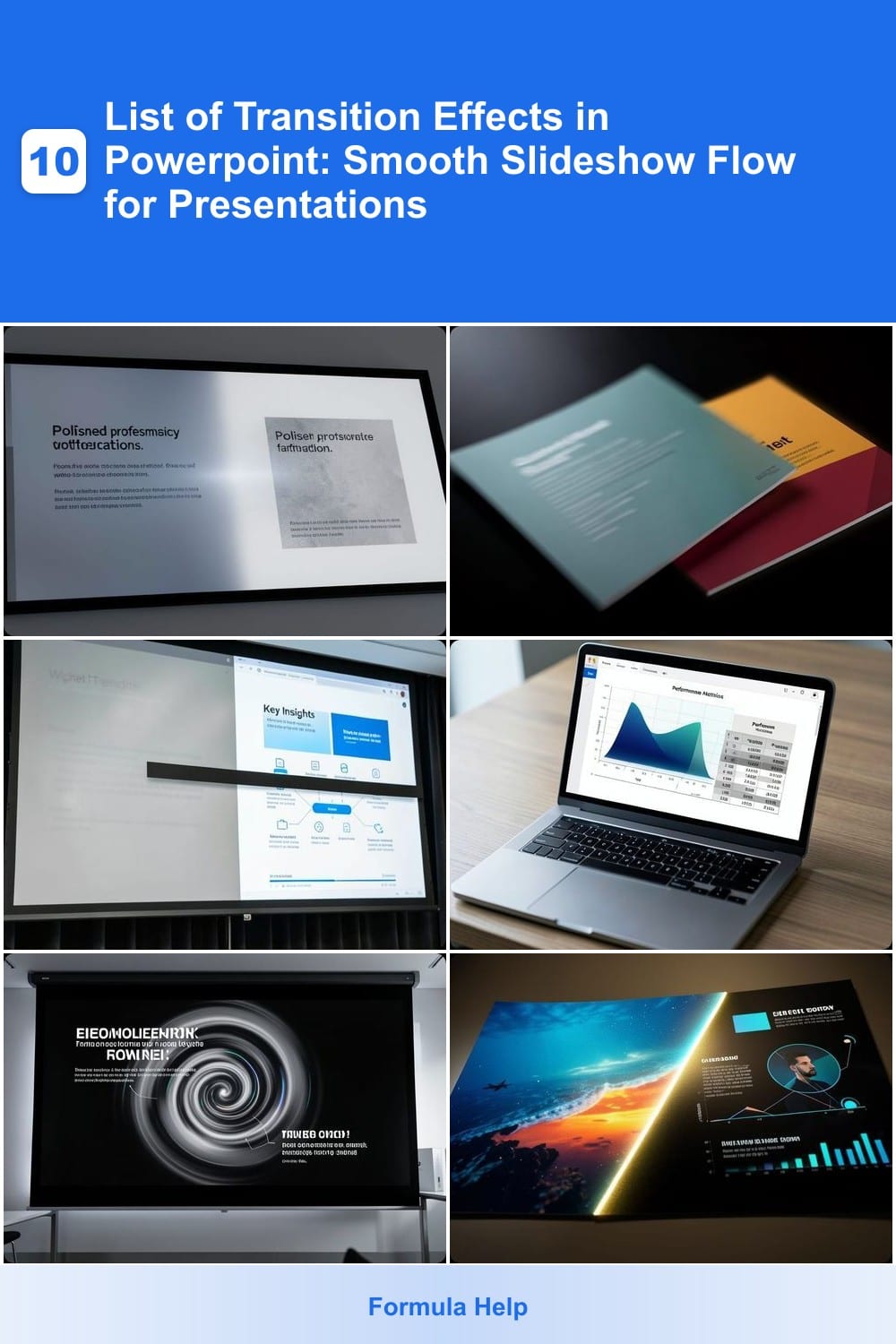
PowerPoint transitions can transform a basic slideshow into a polished, professional presentation. These seven transition effects help you control pacing, emphasize key points, and keep your audience engaged without distracting from your content.
Fade Slide Transition for Subtle Professionalism
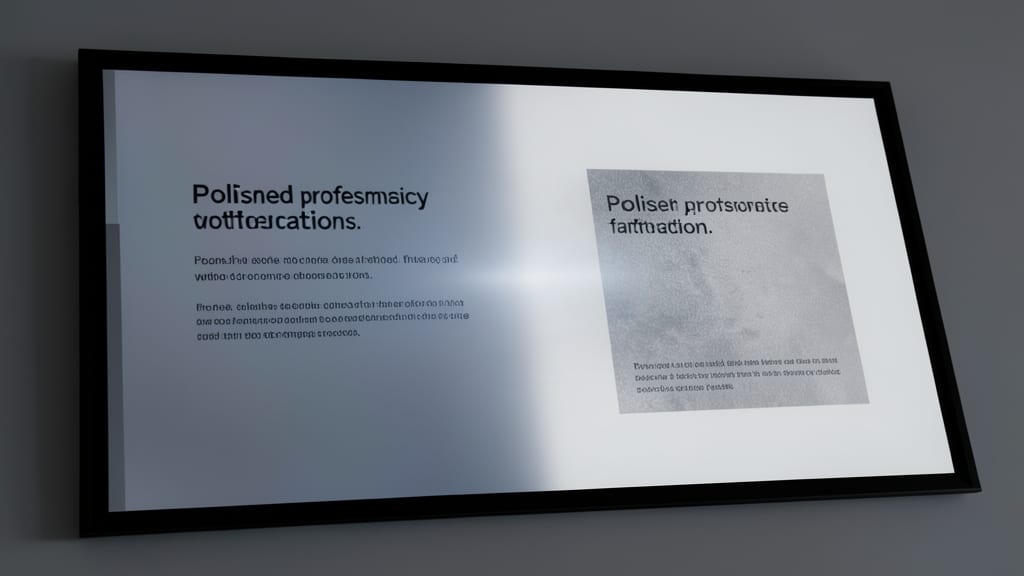
When your presentation demands polished professionalism without flashy distractions, the Fade transition is the quiet MVP of PowerPoint effects. It smoothly dissolves one slide into the next, ensuring your audience stays focused on your message—not the visuals.
Available in all modern PowerPoint versions (2016, 2019, and 365), this transition offers customizable timing (0.1s to 5s) and direction options (fade in/out). The minimalist motion preserves readability, making it perfect for data-heavy slides or executive summaries where subtlety wins.
Ideal for boardroom pitches, academic lectures, or client proposals, this transition subtly signals progression without overpowering your content. 💡
Push Slide Transition for Dynamic Movement
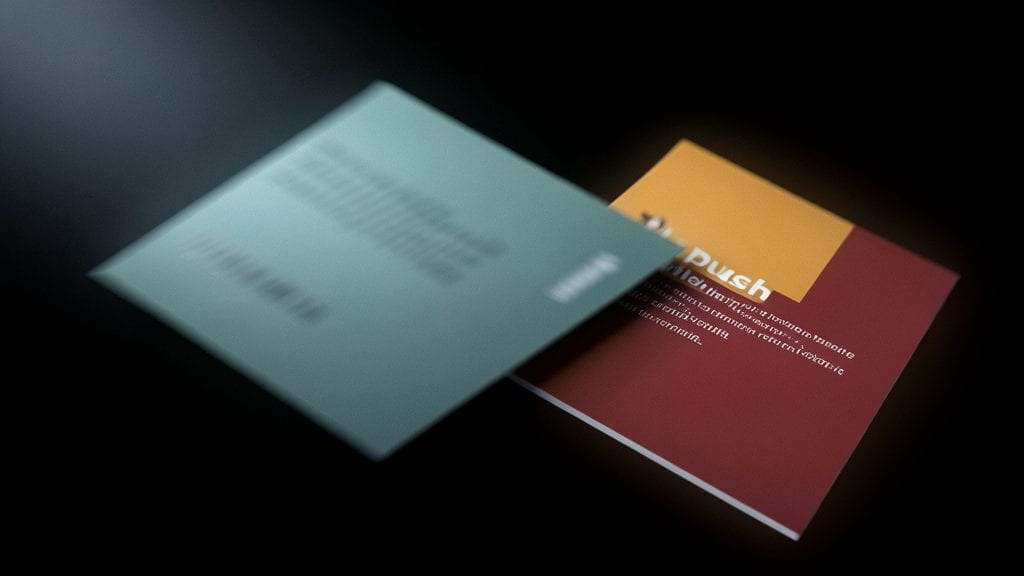
Want your slides to feel like they’re physically moving your audience through a journey? The Push transition is your secret weapon for storytelling—it mimics the action of one slide shoving the next into place, creating a sense of progression and energy.
This effect works by sliding the outgoing slide horizontally, vertically, or diagonally off-screen while the new slide glides in. You can customize the direction, speed, and sound to match your presentation’s vibe, making it perfect for marketing decks, design portfolios, or step-by-step tutorials. Unlike static fades, it adds a tactile, interactive feel that keeps viewers engaged.
Marketers and designers swear by this transition for its ability to guide attention naturally—ideal for pitches, creative demos, or any presentation where movement reinforces your message. Just don’t overuse it, or you’ll risk distracting from your content! ✨
Wipe Slide Transition for Clean Visual Breaks
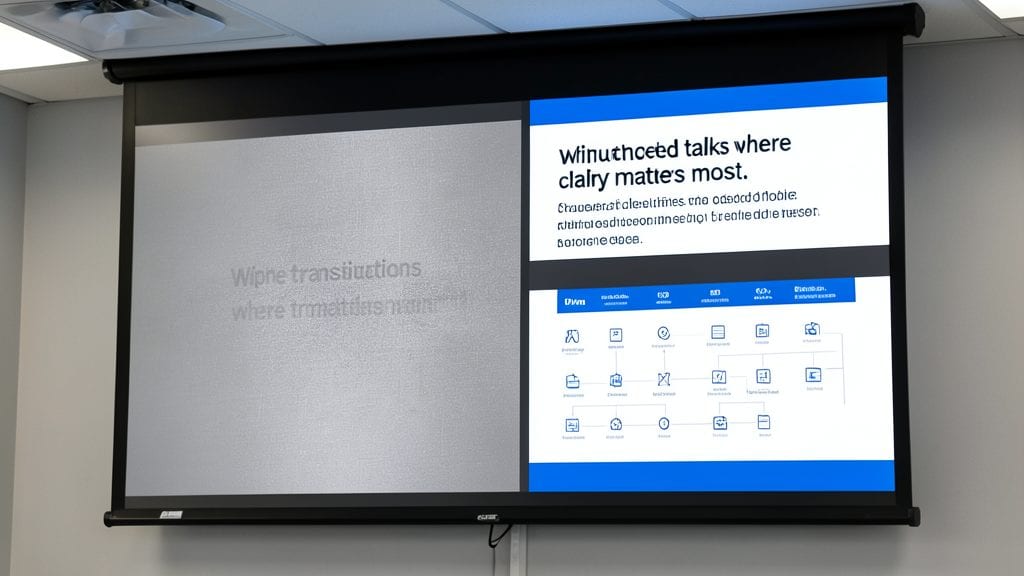
Need to reset your audience’s focus mid-presentation? The Wipe transition delivers a sharp, intentional break between slides—ideal for training modules or structured talks where clarity matters most.
Unlike smooth fades or dynamic pushes, this transition uses a clean divider line (horizontal, vertical, or diagonal) that sweeps across the screen, instantly signaling a new topic. It’s built into PowerPoint 2016 and later, including PowerPoint for Mac, and works seamlessly with timed or click-based triggers. The effect’s precision makes it perfect for section headers or key takeaways where you want to avoid visual clutter.
Trainers, educators, and presenters leading multi-part discussions will appreciate how this transition prevents audience confusion by visually separating ideas. Pair it with a bold color scheme for even greater impact. ✨
Morph Slide Transition for Seamless Data Flow
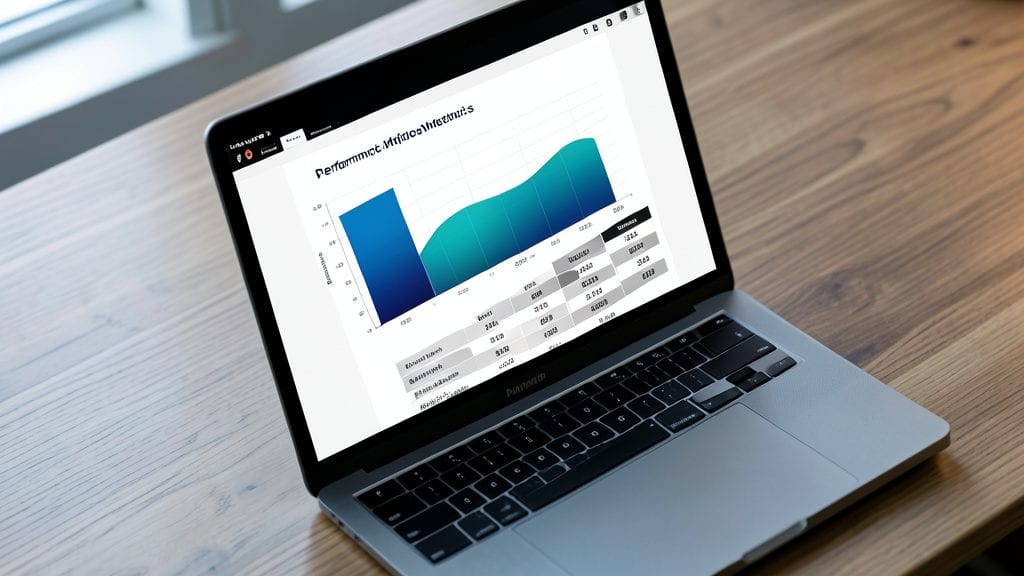
When your slideshow hinges on precise data—like financial projections or performance metrics—the Morph transition in PowerPoint becomes a game-changer. Unlike abrupt cuts or dramatic movements, this effect seamlessly animates changes between similar slides, ensuring graphs, tables, and charts transform fluidly without losing clarity.
Available in PowerPoint 2016 and later (including Mac and Office 365), Morph works best with identical slide layouts—think bar charts evolving into line graphs or pivot tables updating values. The transition speed is fully customizable, and you can even lock objects to prevent unintended movement. For analysts and executives, this means delivering complex data with a polished, distraction-free flow.
Perfect for financial reports, research presentations, or dashboards, Morph ensures your audience stays focused on the numbers—not the transition. ✨
Zoom Slide Transition for Highlighting Key Slides
Need to make a specific slide feel like the climax of your presentation? The Zoom transition creates a cinematic effect by zooming out from one slide to reveal the next—perfect for product demos or keynote moments where you want to command attention.
Available in all modern PowerPoint versions (including PowerPoint 365 and 2019), this transition lets you adjust the zoom speed and direction (horizontal, vertical, or diagonal) for maximum impact. Pair it with a black slide background for dramatic contrast or a white slide for a sleek, modern look.
Ideal for speakers who want to visually punctuate key takeaways—think product launches, investor pitches, or conference talks where you need to highlight a single slide without overwhelming the audience. ✨
Split Slide Transition for Creative Storytelling
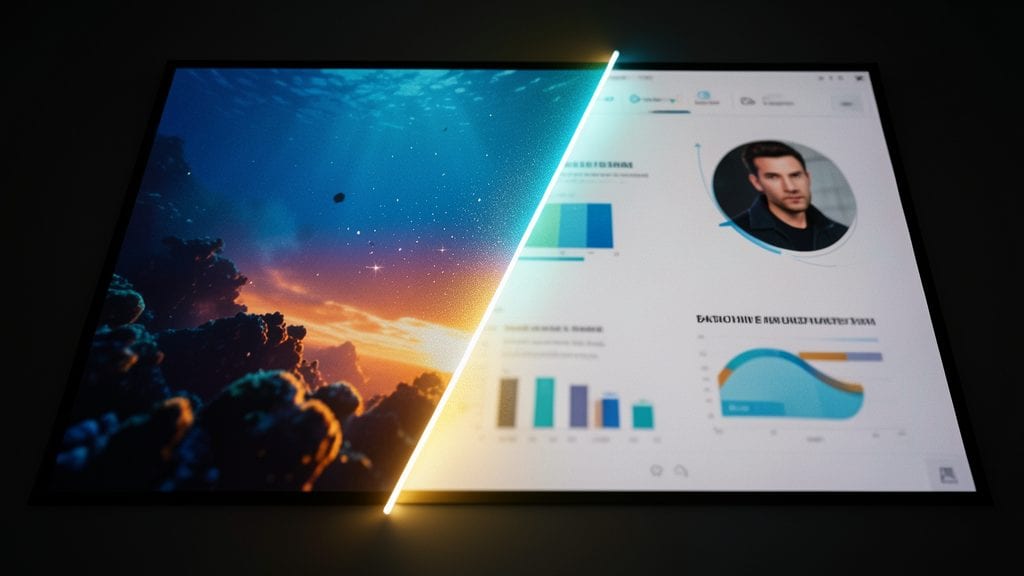
When you want to turn a simple slideshow into a cinematic storytelling experience, the Split transition is your secret weapon. Unlike standard transitions, it divides your slide into two parts—either horizontally or diagonally—and slides them apart to reveal the next one, creating a dynamic, almost theatrical effect.
This effect works in PowerPoint 2013 and later, including the Mac version, and offers two customizable split directions: horizontal (top/bottom) or diagonal (left/right). The speed and direction can be adjusted to match your presentation’s tone, making it ideal for educational content or inspirational talks where you want to emphasize a shift in narrative or theme.
Perfect for teachers, coaches, or speakers who want to visually reinforce transitions between ideas—like moving from a problem to a solution or a past event to a future vision. Just don’t overuse it, or you’ll risk distracting from your message! ✨
Random Bars Slide Transition for Playful Energy
Tired of predictable slide transitions? The Random Bars effect turns your presentation into an interactive experience by dissolving colorful geometric bars into the next slide in an unpredictable pattern—no two transitions will ever look the same.
Available in PowerPoint 2016 and later, this effect adds a playful, abstract touch that keeps audiences engaged without overwhelming them. The bars can be customized in size, color, and speed, making it perfect for brainstorming sessions or creative workshops where energy and spontaneity matter more than formality.
Ideal for teams that want to break the monotony of standard transitions, this effect thrives in casual or collaborative settings where a little whimsy goes a long way. ⚡