
Software
Microsoft Edge packs powerful features most users overlook. These seven expert tips will transform your browsing experience—boosting speed, security, and productivity without complex setups.
Enable Vertical Tabs for Better Multitasking
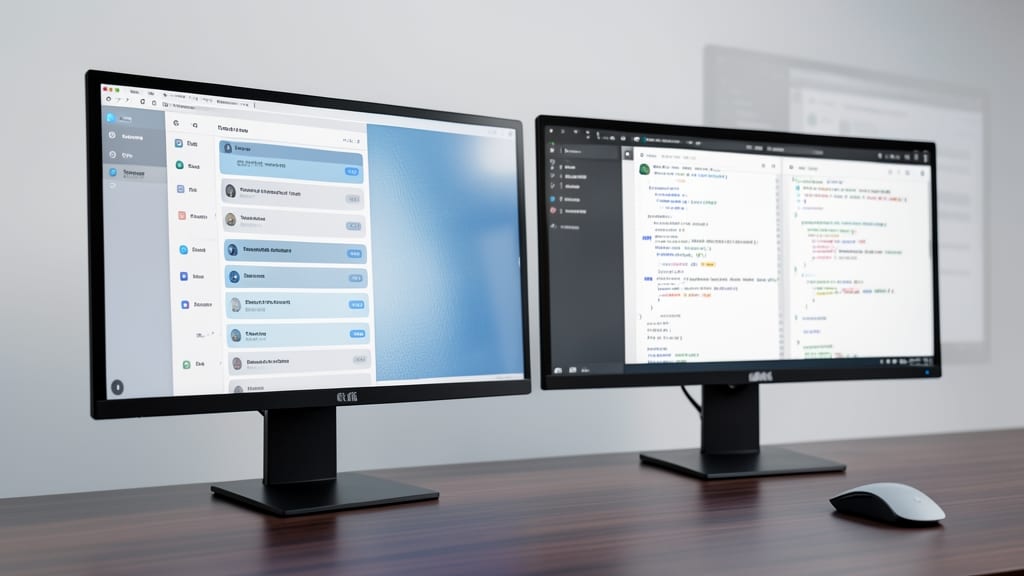
Tired of tabs crowding your screen and wasting precious workspace? Microsoft Edge’s vertical tabs feature transforms your browsing into a sleek, organized workflow—perfect for developers juggling code repositories or writers comparing research sources.
With just a few clicks, you can switch from horizontal chaos to a clean, stacked vertical layout that maximizes screen real estate. The feature works seamlessly with Edge’s Collections tool, letting you pin essential tabs while keeping others accessible. For power users, this setup eliminates the need for external tab managers and reduces accidental tab closures.
Developers debugging across multiple files or researchers cross-referencing articles will love how this space-saving design keeps everything visible without scrolling. Enable it in Settings > Appearance and watch your workflow transform. ✨
Use Immersive Reader for Distraction-Free Reading

Drowning in dense PDFs or research papers? Microsoft Edge’s Immersive Reader strips away distractions with a dyslexia-friendly, ad-free interface designed for deep focus. It’s like having a personal reading coach—adjusting font size, spacing, and even text color to match your needs.
With line-by-line highlighting and text-to-speech options, this tool transforms complex documents into digestible chunks. The zero-config setup works instantly on web pages, PDFs, and Office files—no extensions or plugins required. For students or researchers, it’s the ultimate productivity hack for tackling heavy reading loads.
Perfect for anyone who struggles with cluttered screens or needs to absorb information quickly, Immersive Reader turns your browser into a focused workspace. 💡
Customize Start Page with Web Search Shortcuts

Tired of digging through endless bookmarks just to find your go-to tools? Microsoft Edge’s customizable Start Page lets you replace clutter with one-click shortcuts to search engines, apps, or internal tools—no scrolling required.
Create shortcuts for Google, Bing, or DuckDuckGo with custom search keywords (e.g., type "gh" to search GitHub instantly). Add productivity apps like Trello, Notion, or even your company’s internal wiki—all pinned where you’ll see them. The drag-and-drop editor makes it effortless to rearrange or hide shortcuts you rarely use.
This is a game-changer for developers, freelancers, or office workers who juggle multiple tools daily. Spend less time hunting and more time getting things done. ✨
Enable Dark Mode for Battery Life and Eye Strain
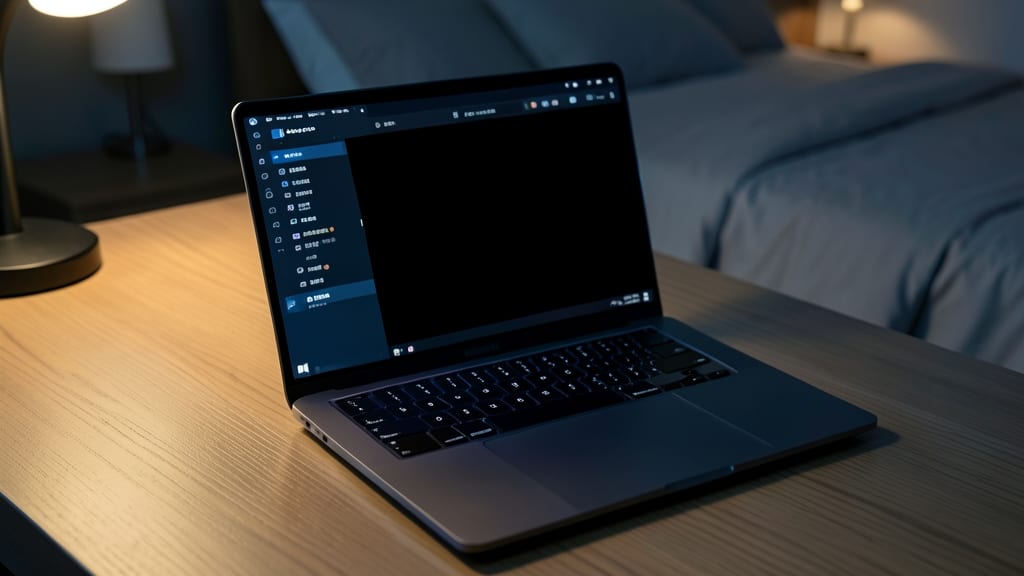
Late-night browsing or staring at a bright screen all day? Microsoft Edge’s Dark Mode is your secret weapon—reducing eye strain while saving battery life on laptops with OLED displays (where black pixels consume zero power). The sleek, high-contrast design isn’t just visually appealing; it’s a productivity boost for developers debugging code at 2 AM or anyone working in low-light conditions.
Enable it in Settings > Appearance with a single toggle, and choose between default dark or custom colors to match your workflow. For Windows 10/11, Dark Mode syncs across devices via Microsoft account, ensuring consistency. The feature also works seamlessly with Edge’s Collections tool, making saved research or notes pop against the dark backdrop without glare.
Night shift users, gamers, or anyone with sensitive eyes will notice the difference immediately. It’s the perfect balance of comfort, performance, and style—no extensions or extra steps required. 🌟
Use Collections to Organize Research Instantly
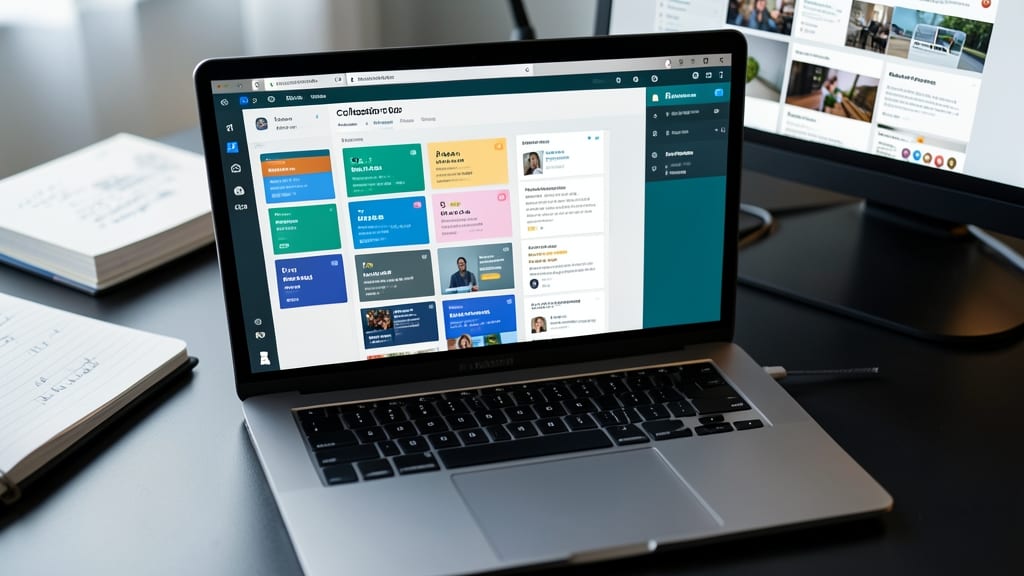
Struggling to keep track of research across multiple tabs and sources? Microsoft Edge’s Collections feature turns scattered web findings into visual, shareable boards—no extensions or extra tools needed. It’s like having a digital notebook built right into your browser.
With drag-and-drop organization, you can save articles, images, and notes into categorized boards (e.g., "Project X" or "Travel Plans"). The one-click sharing lets you export collections as PDFs or links, perfect for journalists, students, or anyone compiling information. Unlike bookmarks, Collections preserve context—highlight key passages, add sticky notes, and even embed tweets or maps directly into your board.
Journalists drafting stories or students synthesizing sources will love how Collections eliminates tab clutter while keeping everything searchable. Best of all, it syncs across devices, so your research stays accessible whether you’re at a library or a café. 💻
Block Trackers with Privacy Dashboard Controls
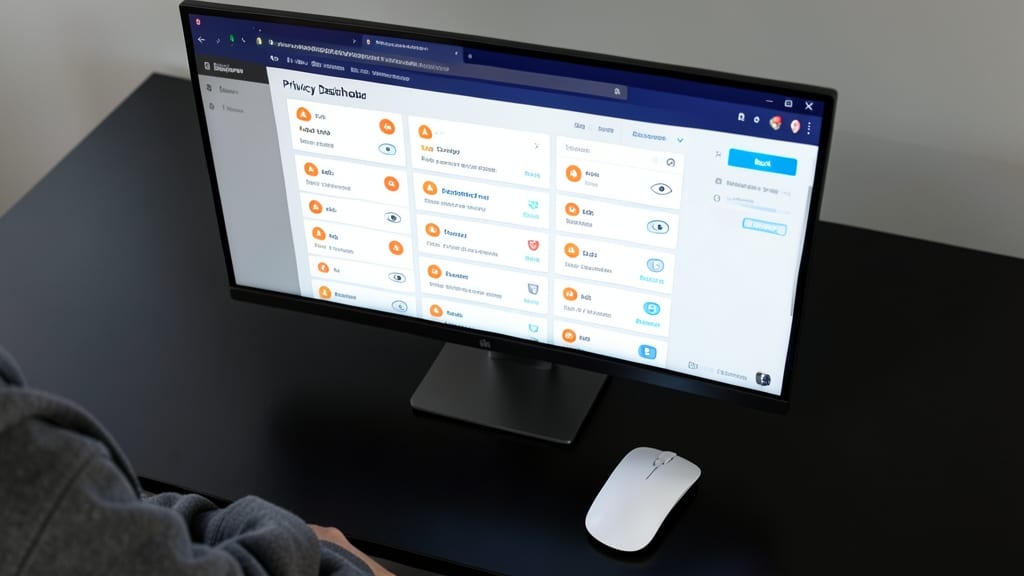
Worried about websites tracking your every move while browsing? Microsoft Edge’s Privacy Dashboard puts you in control with real-time tracker blocking—no extensions required. This built-in tool lets you see exactly which third-party trackers are trying to collect data, then block them with a single click.
The dashboard breaks down trackers by category (ads, social media, analytics) and shows how many are active on each site. You can block all trackers for maximum privacy or whitelist trusted sites for convenience. Unlike generic ad blockers, Edge’s system is transparent and customizable, so you’re never left guessing what’s being blocked.
This is perfect for privacy-conscious users who want to limit data collection without sacrificing functionality. Journalists, researchers, or anyone handling sensitive info will appreciate the granular control over their digital footprint. 💡
Speed Up Loading with Predictive Preloading
Frustrated by slow page loads when jumping between articles or internal docs? Microsoft Edge’s predictive preloading feature uses AI-powered predictions to silently load the next page you’re likely to visit—before you even click. Think of it as a browser that reads your mind (well, your browsing habits).
This smart tool analyzes your navigation patterns and preloads content in the background, cutting wait times by up to 30% for frequent visitors to news sites, corporate intranets, or even e-commerce stores. It’s especially useful when you’re deep in a workflow—like reading a multi-page report or scrolling through breaking news—where every second counts. The best part? It works automatically with no extra setup.
Ideal for professionals who spend hours daily on repetitive sites, this feature turns passive browsing into an active optimization. Just enable it in Settings > System > Predictive preloading and let Edge handle the rest. ⚡