
Tip & Trick
Microsoft OneNote 2013 remains a powerhouse for digital note-taking, but most users only scratch the surface. These seven hidden features will transform how you organize information, collaborate, and streamline workflows—without requiring advanced tech skills.
Quick Capture with OneNote Clipper Browser Extension
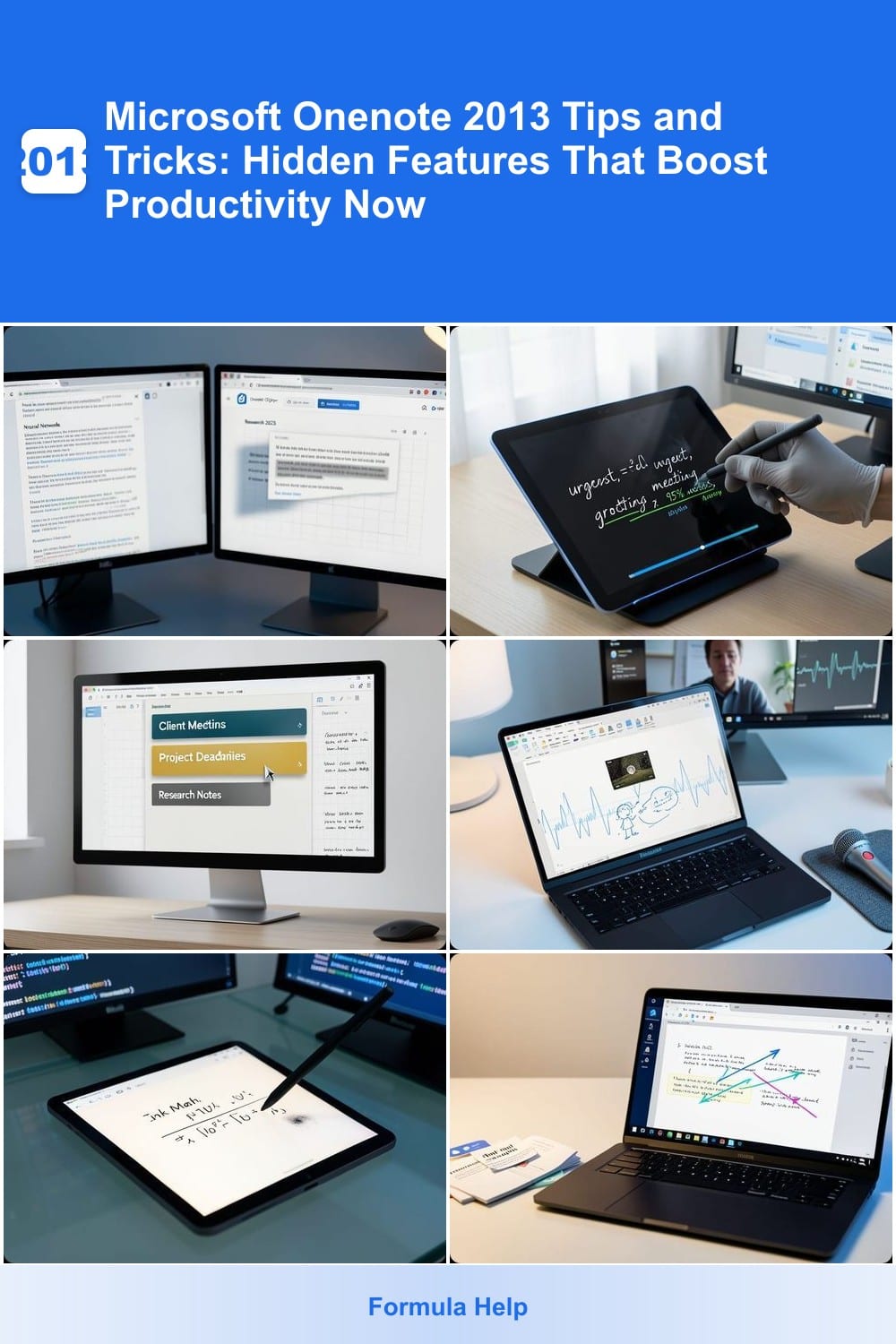
Stuck scrolling between tabs to save research or inspiration? The OneNote Clipper browser extension lets you instantly clip entire web pages, articles, or even specific sections—without leaving your browser. Just click the Clipper icon, choose your content, and it appears in your notebook in seconds.
You can save full pages, images, or selected text blocks with one click, and the extension preserves formatting, images, and links. Works with Chrome, Firefox, and Edge, and integrates seamlessly with your existing OneNote notebooks. The lightning-fast capture means no more lost tabs or forgotten bookmarks—just pure efficiency.
Perfect for journalists, researchers, or professionals who need to curate content on the fly. Try it next time you’re multitasking across devices—your productivity will thank you. ⚡
Handwriting to Text Conversion for Notes
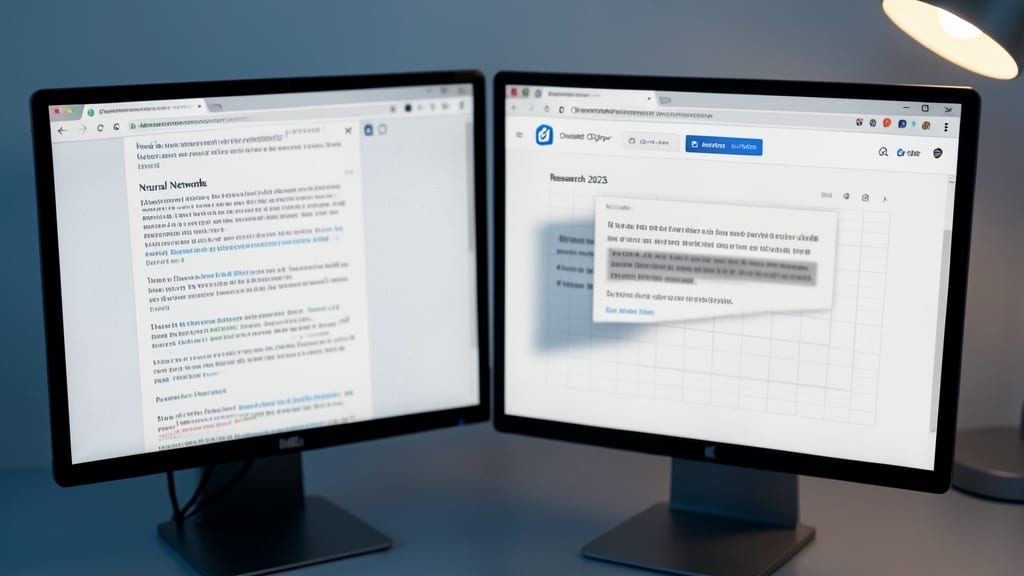
Love taking notes by hand but hate losing them in a digital black hole? OneNote 2013’s handwriting-to-text conversion turns your scribbles into editable digital text with 95% accuracy—no retyping required. Simply draw or write on your screen, and the app instantly recognizes words, numbers, and even bullet points, converting them into searchable text.
The feature works with any ink—whether it’s messy lecture notes, precise meeting minutes, or doodles with embedded text. You can even edit the converted text directly, making it perfect for students transcribing class notes or professionals digitizing handwritten reports. The OCR engine handles most handwriting styles, and you can fine-tune recognition by training the system to your personal script.
This is a game-changer for hybrid note-takers—those who love the tactile feel of pen-and-paper but need the flexibility of digital search and editing. Try it next time you’re jotting down ideas on-the-go! ✨
Section Tabs for Organizing Large Notebooks
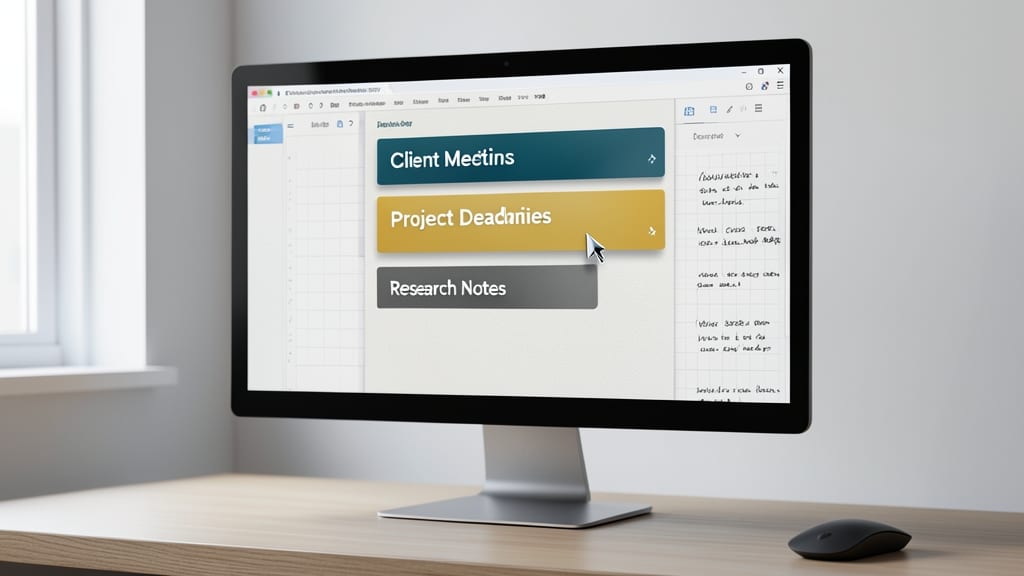
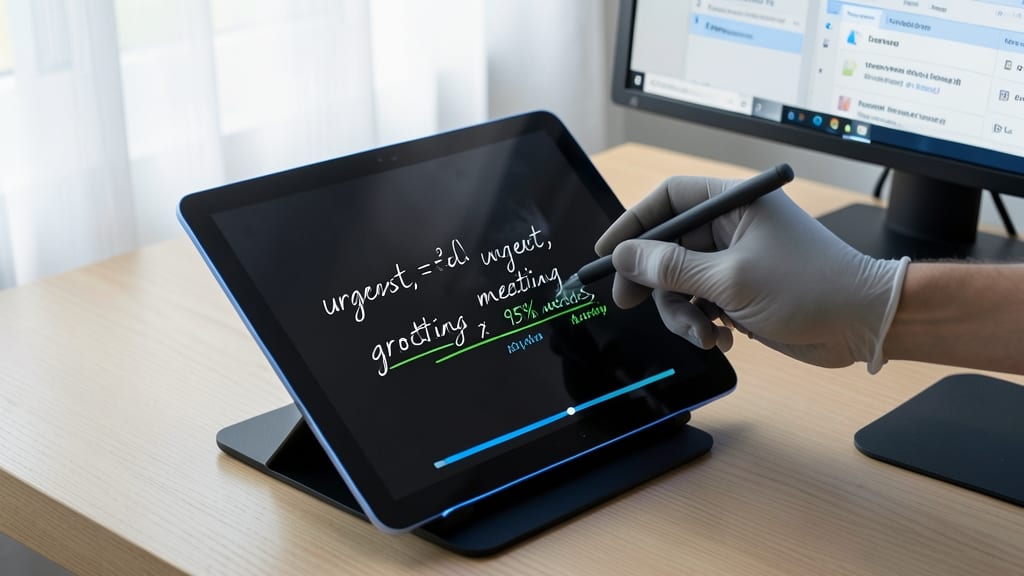
Tired of scrolling through endless pages in OneNote 2013 to find what you need? Custom section tabs turn your digital notebook into a visual table of contents—no more lost notes in the chaos.
Right-click any section header to rename it with labels like "Client Meetings" or "Project Deadlines." Use color-coding (blue for urgent, green for reference) to instantly spot categories. This works seamlessly in notebooks with hundreds of pages, letting you collapse irrelevant sections with one click. The best part? You can drag and rearrange tabs without breaking links.
Perfect for project managers, students juggling courses, or anyone drowning in digital clutter. Say goodbye to the "Where did I put that?" frustration. ✨
Audio and Video Recording Directly in Notes
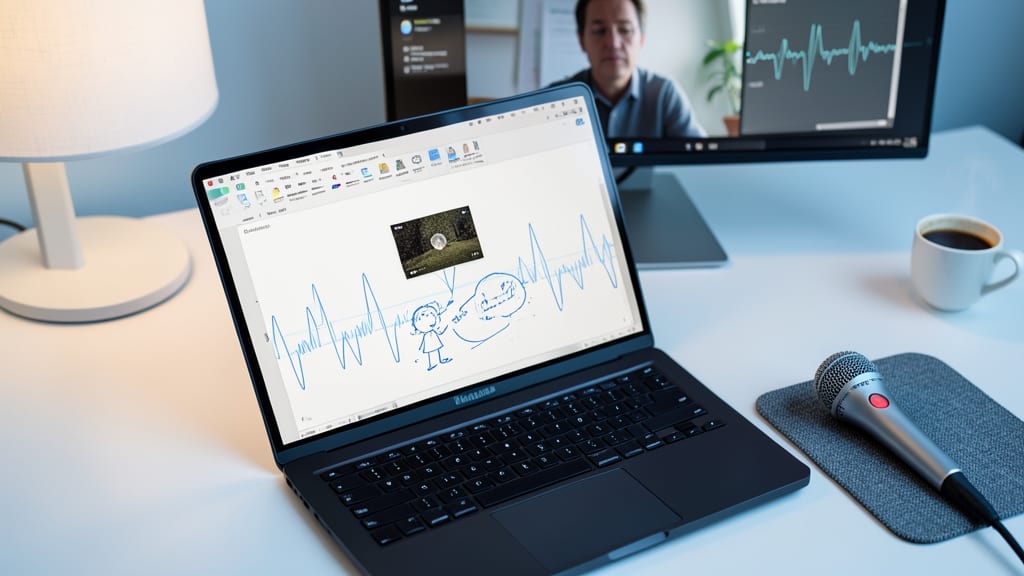
Tired of juggling separate apps for voice memos and screen recordings? OneNote 2013 lets you embed audio and video directly into your notes with just a few clicks—no extra software needed. Simply hit the record button, and your lecture notes, brainstorming sessions, or quick tutorials become multimedia-rich without leaving the app.
You can capture voice memos (up to 120 minutes per file) or screen recordings (with optional system audio) and attach them to any page. The recordings appear as playable media clips, so you can revisit them anytime. Perfect for students reviewing lectures, developers debugging live, or anyone who needs to document ideas on the fly.
This feature is a game-changer for remote teams, educators, and solo creators who want to keep everything in one place. No more lost files or app-switching—just seamless integration into your workflow. ⚡
Math Equation Solver with Ink
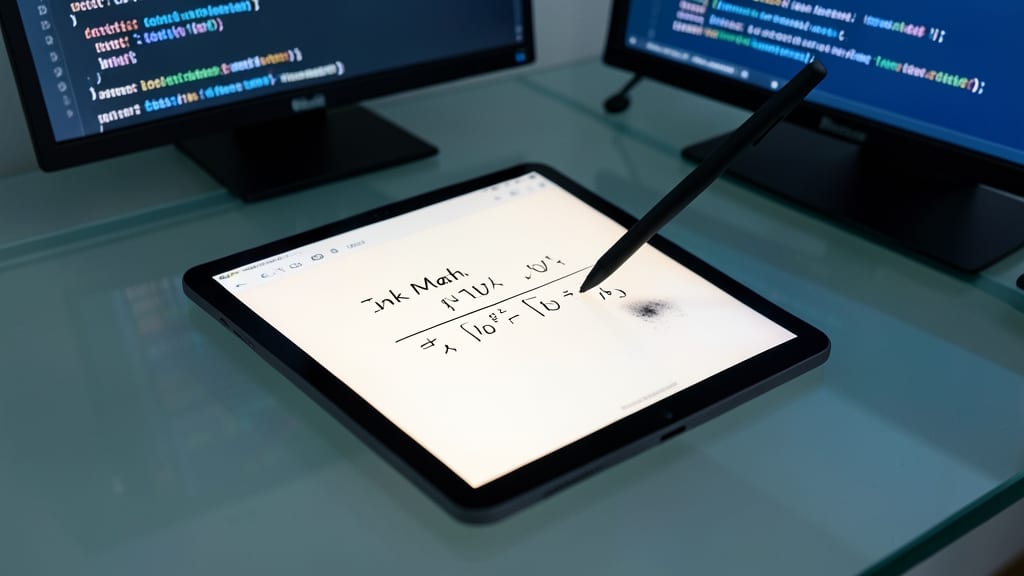
Tired of fumbling with LaTeX or typing complex equations manually? OneNote 2013’s Ink Math feature lets you sketch equations by hand, then instantly converts them into precise, editable digital formulas—no extra tools required.
Simply use a stylus or your finger to write equations (like derivatives or integrals) on your screen. OneNote recognizes the symbols, formats them correctly, and even solves them if you need a quick answer. The feature supports 2D math notation, meaning you can write fractions, exponents, and matrices just as you would on paper.
Engineers, students, and data analysts will love how this eliminates typos and speeds up workflows. Whether you're drafting a research paper or solving homework problems, this tool turns your notebook into a smart math assistant. ✨
Shared Notebooks with Real-Time Collaboration
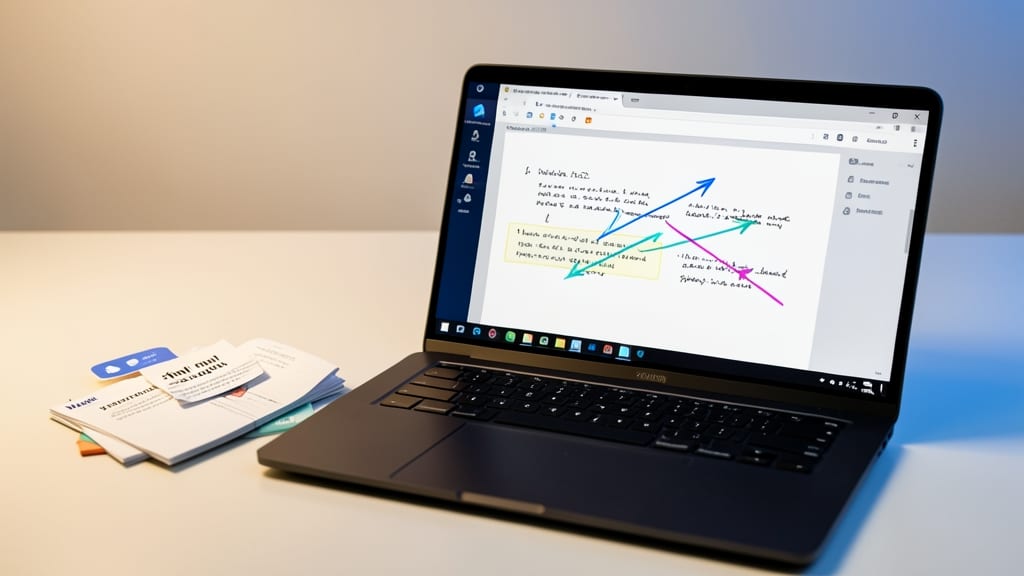
Ever felt like your team’s notes are scattered across emails, Slack threads, and half-finished documents? OneNote 2013’s shared notebooks solve that by letting you invite collaborators to edit the same notebook in real time—no version conflicts or “finalfinalv2.docx” chaos.
With live cursors and typing indicators, you’ll instantly see who’s working on what, making brainstorming sessions or project updates seamless. Permissions let you control who can edit, comment, or just view, while cloud sync ensures everyone sees the latest changes—even if they’re halfway across the country. No more “I thought you updated that!” moments.
This is the go-to tool for remote teams, student study groups, or anyone juggling multiple contributors. Say goodbye to email chains and hello to a single, always-updated workspace. ✨
Tagging System for Quick Note Retrieval
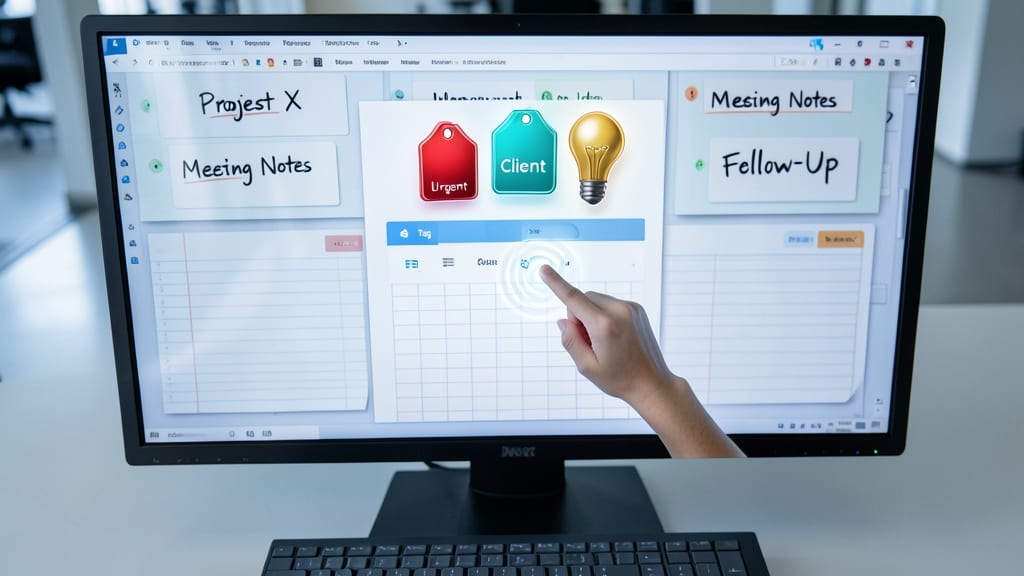
Drowning in a sea of notes? OneNote 2013’s tagging system turns chaos into clarity with just a few clicks. Instead of digging through endless pages, assign custom tags like ‘Urgent’, ‘Client’, or ‘Idea’ to instantly filter your content—no complex folders required.
You can tag entire pages, sections, or even specific parts of a note. The search bar dropdown lets you jump straight to tagged items, while color-coded labels (red for deadlines, blue for projects) make prioritization visual at a glance. Combine tags with keywords for laser-focused searches—perfect for professionals juggling multiple priorities.
This feature is a game-changer for project managers, students, or anyone who needs to retrieve information fast. Say goodbye to lost notes and hello to effortless organization. ✨