
Tip & Trick
Microsoft Teams is a powerhouse for collaboration, but most users only scratch the surface. These 10 underutilized 2023 features will transform how you manage meetings, organize files, and streamline workflows—saving you hours every week.
Create Instant Polls During Meetings
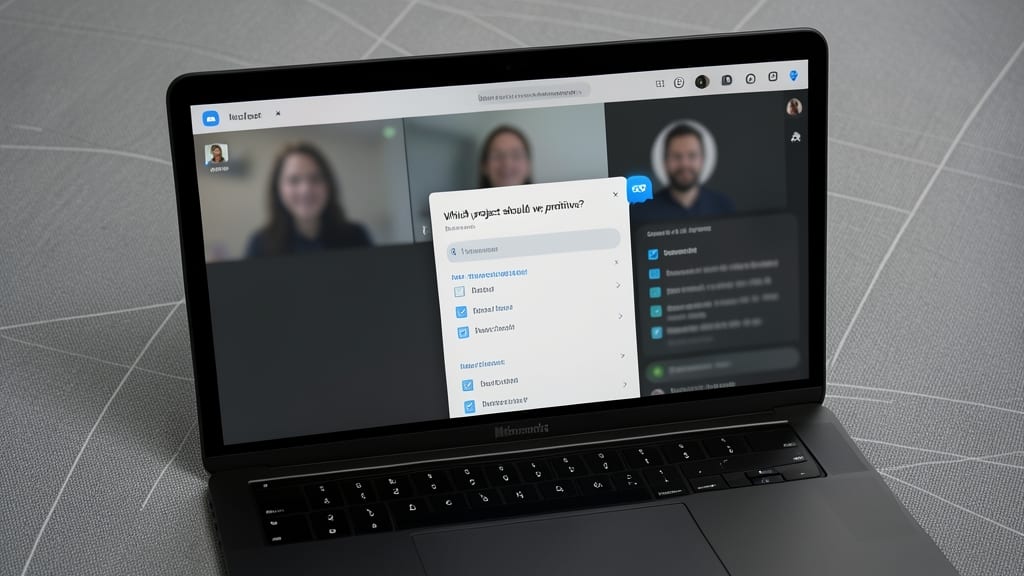
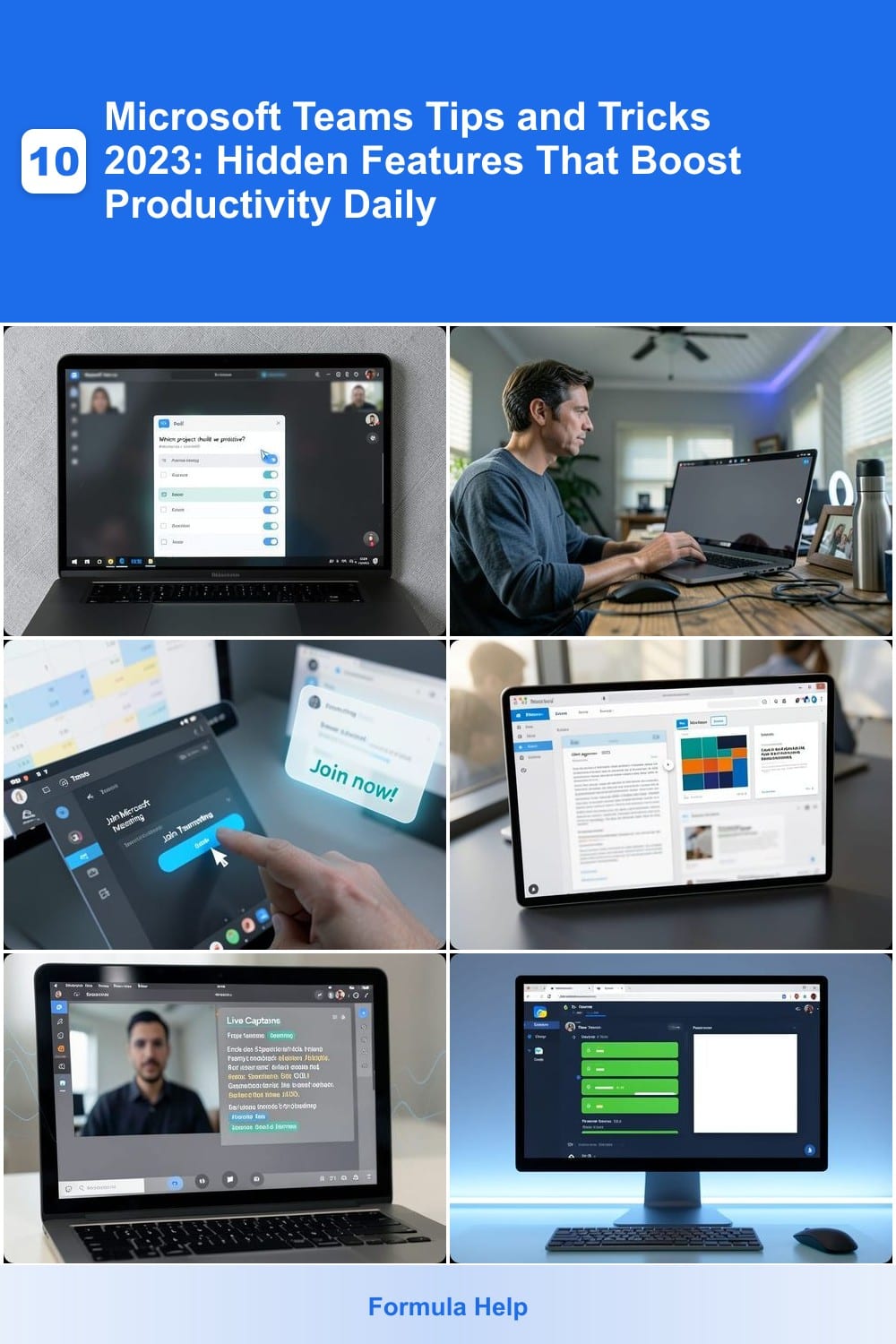
Need to make decisions faster during virtual meetings? Microsoft Teams’ instant polls let you create and launch surveys in seconds—no external tools required. Simply click the poll icon in a meeting, type your question (e.g., "Which project should we prioritize?"), and add up to 10 answer options. Results appear in real-time, so everyone sees the collective feedback immediately.
This feature works with multiple-choice, emoji reactions, or even custom questions, making it perfect for brainstorming sessions or quick votes. You can also export results to PowerPoint or Excel for follow-up discussions. The best part? No one has to leave the call—just keep the conversation flowing while gathering input effortlessly.
Ideal for team leads, product managers, or facilitators, this trick turns passive meetings into interactive discussions. Perfect for when you need to align on decisions without lengthy email threads. ✨
Use Background Blur for Virtual Meetings

Working from a cluttered home office or dealing with noisy background distractions? Microsoft Teams' background blur feature is your secret weapon—it keeps the focus on you while subtly obscuring anything that might reveal too much about your personal space.
With just one click, you can enable AI-powered blur that smooths out messy rooms, pets, or even that pile of laundry in the corner. The feature works in real-time and adapts to lighting conditions, ensuring professionalism without needing a green screen. For extra privacy, combine it with virtual backgrounds (like a sleek office or abstract pattern) for a polished look.
This is especially useful for freelancers, consultants, or remote workers who need to maintain professionalism while working from unconventional spaces. No more awkward pauses or background interruptions—just clear, distraction-free conversations. 💻
Schedule Meetings with One-Click Joins
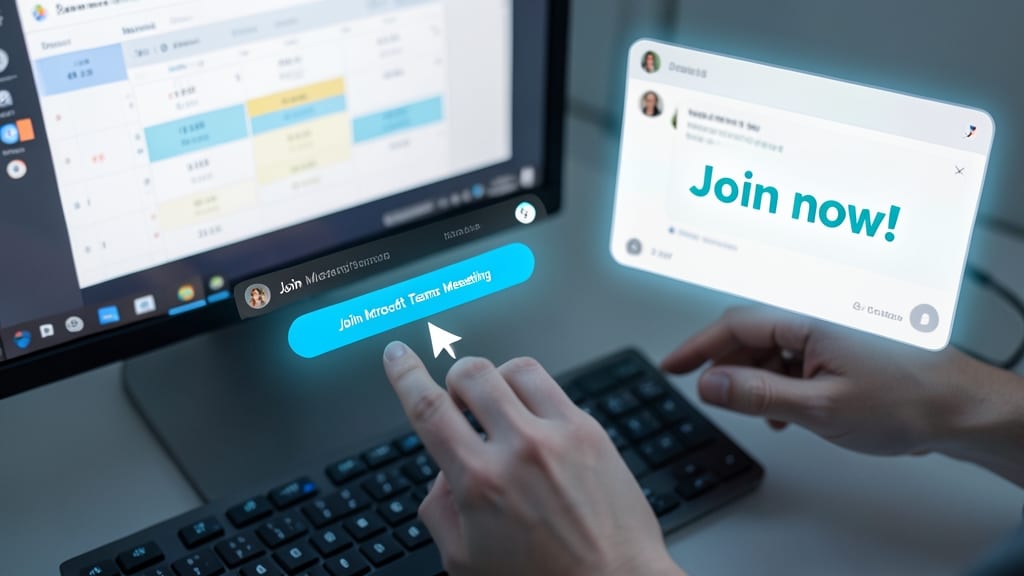
Tired of back-and-forth emails trying to sync schedules? Microsoft Teams now lets you generate direct join links for meetings—no calendar invites needed. Simply click "Join Microsoft Teams Meeting" when scheduling, and share the link instantly. This eliminates timezone conflicts and reduces scheduling fatigue for global teams.
The link works on any device and includes a customizable meeting ID for security. You can also set recurring meetings with a single link, so team members always know where to go. Best of all, it syncs with Outlook, so your calendar stays clean while keeping collaboration seamless.
Perfect for remote teams, client calls, or quick standups—this feature saves time and cuts down on meeting prep headaches. ⚡
Pin Important Files in Channels
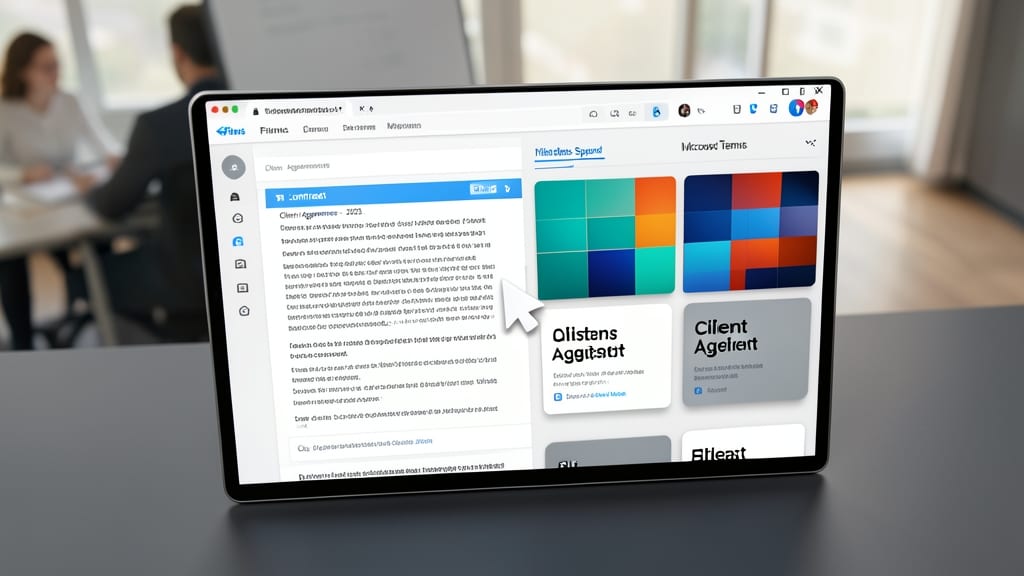
Tired of scrolling through endless files in your Teams channels? The pin feature lets you highlight up to 5 critical documents at the top of any channel—so contracts, design specs, or client agreements stay visible without overwhelming your team.
To pin a file, simply right-click it in the Files tab and select "Pin to channel". These files will appear in a dedicated "Pinned" section, ensuring everyone sees them instantly. You can even pin entire folders for larger projects, keeping everything organized while maintaining quick access.
This is a game-changer for project managers, legal teams, or HR departments who need to reference key documents frequently. No more lost files or missed deadlines—just seamless collaboration. ✨
Enable Live Captions for Accessibility
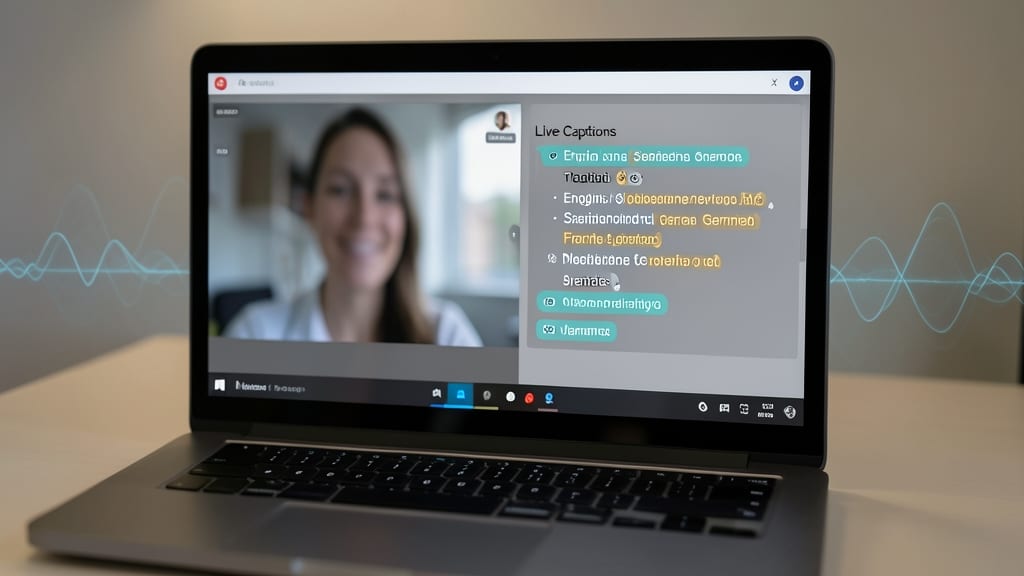
Struggling to follow meetings in noisy environments or worried about missing key details? Microsoft Teams' Live Captions feature delivers real-time transcription that works in multiple languages—including English, Spanish, French, German, and Japanese—directly in your meeting window.
Simply toggle it on during a call, and captions appear at the bottom of your screen with less than 1-second delay. This isn’t just for accessibility—it’s a lifesaver for non-native speakers or anyone who prefers reading over listening in chaotic settings. The feature also supports background noise filtering, so distractions like construction or chatter won’t disrupt comprehension. ⚡
Use Teams Tabs for App Integration
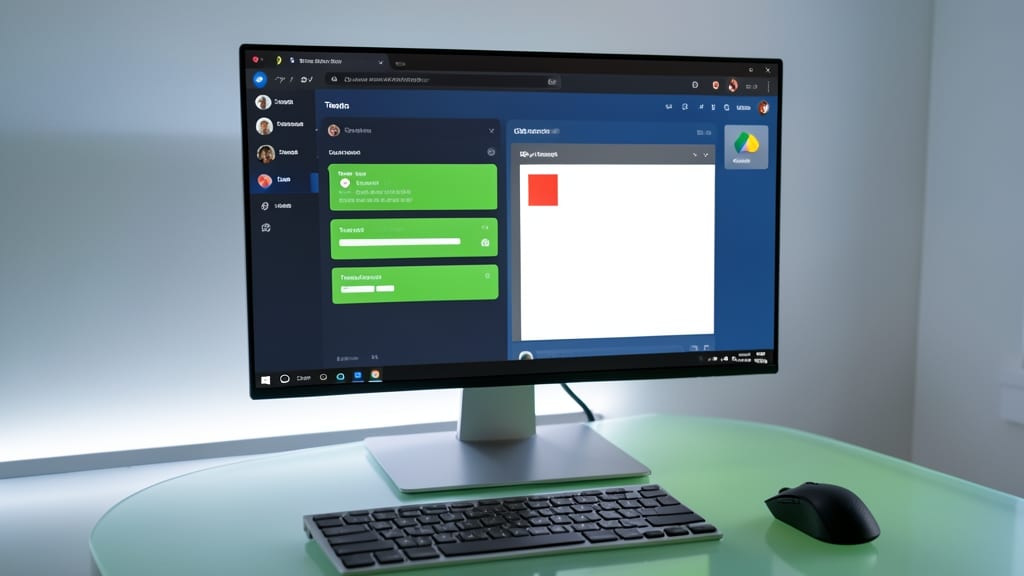
Tired of bouncing between apps during team discussions? Teams Tabs lets you embed Trello boards, PowerPoint decks, or Google Drive files directly into channels—so everything stays visible without leaving the conversation.
Simply click the "+" button in a channel, search for your favorite app (like Asana, Notion, or even Power BI), and pin it for instant access. No more tab-switching—just seamless collaboration. The real-time updates feature ensures everyone sees the latest version of shared files, making project tracking effortless.
This is a game-changer for marketing teams managing campaigns or developers reviewing code snippets—keeping all tools in one place where the discussion happens. 💻
Set Custom Meeting Notifications
If back-to-back meetings are draining your focus, custom meeting notifications in Microsoft Teams let you take control. Instead of default alerts that interrupt your workflow, you can adjust when and how you receive reminders—whether it’s a quiet desktop pop-up or a subtle mobile vibration.
Navigate to Settings > Notifications and toggle options like meeting reminders, joining notifications, or chat interruptions. For developers, set silent alerts during coding sprints, while executives can prioritize high-impact meetings with louder alerts. Pro tip: Use the “Do Not Disturb” toggle to pause all notifications during deep work blocks.
This feature is a lifesaver for anyone juggling collaboration and focus—especially if you’re drowning in meeting fatigue. ⚡
Record Meetings Automatically with Transcripts
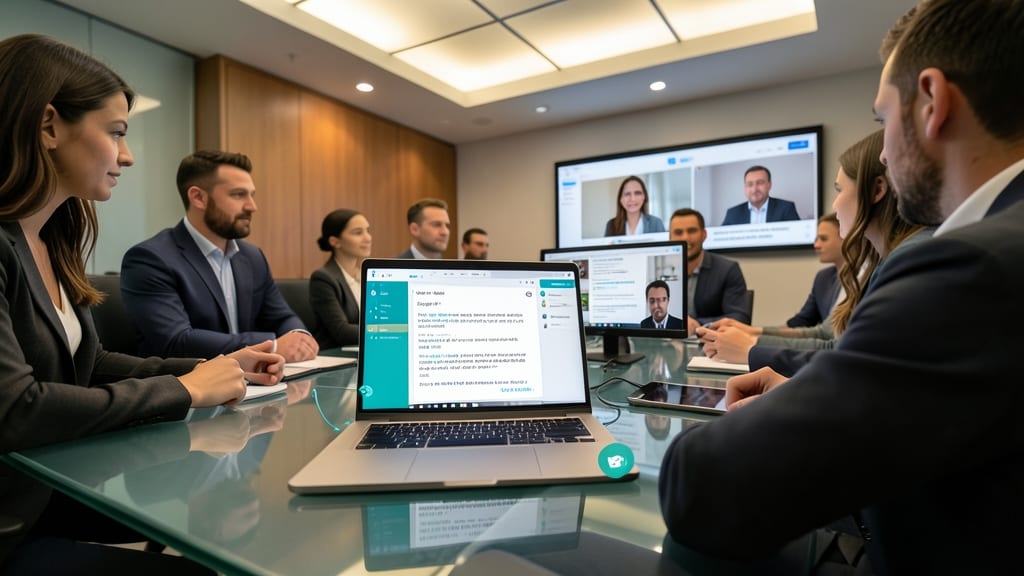
Forget scribbling notes during meetings—Microsoft Teams now automatically records sessions and generates searchable transcripts in real time. This feature ensures you never miss a critical point, whether it’s a legal case detail or a training session key takeaway.
With AI-powered transcription, you can instantly search for specific timestamps, keywords, or speaker names. The recordings are stored securely in OneDrive or SharePoint, and you can even export transcripts as Word or text files for further review. Perfect for teams that need to document decisions or replay discussions without manual note-taking.
Legal professionals, trainers, and project managers will love this—it turns passive meetings into actionable knowledge. ✨
Use Spotlight Mode for Focused Presentations

Struggling to keep your audience engaged during virtual training sessions or client demos? Spotlight Mode in Microsoft Teams is your secret weapon—it automatically highlights the active speaker while subtly blurring others, ensuring your content (and you) stay the focal point.
To enable it, start or join a meeting, then click the three-dot menu in the meeting controls and select "Spotlight Mode." This feature works seamlessly with up to 100 participants and supports 4K video quality, making it ideal for high-stakes presentations where clarity matters. The presenter’s video expands to fill the screen, while audience members appear in smaller, muted thumbnails—no extra setup required.
Trainers, sales teams, and educators will love this—it eliminates distractions and keeps participants locked onto your message. Perfect for when you need to deliver impact without competing for screen space. ✨
Create Custom Status Messages
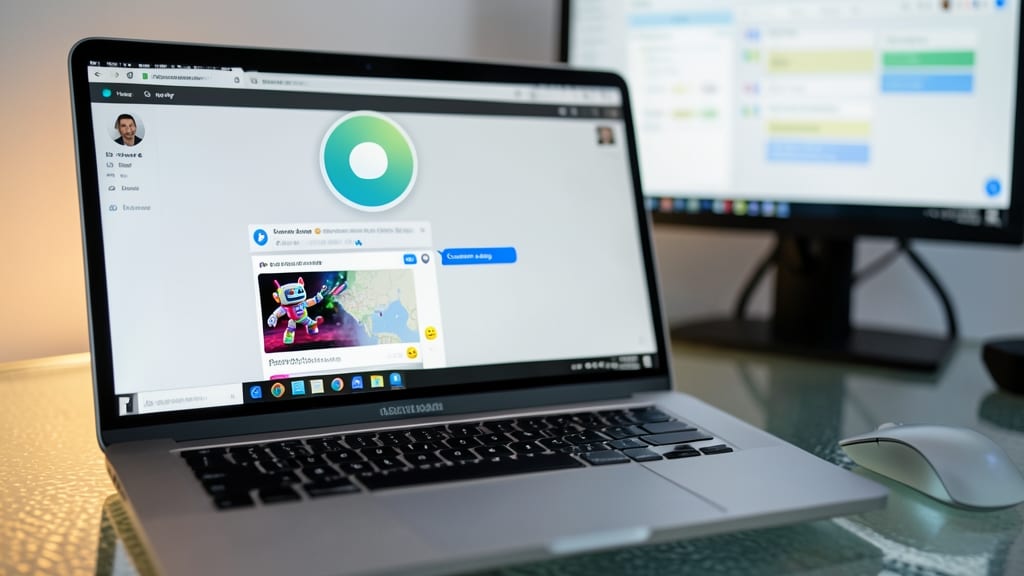
Tired of generic status updates that don’t convey your true availability? Microsoft Teams lets you set custom status messages with emojis, locations, or even GIFs to instantly communicate your context—no typing required.
Simply click your profile picture, select "Custom status", and choose from options like "Out to lunch 🍔" (or "In deep work 🎧" for focus time). You can also enable location-based statuses (e.g., "At the airport ✈️") or emoji-only modes for quick visual cues. These updates sync across all devices, so your team always knows your availability at a glance.
Perfect for remote teams juggling time zones or freelancers managing client calls, this feature turns passive statuses into active communication. 💡