
Software
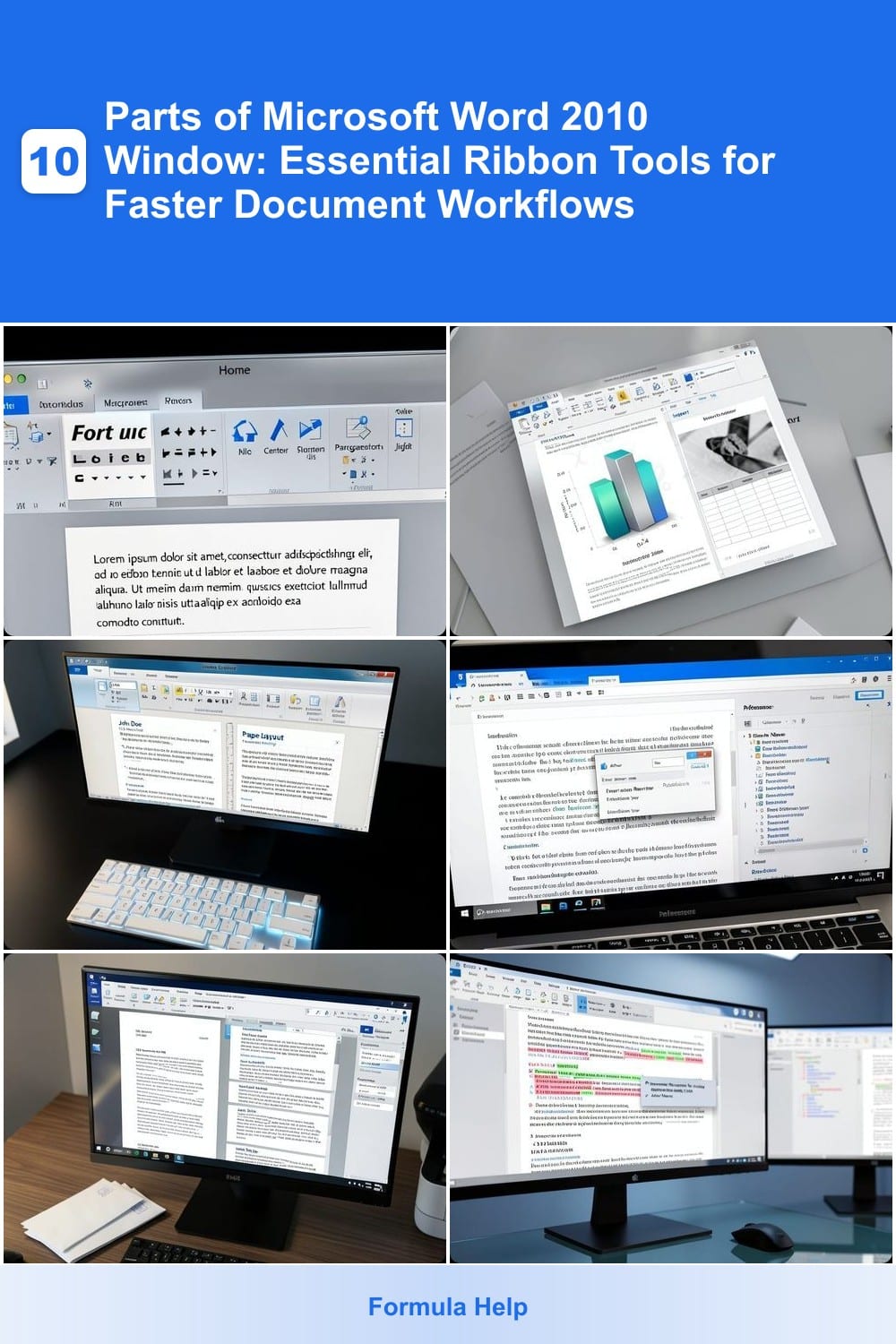
Mastering Microsoft Word 2010’s interface can transform your productivity. This guide breaks down the 10 most essential ribbon tools and window components that streamline document creation, editing, and formatting—perfect for beginners and power users alike.
Home Tab: Quick Access Formatting Tools
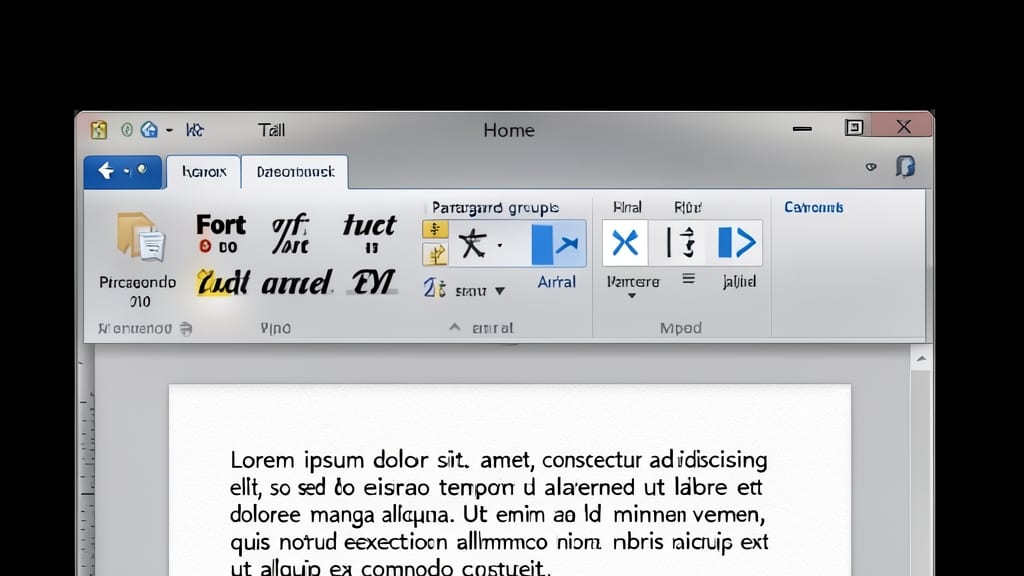
Need to format a document in seconds? The Home Tab in Microsoft Word 2010 is your go-to ribbon for text styling, paragraph alignment, and font adjustments—all without digging through menus. This is the most frequently used ribbon for everyday tasks, giving you instant access to bold, italic, underline, and font size controls with a single click.
With tools like paragraph alignment (left, center, right, justify), bulleted/numbered lists, and text direction, you can transform plain text into polished content effortlessly. The Clipboard group also lets you copy and paste multiple items at once, while the Font dropdown offers hundreds of typefaces to match your document’s tone. For quick edits, the Find & Select button helps locate and replace text across entire documents.
Perfect for students, professionals, and casual users, this tab eliminates the need for manual formatting shortcuts. Whether you're adjusting a resume, drafting an email, or editing a report, the Home Tab keeps your workflow smooth and efficient. ✨
Insert Tab: Adding Media and Objects
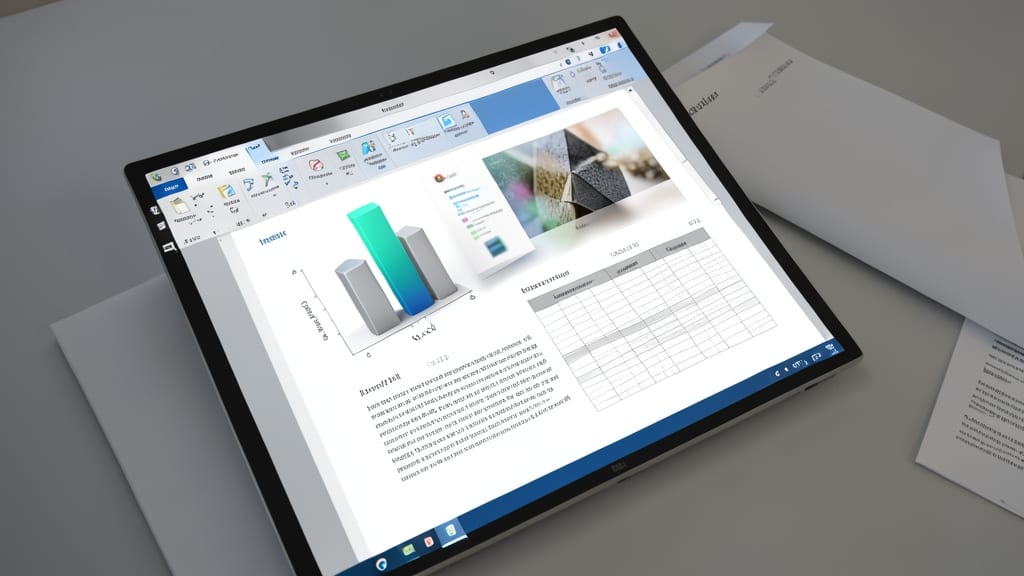
Want to turn a plain text document into a dynamic presentation or polished report? The Insert Tab in Microsoft Word 2010 is your creative hub, packed with tools to embed tables, images, charts, and headers/footers—all with just a few clicks. Unlike the Home Tab, which focuses on text formatting, this tab bridges the gap between raw content and professional visuals, making it indispensable for presentations, resumes, and marketing materials.
With the Tables button, you can insert pre-formatted grids or draw custom layouts for budgets, schedules, or data comparisons. The Pictures and Shapes options let you add graphics, while Charts (powered by Excel integration) visualize data trends instantly. For recurring elements like page numbers or company logos, the Header & Footer tools ensure consistency across every page—no manual retyping required.
This tab is a must for educators creating lesson plans, marketers designing flyers, or professionals crafting client proposals. Whether you're embedding a company logo or inserting a pie chart, the Insert Tab transforms static text into a compelling narrative. 💡
Page Layout Tab: Document Structure Controls
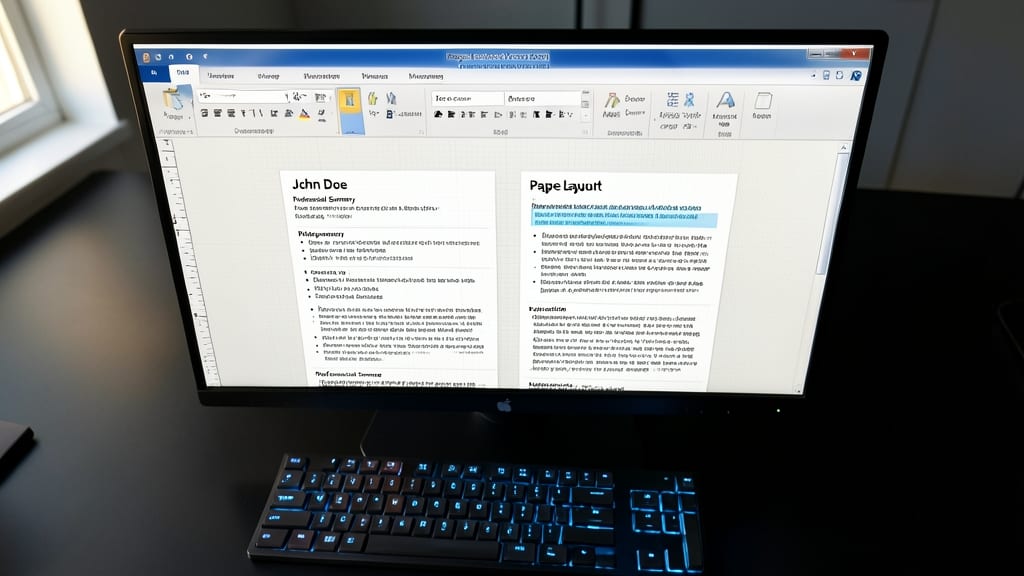
Need to make your resume stand out or design a sleek newsletter? The Page Layout Tab in Word 2010 is your secret weapon for precise document structure. Unlike the Home or Insert tabs, this one focuses solely on the physical layout—giving you control over margins, page orientation, and columns without diving into content.
With just a few clicks, you can adjust top/bottom margins for that perfect professional look, switch between portrait and landscape views for infographics or spreadsheets, or divide your page into 2-3 columns for newsletters or brochures. The Themes gallery even lets you apply pre-designed layouts instantly, saving hours of manual tweaking.
Perfect for job seekers, marketers, or anyone crafting multi-column layouts, this tab ensures your document looks polished before you hit print. ✨
References Tab: Citations and Table of Contents
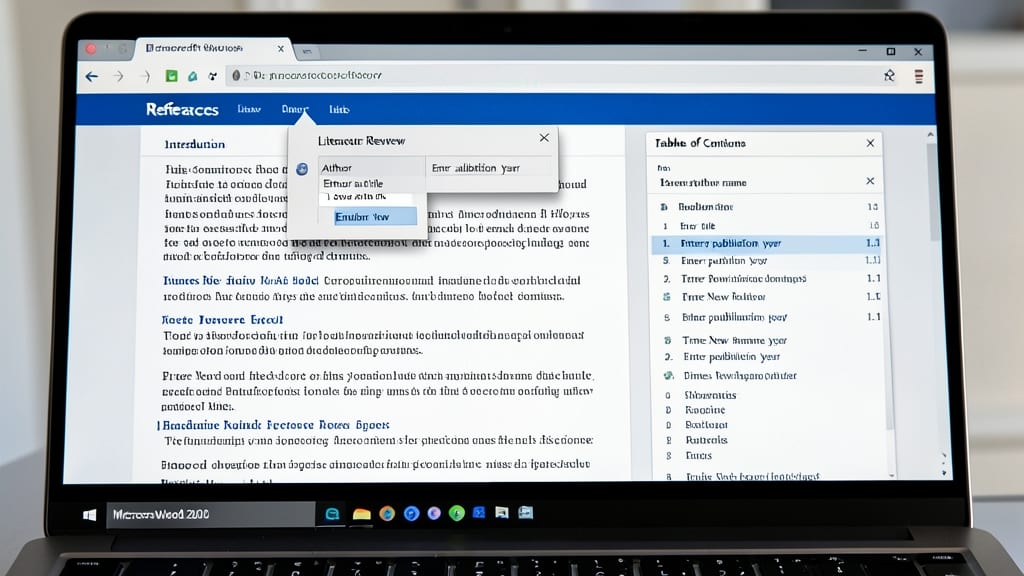
Struggling to keep track of sources in your research paper or thesis? The References tab in Microsoft Word 2010 is your secret weapon for managing citations, footnotes, and even generating a fully automated table of contents. This tab transforms chaotic document references into a polished, professional structure with minimal effort.
With citation styles (APA, MLA, Chicago, and more), you can insert sources directly into your text and update them all at once. The Table of Contents feature scans your document’s headings and creates a clickable, numbered list—no manual typing required. For footnotes, simply click Insert Footnote to add explanatory text without disrupting your workflow.
Perfect for students, researchers, and professionals writing academic papers, legal briefs, or technical reports, this tab ensures your citations and TOC stay accurate and consistent. ✨
Mailings Tab: Envelopes and Mail Merge
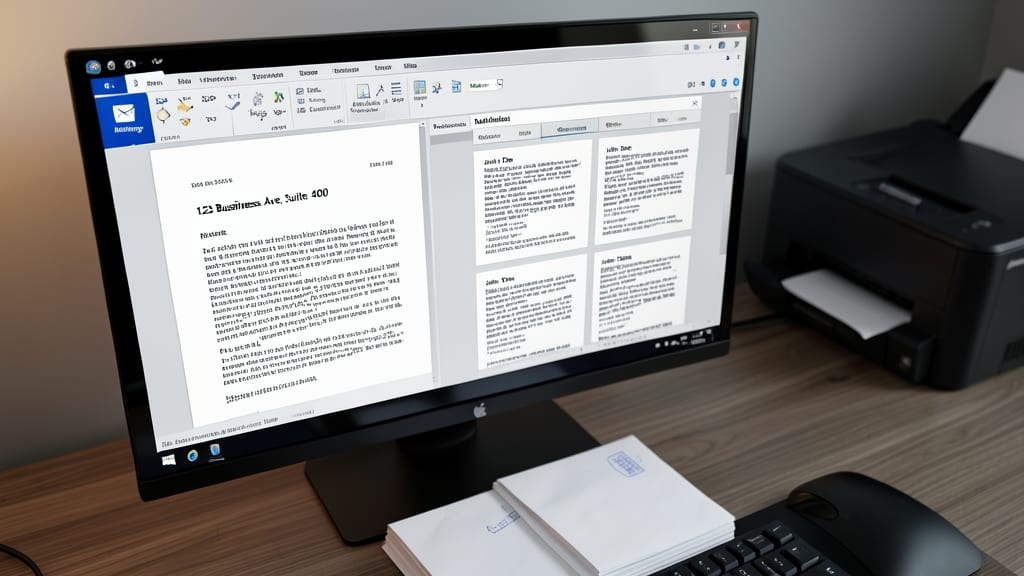
Tired of manually typing the same address or letter hundreds of times? The Mailings Tab in Word 2010 is your secret weapon for bulk correspondence, whether you're sending personalized letters, invoices, or email campaigns. This tab combines envelope creation and mail merge tools into one powerful workspace, cutting hours off repetitive tasks.
Use the Envelopes feature to print professional mailing labels or envelopes in seconds, while Mail Merge lets you customize form letters with data from Excel spreadsheets or databases. The Preview Results tool ensures your merged documents look perfect before printing, and the Insert Merge Field dropdown makes it easy to pull in recipient names, addresses, or custom placeholders without manual entry.
This tab is a game-changer for marketers, small business owners, and administrators handling recurring communications. Whether you're sending holiday greetings or client updates, the Mailings Tab turns tedious work into a streamlined process. ✨
Review Tab: Track Changes and Comments
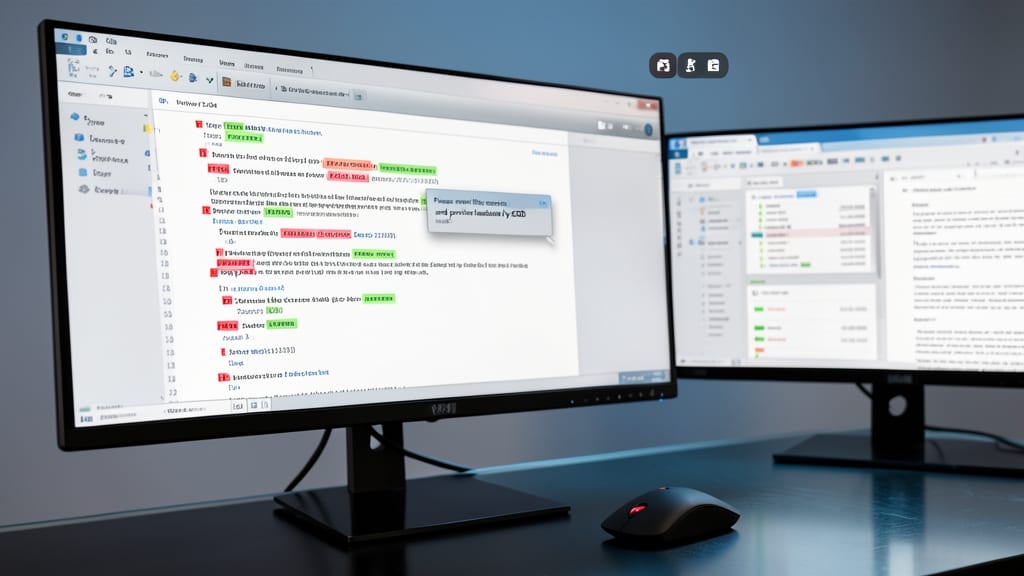
For legal teams, research groups, or anyone juggling multiple editors, the Review Tab in Word 2010 is your collaboration lifeline. It transforms documents into dynamic workspaces where edits, feedback, and revisions happen in real-time—without losing track of who made what change.
Enable Track Changes to mark insertions, deletions, and formatting edits with timestamps and author names, then use Comments to add contextual notes directly in the margin. The built-in spell-check and grammar tools catch errors while preserving the original text, and the Compare feature merges two versions side-by-side for seamless reconciliation. Perfect for contracts, manuscripts, or any project where precision matters.
This tab is a game-changer for legal professionals, academic researchers, and project managers who need to maintain document history and accountability. It’s the only tool you’ll need to turn messy group edits into polished, version-controlled final drafts. ✨
View Tab: Document Display Options
Tired of squinting at tiny text or printing only to discover formatting errors? The View Tab in Microsoft Word 2010 lets you customize how your document appears on-screen—and how it’ll look when printed. Whether you’re drafting a report or reviewing a webpage layout, this tab gives you control over three key views: Draft (clean, distraction-free typing), Print Layout (accurate margins and headers), and Web Layout (simulated webpage formatting).
Beyond views, you’ll find zoom controls (from 10% to 400%) to adjust text size on the fly, ruler toggles for precise alignment, and document map options to navigate long sections. The Macro button also lets you automate repetitive view switches—perfect for users who toggle between layouts frequently. Plus, the Full Screen Reading mode minimizes distractions for focused editing.
This tab is a game-changer for academics proofreading papers, designers mocking up web content, or professionals preparing client documents. ⚡
Quick Access Toolbar: Customizable Shortcuts
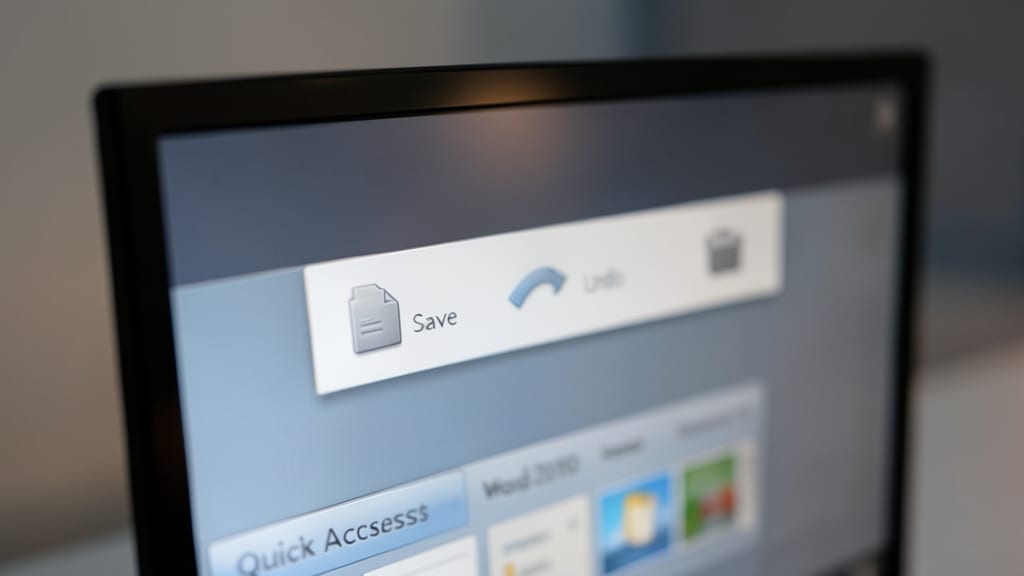
Tired of hunting through menus to save your work or undo mistakes? The Quick Access Toolbar in Microsoft Word 2010 puts your most-used commands—like Save, Undo, or Print—right at your fingertips, saving you clicks and frustration.
This customizable toolbar appears above the ribbon and can be personalized to include up to nine commands of your choice. Need to access ScreenTip help or Quick Print instantly? Drag and drop the icons from the ribbon or type commands directly into the toolbar. It’s a zero-config way to speed up repetitive tasks.
Perfect for busy professionals, students, or anyone who values efficiency, this toolbar turns Word 2010 into a personalized powerhouse tailored to your workflow. ✨
Status Bar: Real-Time Document Stats
Ever wondered how to track your progress without counting words manually? The Status Bar in Microsoft Word 2010 provides real-time updates on word count, page numbers, and language settings—all in one glance. This unassuming strip at the bottom of your screen is a productivity powerhouse for writers, students, and professionals.
With the Status Bar, you’ll see your live word count update as you type, ensuring you stay on track for essays, reports, or proposals. It also displays page numbers, helping you visualize document length before printing. For multilingual documents, it even shows the current language setting, preventing formatting errors. Right-click to customize which stats appear—like line numbers or zoom controls—for a truly personalized workflow.
This feature is a lifesaver for anyone juggling deadlines. Students will love tracking essay progress, while professionals can verify document lengths before sending critical reports. ⚡
Navigation Pane: Large Document Navigation
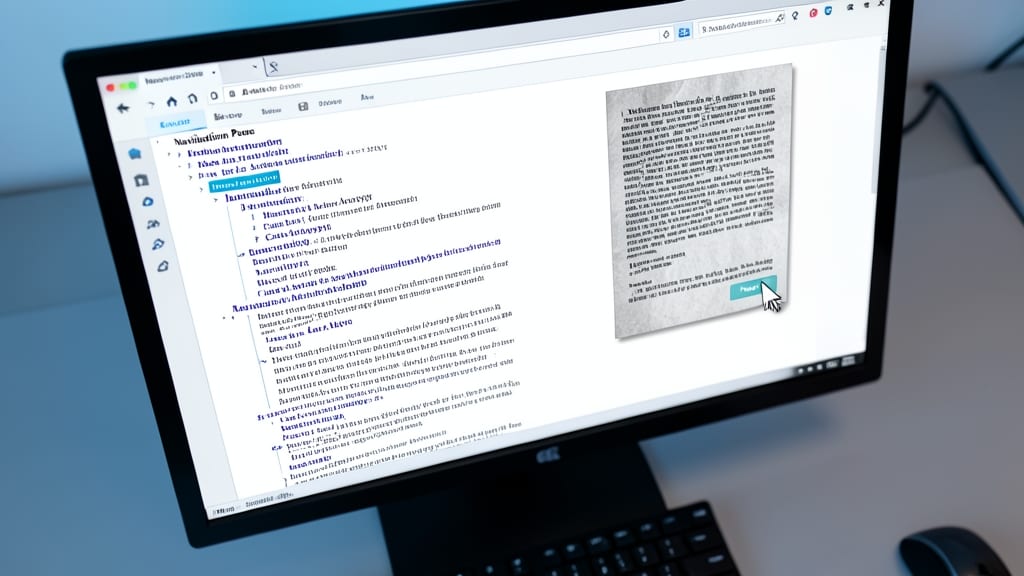
Tired of scrolling endlessly through hundreds of pages in legal briefs or research papers? Microsoft Word 2010’s Navigation Pane is your lifeline—turning chaotic documents into organized, clickable roadmaps. With just a few clicks, you can pinpoint and jump to headings, pages, or even graphics, cutting review time by half.
Access it via the View tab, and you’ll see a two-pane view listing all headings, pages, and graphics in your document. Click any heading to instantly navigate, or use the search bar to find specific terms. The collapsible sections let you focus on one part of the document while hiding the rest—perfect for annotating or editing.
This tool is a game-changer for lawyers, academics, and technical writers working with dense documents. Whether you’re drafting a 50-page manual or reviewing a 100-page contract, the Navigation Pane keeps you in control. ✨