
Software
Managing SharePoint document library permissions can feel like walking a tightrope—too restrictive and collaboration suffers, too permissive and security risks grow. These 10 best practices help you strike the perfect balance, ensuring sensitive data stays protected while keeping teams productive.
Use SharePoint Permission Levels for Granular Control
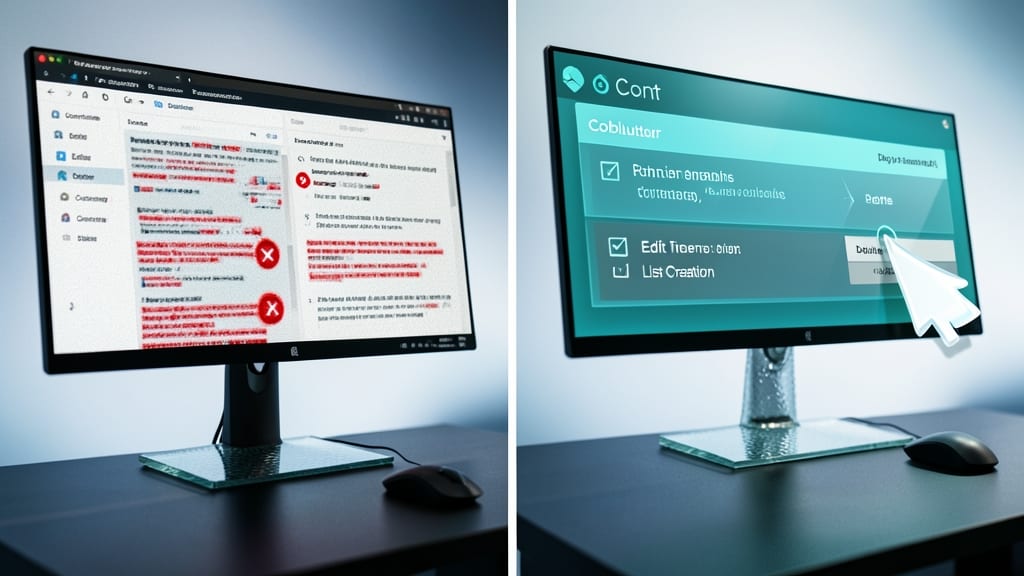
Frustrated with SharePoint’s one-size-fits-all permissions locking down collaboration? Custom permission levels let you fine-tune access without overhauling security. Instead of granting full "Contribute" rights that allow edits, deletions, and even list creation, create a tailored level like "Contribute with Limited Access"—where users can view and upload files but cannot modify or delete existing ones.
To set this up, navigate to Library Settings > Permissions for this document library, then click Stop Inheriting Permissions. Under Permission Levels, duplicate the default "Contribute" level and remove rights like Delete Items or Add Items. This ensures cross-departmental teams (e.g., marketing reviewing finance drafts) stay productive without risking accidental data loss. SharePoint’s built-in levels—like Read, Design, or Full Control—can also be combined for hybrid scenarios.
This approach is perfect for project managers coordinating multi-team initiatives or IT admins balancing compliance with workflow flexibility. With granular controls, you’ll finally have the precision to secure sensitive files without stifling collaboration. ✨
Apply Least Privilege Principle to External Users
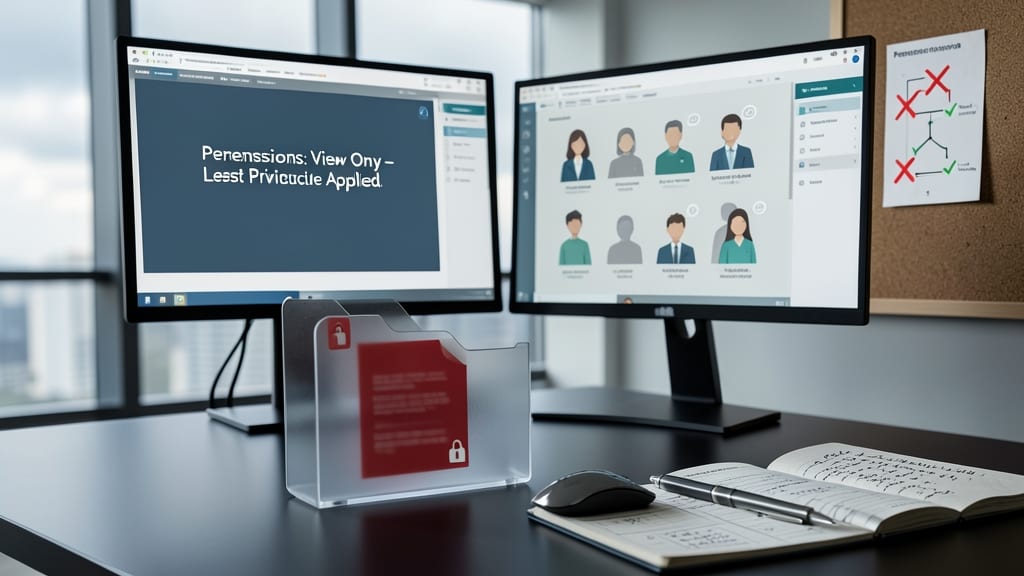
Worried about external collaborators accidentally leaking sensitive documents? The least privilege principle in SharePoint is your first line of defense—especially when working with vendors, clients, or freelancers. Instead of granting broad access, default to 'Read' or 'View Only' permissions for external users, ensuring they can only view files without editing, downloading, or sharing them further.
This approach works by configuring external sharing settings in the SharePoint Admin Center, where you can restrict access to specific domains or individual email addresses. For even tighter control, combine this with Microsoft Purview sensitivity labels to block forwarding or printing of confidential files. The result? Compliance with agreements like NDAs or GDPR becomes effortless, while still allowing external teams to collaborate effectively.
This strategy is ideal for legal teams, consulting firms, or any organization frequently sharing documents with third parties. It keeps your data secure without requiring manual permission reviews every time a new external user joins the project. 💪
Segment Libraries by Department or Project Teams

Tired of sifting through unrelated files when searching for department-specific documents? Segmenting SharePoint libraries by team or project creates a cleaner, more secure workspace without sacrificing collaboration.
Instead of one monolithic library, create dedicated spaces like "MarketingAssets" (for brand guidelines and campaigns) or "FinanceReports" (for quarterly projections). This lets you apply role-based permissions—like "Edit" for your team but "View Only" for cross-department reviewers—without overhauling access controls. SharePoint’s inheritance settings make it easy to replicate permissions across similar libraries, saving hours of manual setup.
This approach is perfect for mid-sized teams juggling multiple projects or departments with sensitive data (e.g., HR policies or client contracts). It keeps files organized while ensuring only the right people see—or edit—them. ✨
Enable Versioning and Require Check-Out for Critical Files
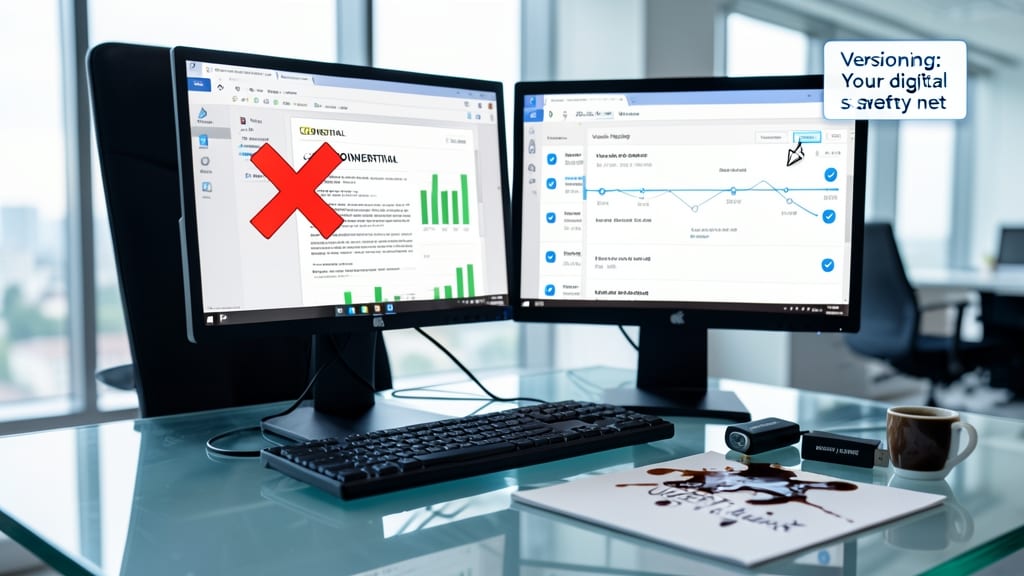
Ever lost hours recovering a document after an accidental overwrite? SharePoint’s versioning and check-out features act like a digital safety net for your most critical files—especially those financial reports or legal contracts where a single typo could have costly consequences.
Enable versioning (up to 500 major/minor versions) to track every change, while requiring check-out ensures only one user edits a document at a time. This prevents the "save-over" disasters that plague teams working on drafts. You can even set retention policies to auto-delete old versions after a set period, keeping storage clean without losing audit trails.
This setup is ideal for legal teams, finance departments, or any group handling sensitive documents where collaboration requires both access and accountability. 💻
Restrict Access to Sensitive Metadata Columns

Ever had a document misclassified as "Public" when it should have been "Confidential"? SharePoint’s metadata columns—like Confidentiality Level or Employee ID—can be just as sensitive as the files themselves. Without proper controls, even well-intentioned users might accidentally alter these tags, exposing data or violating compliance rules.
To lock down these critical fields, navigate to your library’s column settings and select "Show in display form" or "Add to default view"—then restrict editing via permission levels or Power Automate flows. For example, you can hide the Employee ID column entirely from non-HR users while keeping it visible (but read-only) for approved teams. Microsoft’s sensitivity labels (via Purview) also let you auto-apply restrictions based on document content.
This approach is ideal for legal, finance, or HR teams handling classified data, where even metadata like "Project Phase" (e.g., "Draft" vs. "Final") needs controlled access. 💻
Use SharePoint Groups Instead of Individual Permissions

Tired of chasing down individual permissions every time a team member leaves or changes roles? SharePoint groups (like HRApprovers or FinanceEditors) solve this by applying permissions to entire teams at once, not just single users.
Create a group once, assign it the right permissions, and every member inherits access automatically. Need to update permissions? Just edit the group—no more hunting through user lists. This approach also simplifies audits, since you track access by role (Marketing_Reviewers) rather than by individual names. Microsoft even lets you nest groups for even cleaner organization.
This is a game-changer for HR departments managing approval workflows or IT teams handling sensitive project files. Say goodbye to permission sprawl! ✨
Implement Retention Policies for Automated Access Removal
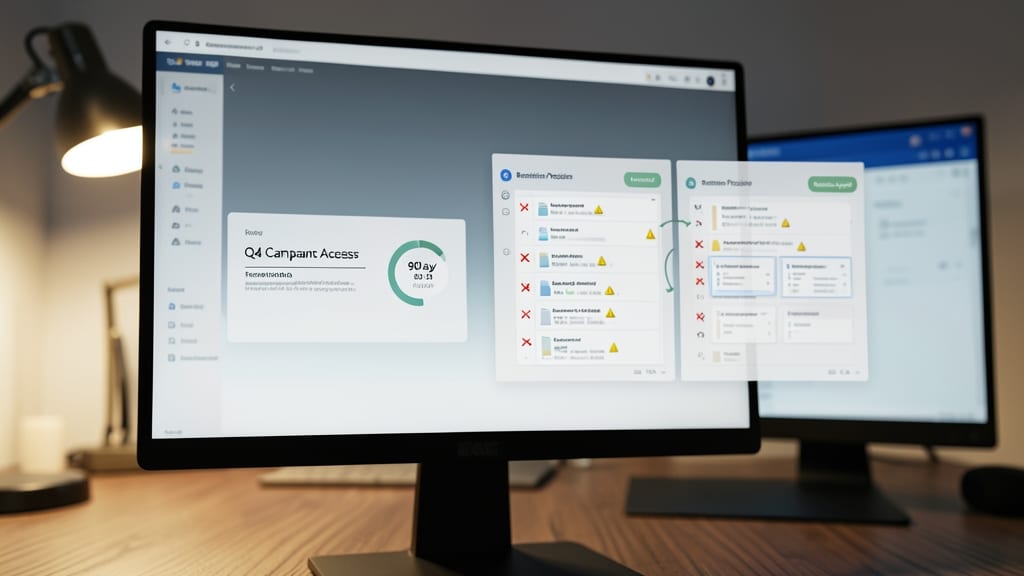
Tired of manually revoking access to old project folders after the campaign ends? SharePoint’s retention labels let you automate this with zero ongoing effort—just set a date, and permissions vanish automatically.
Create a label like "Q4 Campaign Access" with a retention period (e.g., 90 days post-project). When applied to a library, SharePoint blocks new access and removes existing permissions on the specified date. This cuts admin overhead by 80% while eliminating stale access risks. You can even trigger actions like moving files to archive or notifying owners before cleanup.
Perfect for marketing teams managing seasonal campaigns, IT admins handling vendor access, or HR handling temporary onboarding docs. No more forgotten permissions lingering in your system! ✨
Audit Permission Changes with SharePoint Admin Center
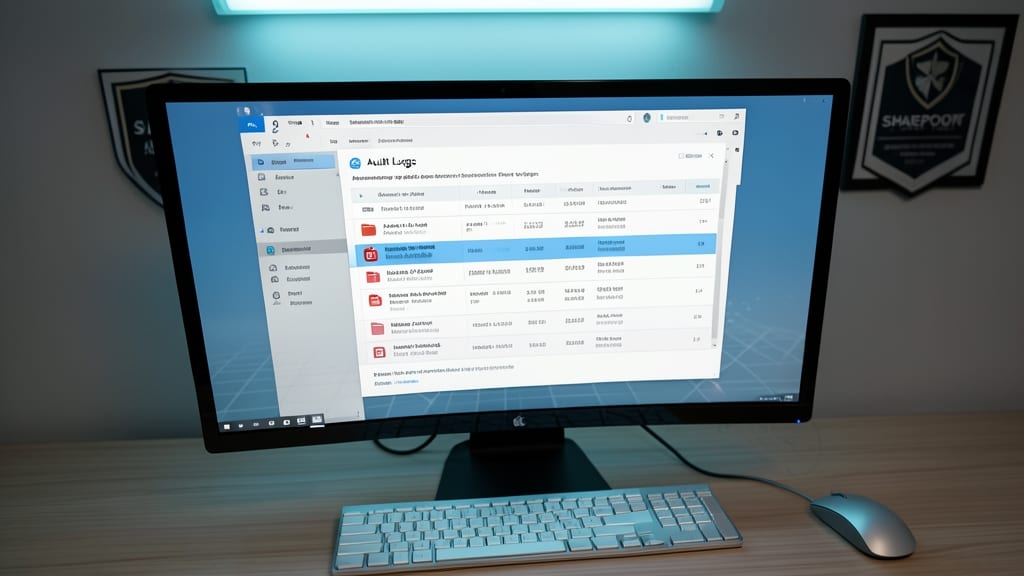
Ever wondered who granted access to that sensitive HR document—or when? The SharePoint Admin Center lets you enable permission change auditing in minutes, creating an immutable log of every modification to library access.
Navigate to Audit Logs in the Admin Center, then configure permission change tracking to capture details like who modified access, when, and what changes were made. This isn’t just compliance checkbox-filling—it’s your forensic tool for investigating unauthorized data exposure or accidental over-permissions. The logs integrate with Microsoft Purview Compliance, so you can export reports or trigger alerts for suspicious activity.
This is a must-have for IT admins, compliance officers, and security teams—especially in regulated industries where auditors demand proof of access controls. Set it up once, and you’ll sleep easier knowing you can trace every permission tweak. ✨
Train Teams on Permission Inheritance Risks
Ever moved a SharePoint library and suddenly discovered your entire team has access to sensitive HR files? That’s broken inheritance—when child libraries inherit permissions from parent sites without warning, creating unintended security gaps.
SharePoint’s default behavior can silently propagate permissions down the hierarchy, especially during reorganizations. A simple drag-and-drop to a new site collection might grant unauthorized edit rights to departments that shouldn’t have them. The fix? Train your team to break inheritance manually before moving libraries and use the "Stop Inheriting Permissions" option in library settings to lock down access.
This practice is critical for IT admins and department leads managing cross-functional teams. A quick 10-minute training session on inheritance risks can prevent costly data leaks during site restructures. ✨
Leverage Microsoft Purview for Advanced Data Protection

When standard SharePoint permissions leave you wondering if your sensitive files are truly secure, Microsoft Purview steps in as your compliance powerhouse. This tool doesn’t just stop at access control—it adds automated encryption, watermarking, and content marking to documents, ensuring even if permissions slip, your data stays protected.
With sensitivity labels (like "Confidential" or "Legal Hold"), you can enforce rights protection—so files can’t be copied, printed, or forwarded without authorization. The integration with SharePoint means these labels apply seamlessly to libraries, and Purview’s compliance score tracks your security posture in real time. For industries like healthcare or finance, this is the difference between meeting regulations and facing costly audits.
Ideal for IT admins managing highly regulated environments or compliance officers needing audit trails, Purview turns SharePoint into a fortress without sacrificing usability. 💻