
Tip & Trick
Struggling to get started with SharePoint but overwhelmed by its complexity? These eight beginner-friendly tips will help you master Microsoft 365’s collaborative power quickly—without needing advanced IT skills. Perfect for new users looking to boost productivity right away.
How to navigate SharePoint homepage efficiently
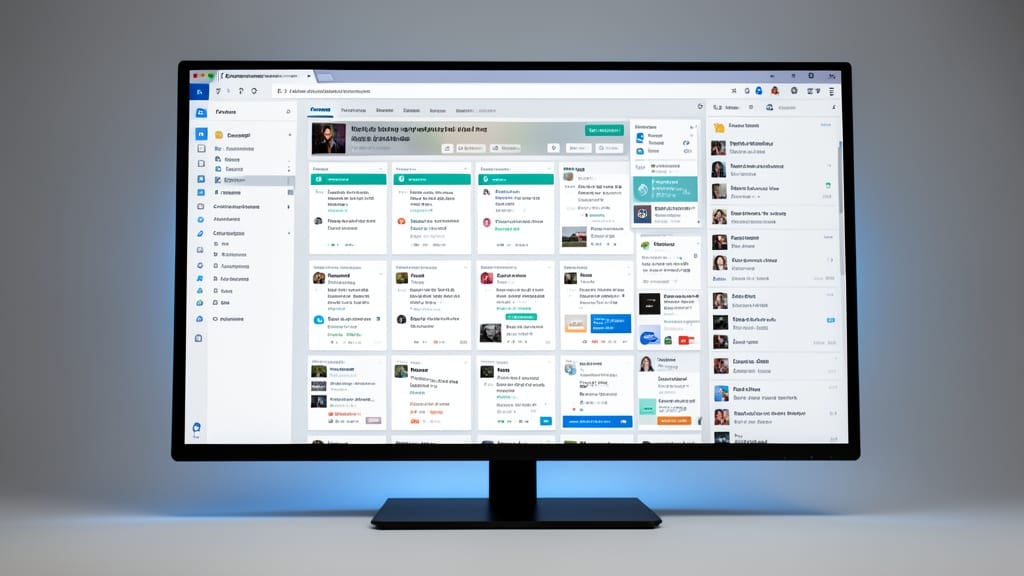
If you’re drowning in SharePoint’s overwhelming dashboard, personalizing your homepage is the first step to reclaiming control. Unlike traditional file storage, SharePoint’s modern homepage combines sites, news, and tools into a single view—but only if you know where to look.
Start by pinning your most-used sites and apps to the top of the page (click the three-dot menu next to any tile). Use the search bar (powered by Microsoft 365’s AI) to find files, sites, or even people—no more scrolling through endless folders. The “Recent” and “Followed Sites” sections auto-update, so your critical resources stay front and center. For power users, customize your navigation by editing the left-hand menu (click the waffle icon in the top-left corner) to add shortcuts like OneDrive, Teams, or Planner—just like your desktop, but smarter.
This is your launchpad for cloud collaboration, perfect for freelancers managing client projects or teams migrating from shared drives. Spend 10 minutes setting it up, and you’ll save hours weekly. ✨
Creating your first document library
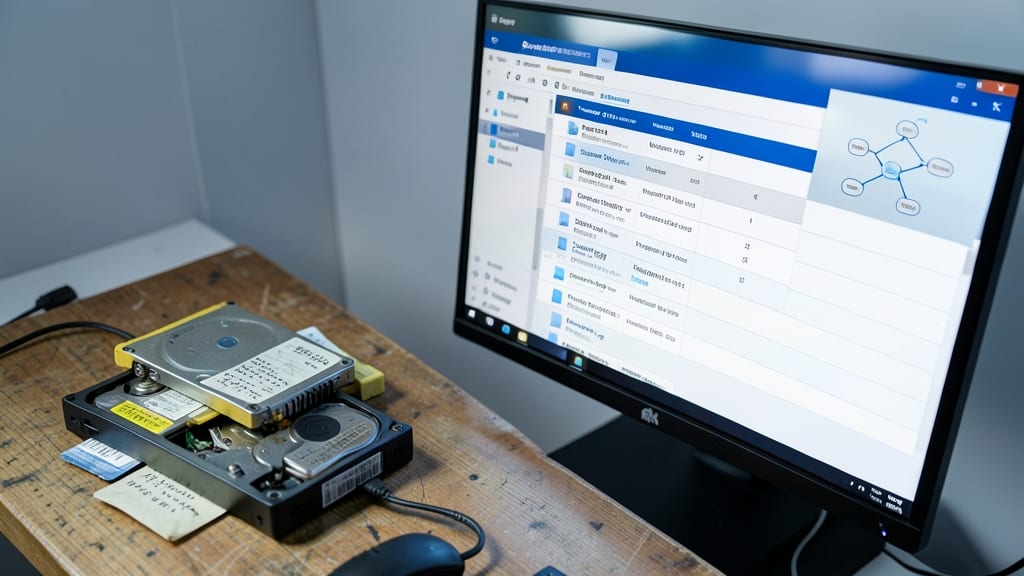
Say goodbye to chaotic shared drives and hello to structured, searchable document libraries—the backbone of modern teamwork in SharePoint. Instead of digging through folders labeled "Project 2024 Final (Maybe)" or "Client Drafts v3," you’ll organize files with metadata tags, version control, and permissions that actually work.
Start by creating a new library via Site Contents > New > Document Library. Name it clearly (e.g., "Marketing Assets 2024") and enable versioning to track edits automatically. Use columns (like "Department" or "Client Name") to filter files instantly. For teams migrating from shared drives, the OneDrive sync feature lets you drag-and-drop existing folders into SharePoint while keeping local copies updated.
This is your secret weapon for remote teams, freelancers, or departments replacing Dropbox or Google Drive. With built-in permissions, you’ll finally stop emailing files to the wrong person—or worse, losing them entirely. 💻
Using quick edit mode for fast updates
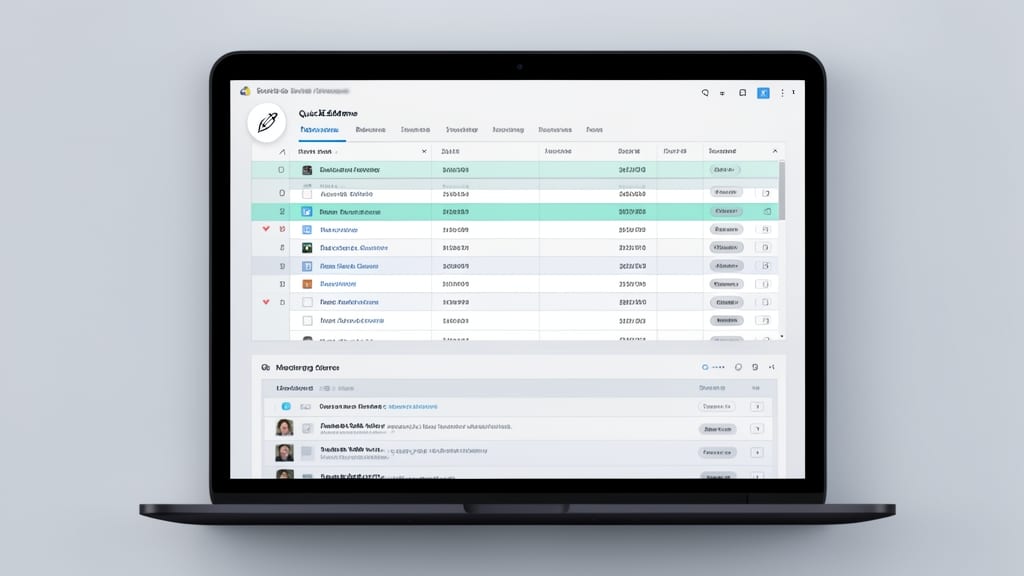
Tired of clicking through each item to update your SharePoint lists? Quick Edit Mode lets you modify multiple rows at once—no tedious back-and-forth required. Simply click the pencil icon in your list view, and a spreadsheet-like grid appears where you can edit columns like status, dates, or categories in bulk.
This feature shines for project managers or inventory teams updating 20+ items daily. Need to mark five tasks as "In Progress" or adjust due dates across a week’s worth of entries? Quick Edit handles it in seconds. Just press Enter to save each change or Ctrl+S to apply all updates instantly.
Perfect for anyone juggling multiple lists—whether you’re tracking sales pipelines, HR onboarding steps, or warehouse stock levels. ⚡
Setting up personalized alerts
Remote work or freelancing means deadlines slip through the cracks if you’re not careful—but SharePoint alerts turn passive waiting into proactive updates. Whether it’s a client-approved document or an overdue task list, you can now set email notifications that arrive exactly when you need them, not when someone else remembers to check in.
Start by navigating to any library or list, clicking the gear icon, and selecting Alert Me. Choose from immediate changes (like new files) or specific updates (e.g., edits to a contract draft). For freelancers, set alerts on client folders to track approvals, while teams can monitor project timelines in real time. The best part? You control the frequency—daily digests or instant alerts—so your inbox stays clean but nothing critical slips by. ⚡
Customizing SharePoint site themes
Tired of SharePoint looking like a generic corporate tool? Customizing site themes lets you inject your brand’s personality—whether it’s your company’s colors, logo, or even a custom font—into every page, document, and list.
Start by navigating to Site Settings > Change the Look, where you can pick from predefined themes or upload a custom palette using hex codes. Add your logo via Site Logo (supports .png, .jpg, or .svg) and adjust the background image for a polished touch. Pro tip: Use contrast checker tools to ensure text remains readable against your new colors.
This is a game-changer for marketing teams aligning SharePoint with campaign colors or HR departments personalizing onboarding portals. A cohesive theme boosts engagement by making the workspace feel familiar and intentional. ✨
Syncing SharePoint libraries to your device
Tired of waiting for Wi-Fi to edit documents on the go? SharePoint’s Sync to Computer feature lets you work offline with your files—then sync changes automatically when you reconnect. No more last-minute edits before losing connectivity.
To set it up, go to your library, click the three dots (⋯), and select "Sync". Choose a local folder, and SharePoint mirrors the files to your device. You’ll get real-time updates when back online, with version history preserved. Perfect for field teams or travelers who need to edit proposals, contracts, or reports without an internet connection.
This is a game-changer for construction crews, sales reps, or remote workers who need to access files in unreliable network zones. Just remember to sync regularly to avoid conflicts. ✨
Collaborating with co-authoring in Office files

Tired of emailing drafts back and forth for approvals? Co-Authoring in Office files lets teams edit Word, Excel, or PowerPoint documents in real-time—no more version conflicts or "You haven’t got the latest version" headaches. Simply open a file from SharePoint, and multiple users can contribute simultaneously, with changes visible instantly.
This feature works seamlessly with Microsoft 365 subscriptions and supports up to 50 simultaneous editors in Word, making it perfect for brainstorming sessions or group reports. Conflicts are rare thanks to automatic conflict resolution—changes are merged intelligently, and conflicting edits are flagged for manual review. The best part? No extra setup is needed—just open the file from SharePoint, and the co-authoring magic begins.
Ideal for marketing teams drafting campaigns, project managers aligning on proposals, or educators collaborating on lesson plans, this tool cuts review cycles by 70% while keeping everyone on the same page—literally. ✨
Troubleshooting common SharePoint errors

Ever hit a frustrating roadblock in SharePoint—like a permission denied error or a broken link that won’t load? These common issues can derail even the simplest tasks, but they’re often easier to fix than you think. Let’s tackle the most frequent SharePoint errors with quick, no-nonsense solutions.
Start with permission problems: If you see "Access Denied," check if you’re added to the site’s Members or Owners group (Site Settings > Site Permissions). For broken links, use the "Check Links" tool in the library settings—it highlights and repairs dead hyperlinks in seconds. Sync issues? Clear your OneDrive cache (File > Account > Free up space) or reset the SharePoint sync app entirely. These fixes require no IT help!
This is your go-to guide for quick fixes, whether you’re a freelancer managing client files or a team member stuck on a project. No more wasted time—just smooth collaboration. 💡