
Software
Microsoft Teams has revolutionized classroom collaboration, but its true potential in education extends far beyond video calls. These ten transformative benefits show how schools leverage Teams to enhance engagement, streamline workflows, and prepare students for digital futures—all while saving educators valuable time.
Seamless classroom communication platform
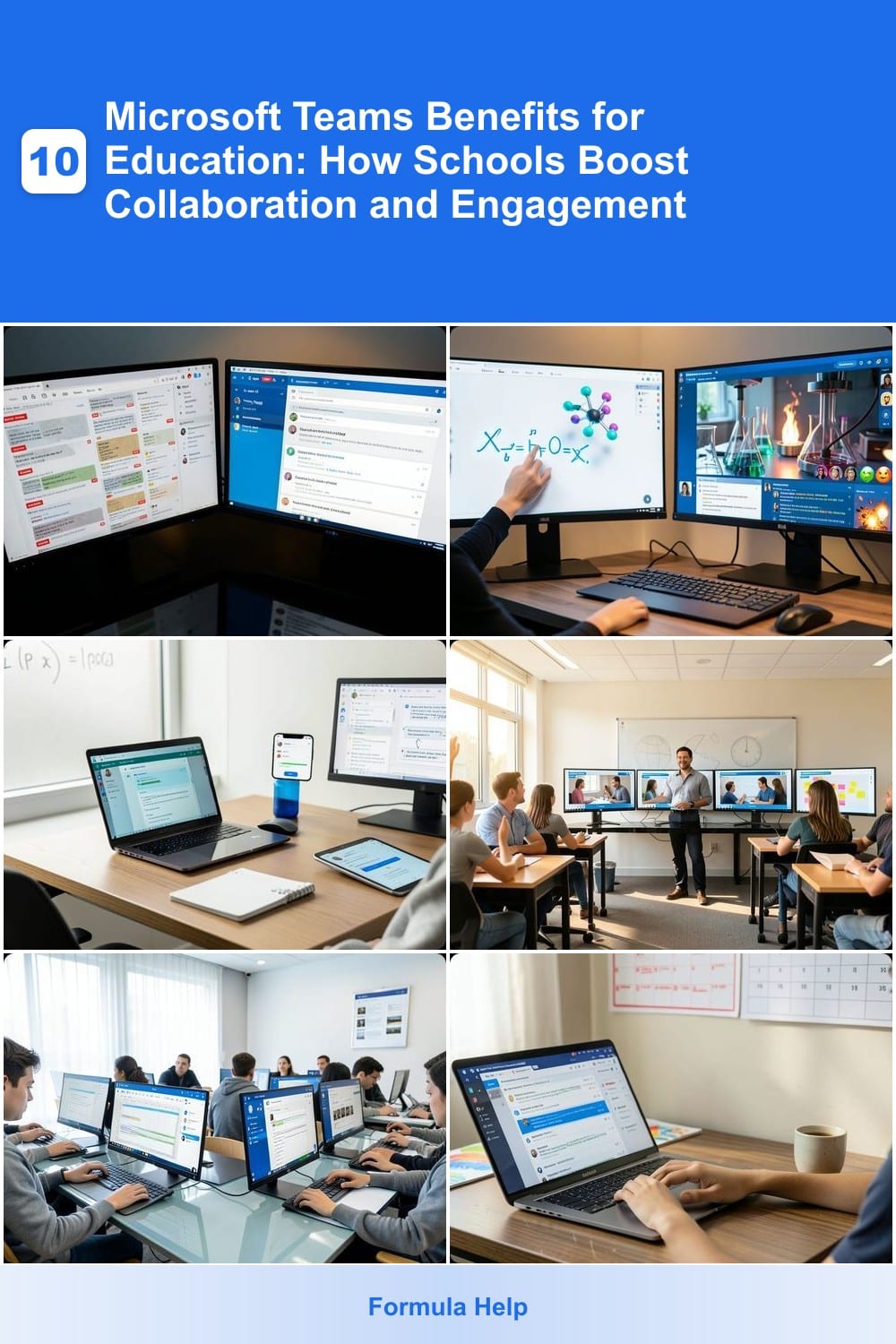
Tired of chasing down lost emails or digging through cluttered inboxes? Microsoft Teams consolidates all classroom communication—announcements, discussions, and updates—into one organized hub, eliminating the chaos of scattered messages. With dedicated channels for each class, teachers post assignments, share resources, and host live Q&A sessions, while students engage through threaded conversations or quick polls—no more missed deadlines or forgotten replies.
The platform’s real-time notifications ensure critical updates reach everyone instantly, whether they’re in the classroom or learning remotely. File sharing and @mentions streamline feedback loops, and the search function recovers past messages in seconds. Plus, parent access lets guardians join class channels (with permissions) to stay informed—all while keeping school communications secure and compliant with FERPA.
This is the perfect solution for hybrid and remote schools struggling with fragmented communication tools. Teachers reclaim hours weekly, students stay on the same page, and parents finally get the clarity they need—without the email overload. 💡
Interactive virtual classrooms with Lessons
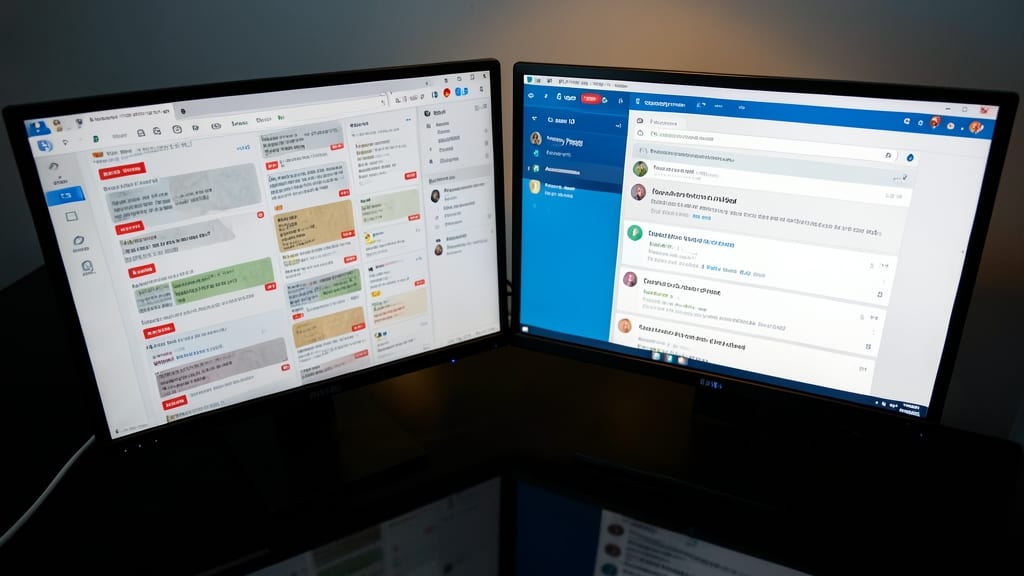
Forget static slides and one-way lectures—Microsoft Teams turns virtual classrooms into interactive labs where STEM concepts come alive. The built-in whiteboard tools let teachers sketch equations, annotate diagrams, or simulate experiments in real time, while students can react instantly via emoji or text—no more raised hands lost in the digital crowd.
With screen sharing for multiple devices and collaborative annotation, physics teachers can walk through circuit diagrams, biology instructors can label 3D anatomy models, and math educators can solve problems step-by-step together. The Lessons app (integrated natively) organizes all materials—videos, quizzes, and handouts—into a structured timeline, so students stay on track without getting lost in tabs. Plus, recording sessions means students can rewatch demonstrations at their own pace.
This is the ultimate tool for hands-on STEM educators who need more than slides to teach complex subjects. Whether it’s coding algorithms, chemical reactions, or engineering blueprints, Teams makes abstract concepts tangible—without requiring expensive lab equipment. ✨
Collaborative assignment management
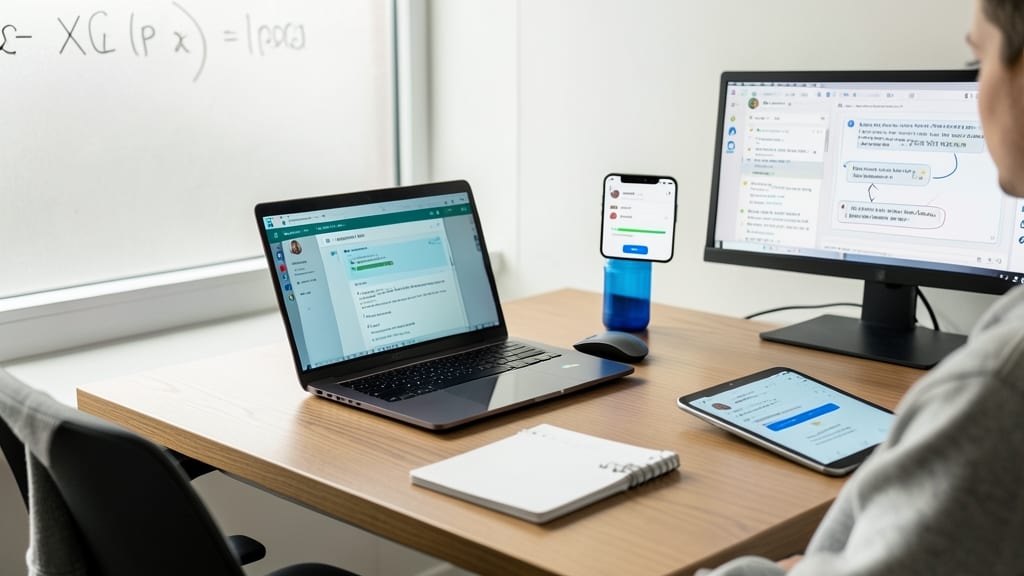
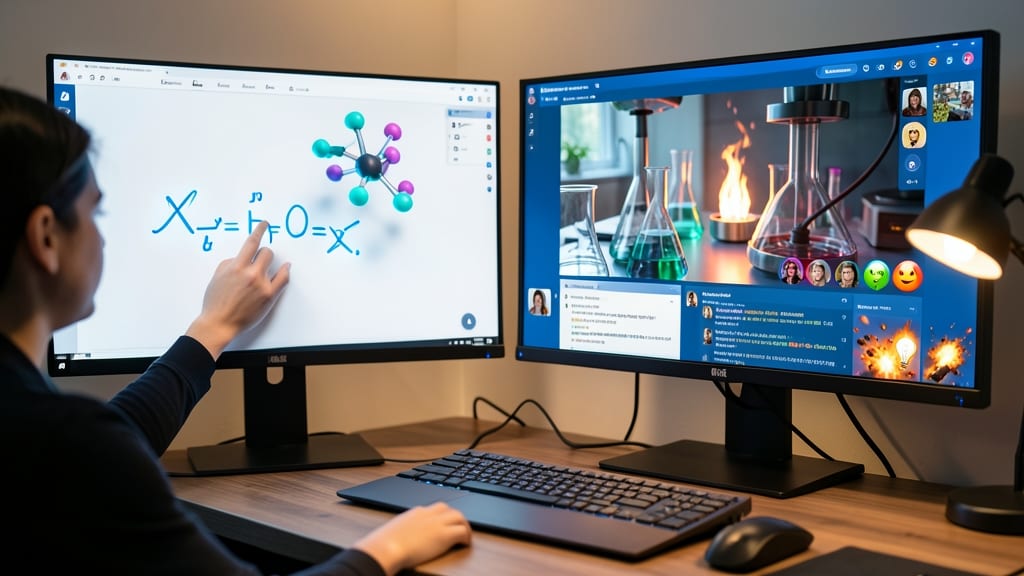
Say goodbye to lost papers and last-minute "I forgot my homework!" excuses. Microsoft Teams' Assignment feature lets teachers create, assign, and track submissions—all within the platform—while students upload files directly from their devices.
With version control and real-time feedback tools, educators can annotate Word docs, PDFs, or images without printing a single sheet. The automated grading feature even tracks submission status, so no assignment slips through the cracks. Plus, integration with Microsoft 365 means students can start assignments in class and finish them at home—with progress saved automatically.
This system is a game-changer for high schools and colleges where group projects dominate the curriculum. Teachers save hours on paperwork, while students develop digital literacy skills employers demand. ✨
Breakout rooms for small group work

Tired of shuffling students between classrooms or dealing with awkward silence when large groups need to collaborate? Microsoft Teams’ breakout rooms solve this with a single click—splitting your class into virtual discussion groups instantly.
With up to 50 breakout rooms per meeting, you can assign students to language practice pairs, debate teams, or project groups without physical space constraints. Teachers control room access, time limits, and even reassign students mid-session. The collaborative whiteboard and file-sharing tools let groups work together in real time, while the host monitors progress via a dashboard.
Perfect for ESL teachers, debate coaches, or STEM project-based learning, this feature turns passive listening into active participation—no desks or chairs required! ✨
Integration with Microsoft 365 tools
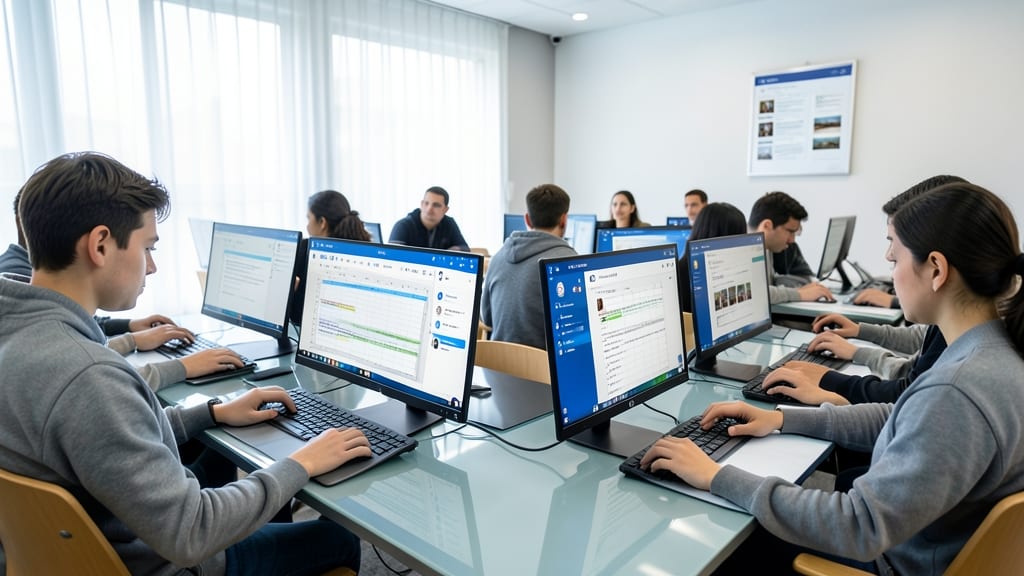
Tired of students bouncing between apps to complete assignments? Microsoft Teams’ deep integration with Microsoft 365 turns collaboration into a seamless workflow—no more tab-switching headaches.
With native support for Word, Excel, and PowerPoint, students can draft research papers, analyze data, or design presentations—all within Teams channels. Real-time co-authoring lets groups edit documents simultaneously, while version history tracks changes effortlessly. Teachers can embed files directly into chats or assignments, ensuring everyone accesses the latest materials without confusion.
This feature shines brightest for research projects, group presentations, and data-driven assignments, where multiple contributors need to stay aligned. It’s the digital equivalent of a shared desk—just more efficient. ✨
Parent-teacher communication hub

Tired of parents drowning in school emails or missing critical updates? Microsoft Teams’ Parent-Teacher Communication Hub creates dedicated channels where guardians receive real-time updates—no more lost messages or forgotten deadlines.
Schools can set up class-specific channels for announcements, homework reminders, and event notifications, all while keeping conversations organized. The @mention feature ensures parents get alerts for urgent messages, and file-sharing capabilities let teachers post resources like syllabi or volunteer sign-ups. Best of all, it integrates seamlessly with existing school workflows.
This feature is perfect for schools prioritizing transparent communication—parents stay informed without the chaos of overflowing inboxes, while teachers save time managing multiple email threads. ✨
Accessibility features for all learners

Every student deserves to engage fully with course material—no matter their learning style. Microsoft Teams removes barriers with built-in accessibility tools that adapt to individual needs, ensuring no one gets left behind in digital classrooms.
With live captions (available in over 40 languages), students who are deaf or hard of hearing can follow lectures in real time. Screen reader support via JAWS and NVDA ensures visually impaired learners navigate Teams effortlessly, while adjustable text sizes and high-contrast themes help those with dyslexia or low vision. These features aren’t just bolted on—they’re WCAG 2.1 compliant, meeting legal standards while creating inclusive learning environments.
This makes Teams especially valuable for special education programs, but its flexibility benefits all students—whether they’re reviewing materials at home or participating in hybrid classes. Every learner deserves equal access to education. ✨
Digital portfolio creation tools
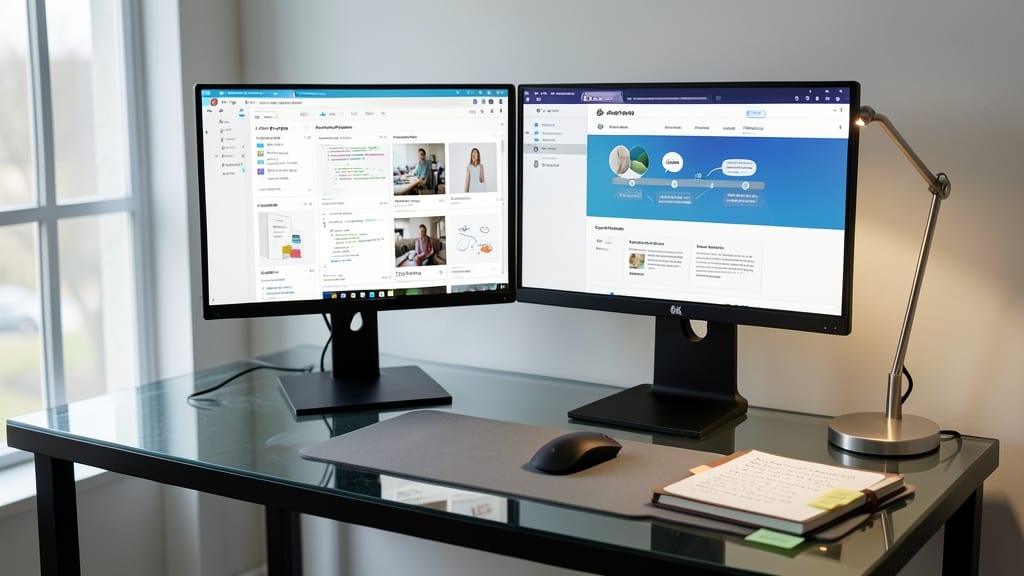
Standing out in college applications or job interviews starts with a polished portfolio—and Microsoft Teams makes building one effortless. Dedicated channels let students organize everything from research papers to coding projects in one secure, professional space, with version history tracking growth over time.
With OneNote integration, students can embed multimedia reflections alongside their work, while customizable tabs let them categorize projects by subject or skill (e.g., "Creative Writing" or "Python Development"). Teachers can even provide template portfolios with suggested layouts, ensuring consistency while encouraging personalization.
Perfect for high school seniors and career-focused students, this feature turns classwork into a career-ready showcase without requiring extra tools. ✨
School-wide event organization
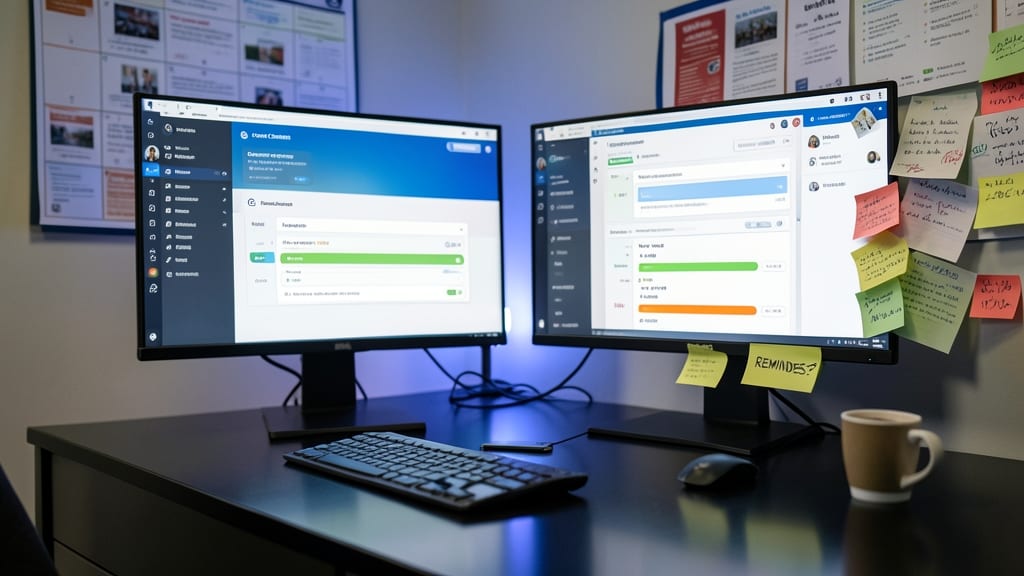
Schools drowning in last-minute reminders and double-booked event spaces will find relief in Teams' dedicated event channels. Instead of relying on scattered emails or paper flyers, administrators create custom event tabs with registration forms, agendas, and live polls—all accessible in one place.
Automated reminders with adjustable time buffers ensure no one misses a virtual assembly or PTA meeting, while real-time attendance tracking provides instant headcounts. The platform even supports hybrid events, letting in-person attendees join virtually via the same interface. Schools using Teams report 30% fewer scheduling conflicts and 40% higher event participation thanks to these streamlined workflows.
This feature shines brightest for large school districts managing district-wide events like graduation ceremonies or back-to-school nights, where coordination across multiple buildings would otherwise be a logistical nightmare. ✨
Data-driven classroom insights

Imagine catching learning gaps before they become failures—Microsoft Teams’ activity reports turn student engagement into actionable data. Educators can track participation patterns, time spent on assignments, and even meeting attendance to spot trends like disengagement or confusion early.
The Analytics dashboard provides granular insights, like which students frequently miss deadlines or rarely contribute to discussions. With this data, teachers can personalize interventions—whether offering extra support, adjusting lesson pacing, or reassigning group work. The zero-configuration setup means no extra training is needed to start using these tools.
This feature is a game-changer for administrators and special education teams, who can now align resources with real-time needs. For schools prioritizing equity, it’s the difference between reactive and proactive support. ✨