
Software
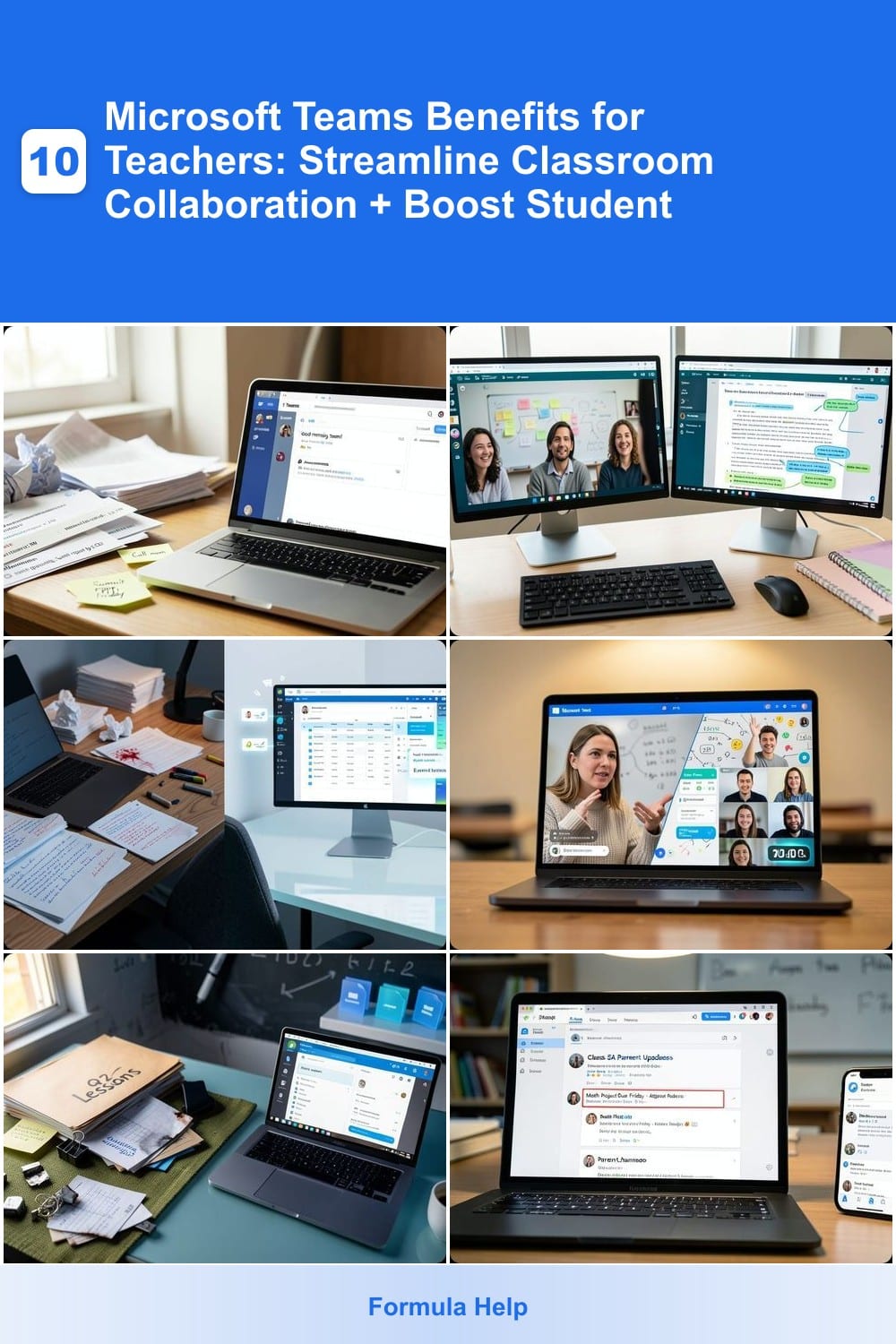
Microsoft Teams isn’t just another productivity tool—it’s a game-changer for modern classrooms. Discover how this platform transforms teaching workflows, enhances student collaboration, and creates seamless digital learning experiences that save time and boost engagement.
Seamless classroom communication hub

Drowning in a sea of emails, reminders, and forgotten messages? Microsoft Teams’ Seamless Classroom Communication Hub transforms chaos into clarity by centralizing all classroom updates—announcements, one-on-one messages, and urgent reminders—in one secure, searchable space. No more hunting through cluttered inboxes or missing critical deadlines; every notification lands in your Teams feed, where you control when and how to engage.
The platform’s dedicated class channels let you pin important dates, share quick updates via @mentions, and even schedule recurring reminders (like test prep weeks or field trip sign-ups). With end-to-end encryption and role-based permissions, sensitive discussions stay private, while the mobile app ensures you’re always connected—whether you’re grading at home or responding to a student’s question on the go. The integrated calendar syncs with Outlook, so no event slips through the cracks.
This is the ultimate tool for time-strapped educators who need to communicate efficiently without losing important messages in the shuffle. Whether you’re managing hybrid classes or keeping parents in the loop, Teams keeps everyone on the same page—literally. ⚡
Real-time student-teacher collaboration
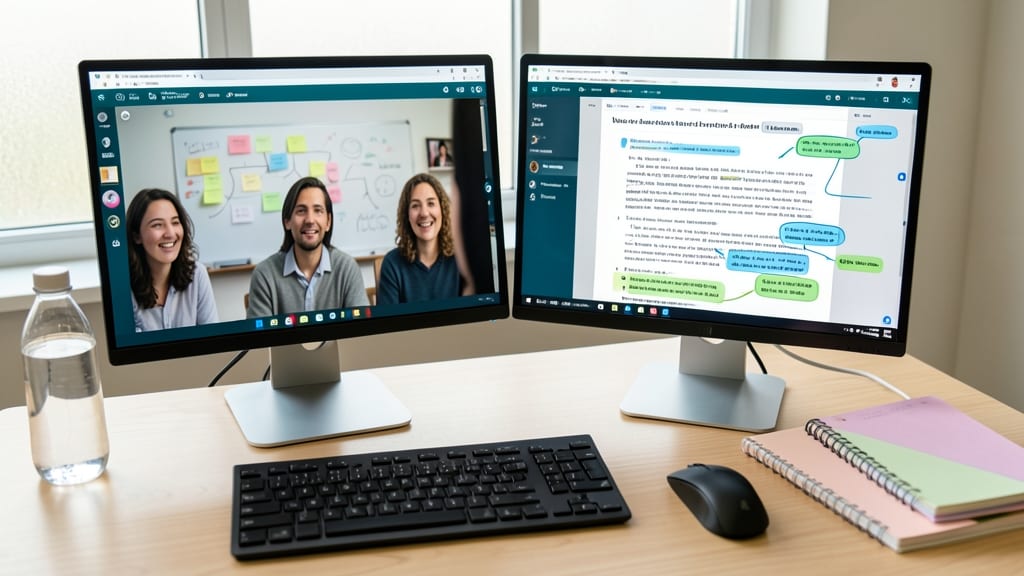
Flipped classrooms and hybrid learning thrive on interactive, real-time engagement—and Microsoft Teams delivers with its collaborative tools designed to mimic in-person discussions. Imagine a student drafting a thesis while you leave instant feedback in the margins of a shared Word document, or a group debating a science concept in a live chat while you annotate key points on a virtual whiteboard. These features turn passive learning into an active dialogue, even when students are miles apart.
The platform’s co-authoring mode in Word, Excel, and PowerPoint lets multiple users edit the same file simultaneously, with version history tracking changes in real time. Add screen sharing for live demonstrations or breakout rooms for small-group discussions, all while the teacher moderates the main session. The @mention feature ensures no student gets left behind in group projects, and the reaction buttons (thumbs up, confused face) let shy students signal questions without interrupting. Best of all, these tools require zero extra apps—everything works natively within Teams.
This is the secret weapon for educators using flipped or hybrid models, where face-to-face time is limited but engagement must stay high. Whether you’re guiding a lab report, reviewing essays, or hosting a book club, Teams turns your screen into a dynamic classroom—no matter where your students log in from. 💡
Integrated assignment management system
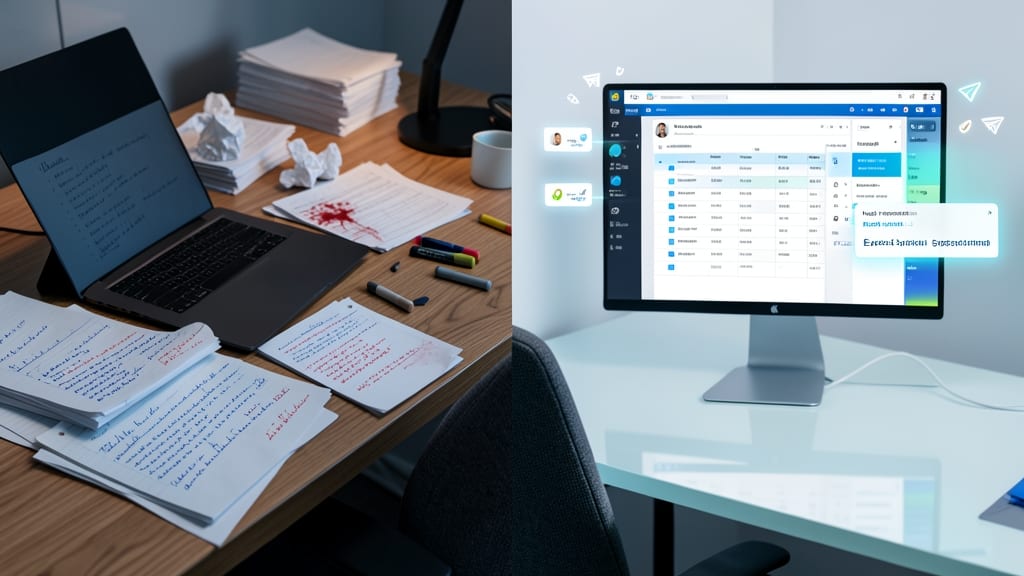
Say goodbye to stacks of papers and endless grading sessions—Microsoft Teams’ Integrated Assignment Management System turns chaos into clarity. With pre-built rubrics, automated grading scales, and real-time submission tracking, you can focus on teaching instead of paperwork.
Create assignments with deadlines, file type restrictions, and peer review options—all synced to your digital gradebook. The system even generates progress reports so you can spot trends (like repeated late submissions) and intervene early. Plus, automated feedback for multiple-choice questions frees up time for personalized notes on essays.
This is the ultimate tool for busy educators juggling lesson planning and grading—especially those teaching hybrid or online classes where digital workflows are non-negotiable. ✨
Virtual classroom with interactive tools
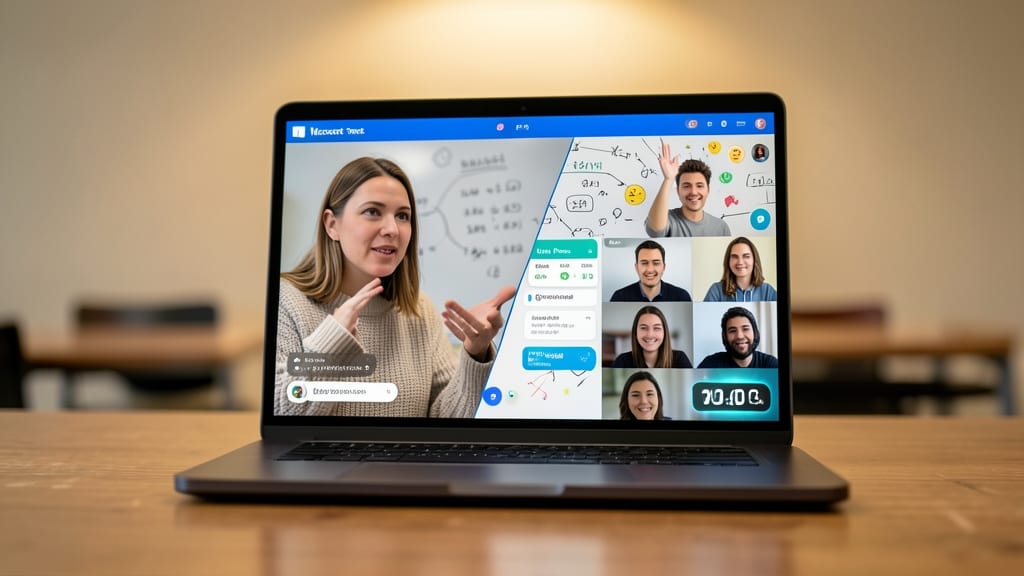
Tired of passive virtual lessons where students zone out after 10 minutes? Microsoft Teams’ virtual classroom tools turn passive viewers into active participants with built-in engagement features that feel like a real classroom—just digital.
Start with live polls and quizzes (no extra apps needed) to gauge understanding instantly, then split students into breakout rooms for group discussions or peer teaching. The whiteboard tool lets you sketch diagrams or annotate documents in real time, while reaction emojis (👍, 🤔) let students signal confusion or agreement without interrupting. Best of all, these tools integrate seamlessly with your existing lesson plans—no tech setup required.
Perfect for hybrid teachers juggling in-person and remote students, or subject specialists who need to keep discussions lively (think debate classes or science labs). With zero config, you’ll spend less time troubleshooting and more time teaching. ✨
Secure file sharing and cloud storage

Tired of chasing down lost USB drives or scrambling to find the latest version of a worksheet? Microsoft Teams integrates with OneDrive, giving you a centralized, searchable repository for all your lesson plans, worksheets, and resources—no more digging through folders or email attachments.
With real-time syncing, every teacher and student sees the most up-to-date files, eliminating version control headaches. The 1TB of cloud storage (included with Office 365 Education) means you’ll never run out of space for videos, presentations, or student projects. Plus, files are securely encrypted and accessible from any device with internet—whether you're grading at home or lesson-planning on the go.
This feature is a game-changer for teachers who juggle multiple classes or grade levels—no more "I saved it to my desktop" chaos. Perfect for educators who want to streamline workflows while keeping resources organized and accessible for both themselves and students. ✨
Parent-teacher communication bridge
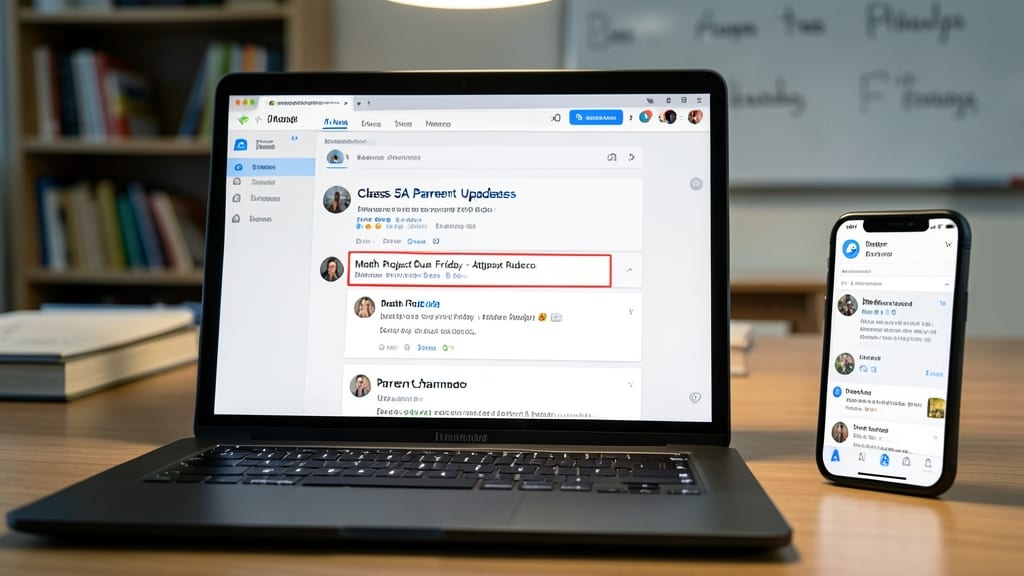
Tired of playing phone tag with parents trying to track homework deadlines or event details? Microsoft Teams solves that with dedicated parent channels—a private space where teachers can share updates, assign homework reminders, and post event notifications all in one place.
Set up a separate channel for each class, then use the built-in announcements tab to pin important dates or the files tab to share syllabi and permission slips. Parents receive real-time alerts via email or mobile notifications, ensuring no one misses critical information. The @mention feature lets you tag specific parents for one-on-one follow-ups, while the calendar integration syncs with Outlook to avoid scheduling conflicts.
This feature is a lifesaver for teachers juggling parent communications, especially those with limited in-person interaction or large class sizes. It turns fragmented conversations into a centralized, organized hub—keeping everyone on the same page. ✨
Automated attendance tracking
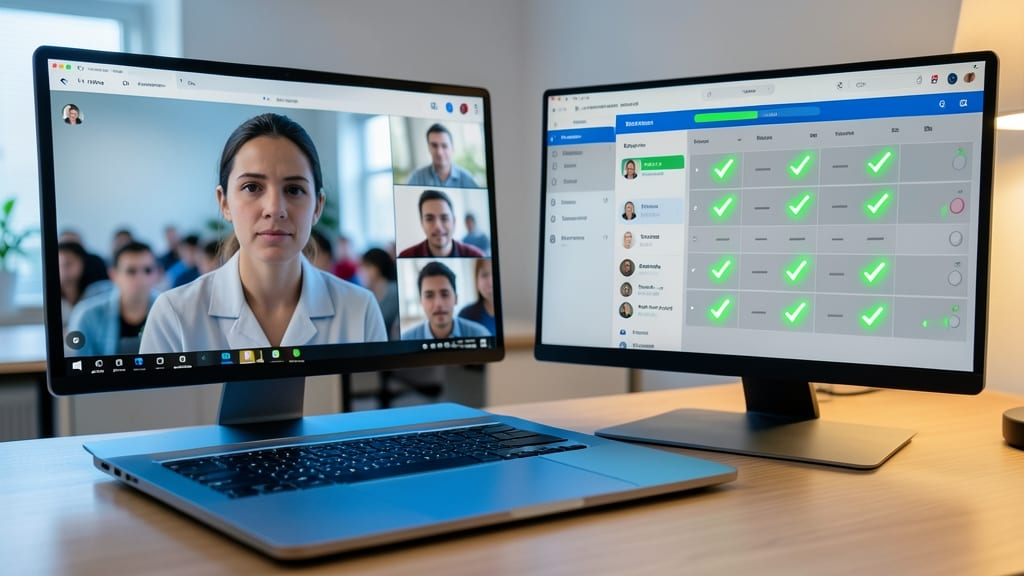
Say goodbye to the endless, "Is everyone here?" calls that eat into your lesson time. Microsoft Teams’ automated attendance tracking uses AI-powered check-ins during virtual classes, marking students present or absent in real time—no manual roll call needed.
The system generates daily, weekly, and customizable reports with attendance trends, letting you spot patterns like chronic absences or participation drops early. You can even set automated reminders for students who miss sessions, ensuring no one slips through the cracks. Best of all, it integrates seamlessly with your existing Teams classroom setup.
This feature is a lifesaver for teachers juggling hybrid or fully remote classes, where tracking attendance manually would be impossible. It’s also invaluable for special education teams monitoring IEP compliance or administrators needing quick data for compliance reports. ✨
Customizable classroom channels
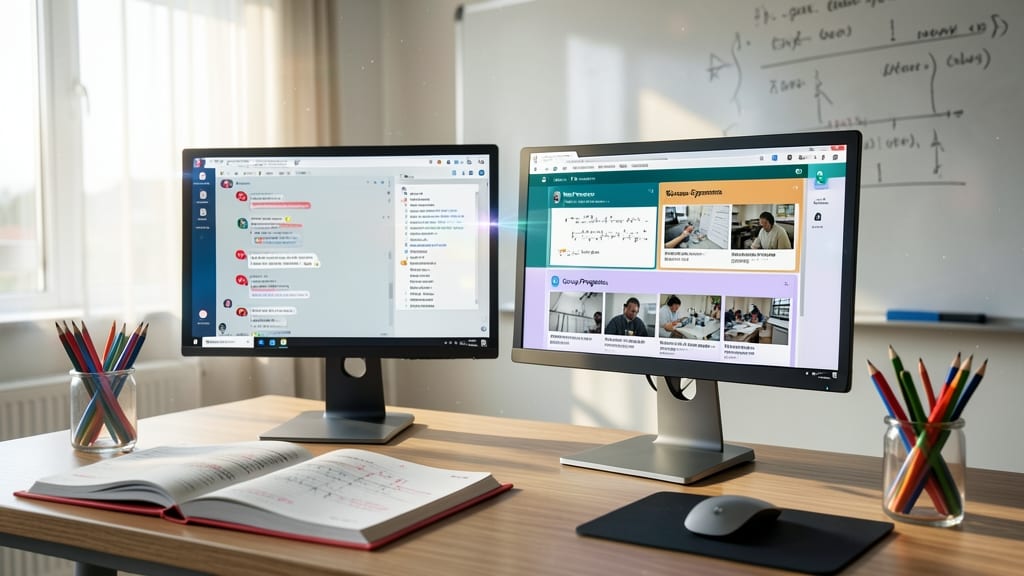
Say goodbye to students drowning in a sea of mixed messages—customizable classroom channels in Microsoft Teams let you organize content by subject, project, or even individual classes. Instead of one chaotic feed, you can create dedicated spaces for math problems, science experiments, or group projects, keeping discussions focused and resources easy to find.
With just a few clicks, you can set up channels for each class period, cross-curricular collaborations, or even student-led initiatives. Pin important announcements, share subject-specific files, and use tabs to categorize tools like polls, quizzes, or links—all without overwhelming students. The result? Less digital clutter and more efficient learning.
This feature is a game-changer for teachers juggling multiple subjects or projects—keep your classroom organized while students focus on what matters most. ✨
Built-in accessibility features
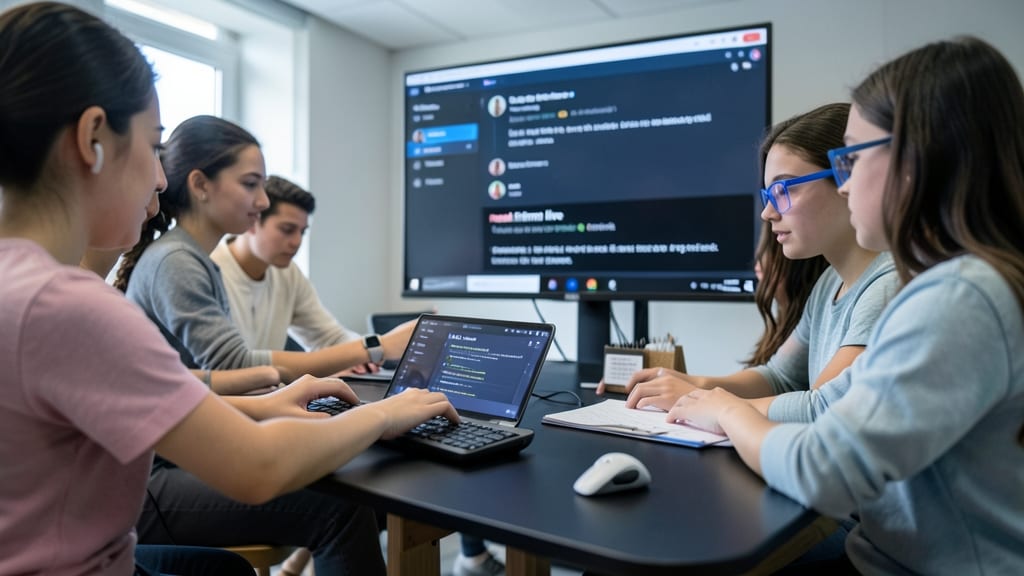
Every student deserves equal access to learning—but not all classrooms are designed with accessibility in mind. Microsoft Teams bridges that gap with built-in tools that adapt to individual needs, ensuring no student is left behind.
With screen reader support (like JAWS and NVDA), live captions for video calls, and customizable text sizes, Teams removes barriers for students with visual, auditory, or learning disabilities. The high-contrast mode and keyboard shortcuts further simplify navigation, while educators can easily enable these features with just a few clicks.
This isn’t just about compliance—it’s about creating a truly inclusive environment where every voice is heard. Perfect for teachers supporting diverse classrooms, from special education to mainstream settings. ✨
Seamless integration with Office 365
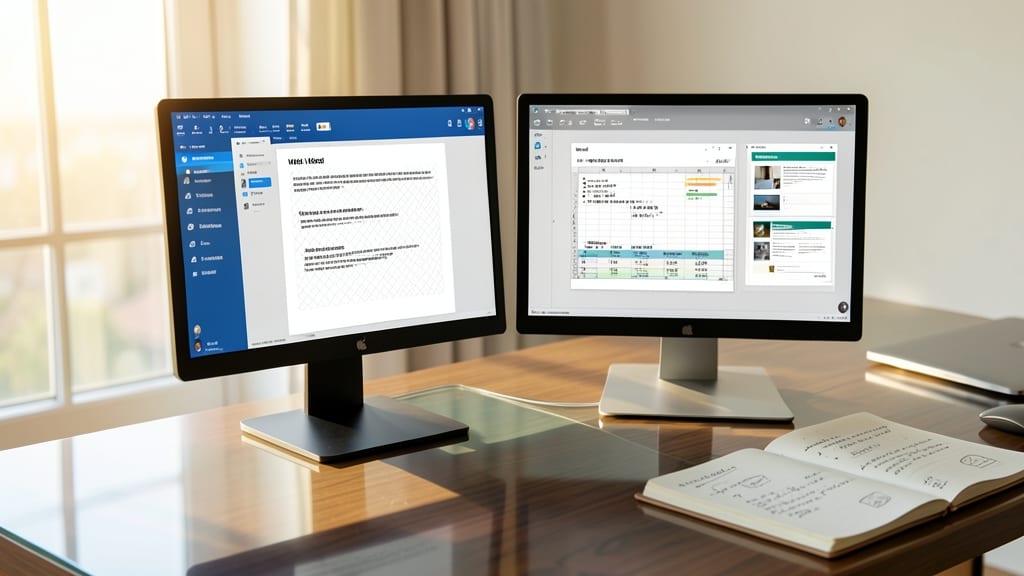
Say goodbye to juggling multiple apps when lesson planning or grading—Microsoft Teams natively embeds Word, Excel, and PowerPoint directly into chats and channels. This means you can draft a worksheet in Word, analyze student data in Excel, and finalize a presentation in PowerPoint—all without ever leaving Teams.
The integration is real-time and frictionless: students can edit shared documents simultaneously, teachers can leave comments directly in PowerPoint slides, and version history tracks every change. For example, a group project on climate change could start with a shared Word outline, transition to an Excel data analysis phase, and conclude with a collaborative PowerPoint pitch—all in one place.
This feature is a game-changer for teachers who juggle lesson prep, grading, and collaboration—especially those who teach subjects requiring data visualization or multimedia presentations. No more context-switching or lost files! ✨