
Tip & Trick
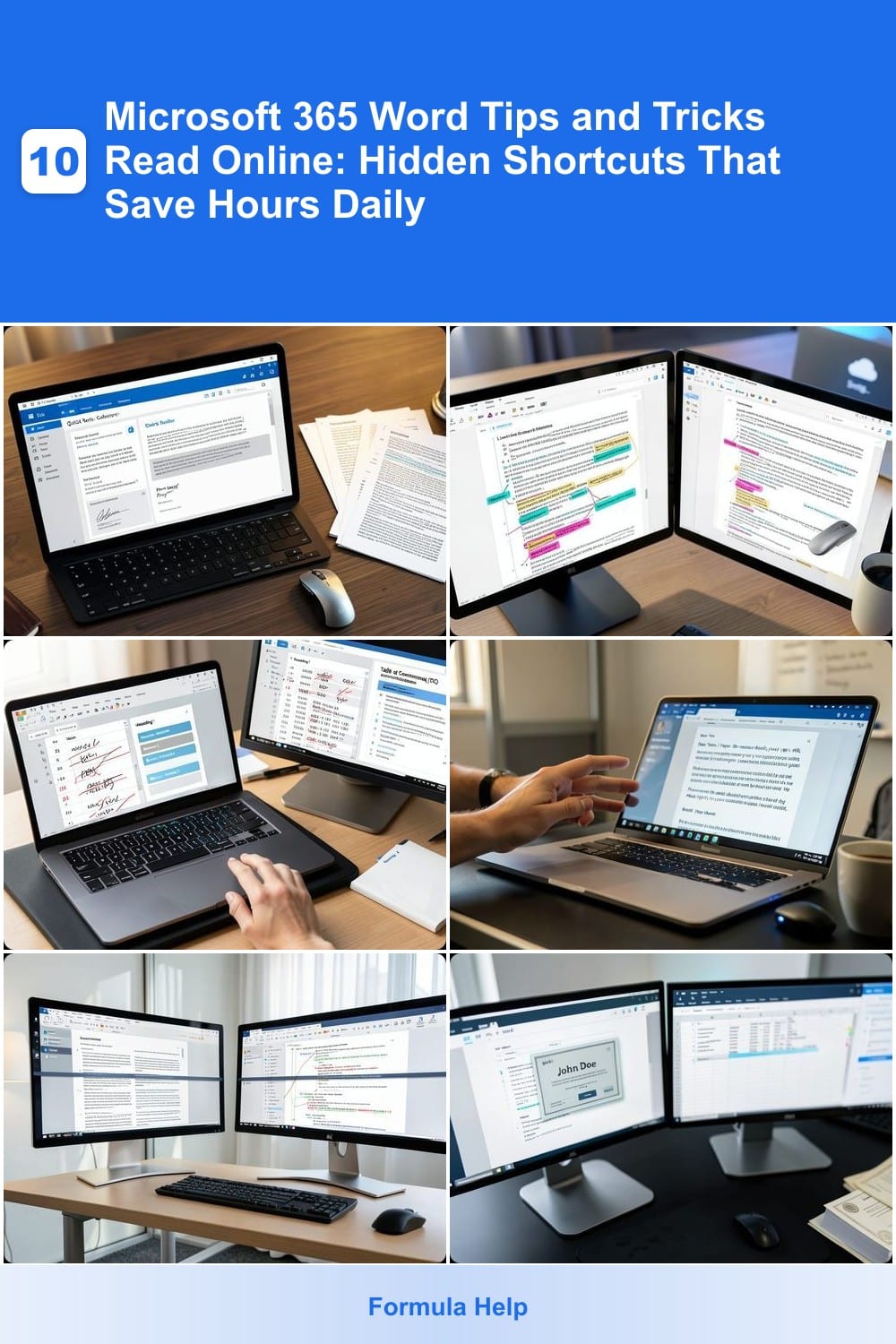
Microsoft Word is a powerhouse for productivity, but most users only scratch the surface of its capabilities. These seven hidden Microsoft 365 Word tips and tricks will transform how you work—saving you hours weekly by automating repetitive tasks, streamlining document creation, and unlocking advanced features you didn’t know existed.
Quick Parts Gallery for Reusable Content Blocks
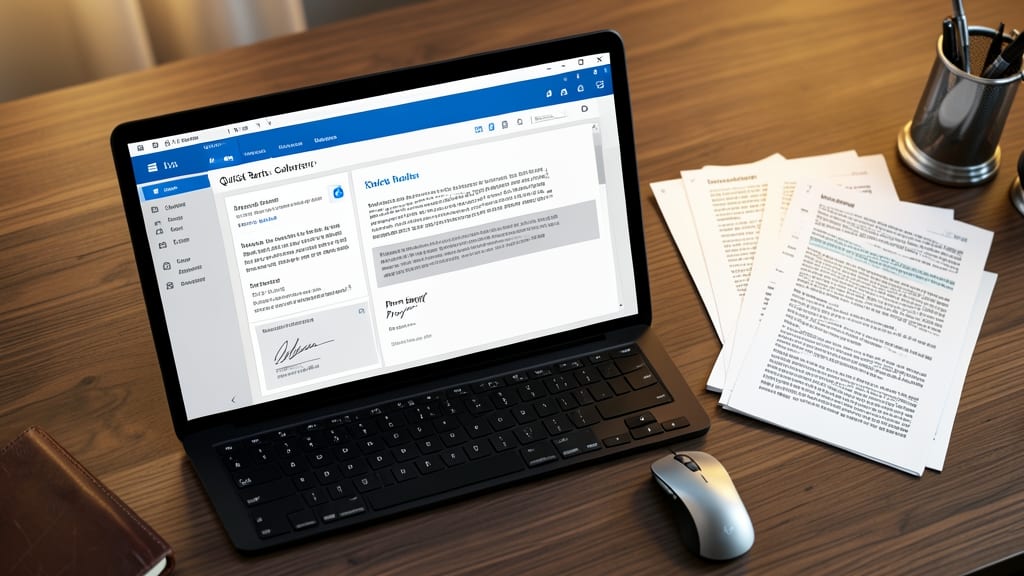
Tired of copying and pasting the same disclaimers, signatures, or project templates into every document? Microsoft Word’s Quick Parts Gallery lets you save frequently used text, tables, or graphics as reusable snippets—then insert them with just a few keystrokes. This hidden feature turns repetitive tasks into one-click solutions, ensuring consistency across reports, contracts, or templates.
To get started, highlight the content you want to reuse, then click Insert > Quick Parts > Save Selection to Quick Parts Gallery. Name it (e.g., "Contract Clause" or "Project Timeline"), and it’ll appear in a dropdown menu for instant access. You can even nest snippets—like saving a table of contents template or a standard footer—to streamline workflows further. The gallery syncs across devices if you’re using Microsoft 365, so your snippets travel with you.
Perfect for legal teams, marketers, or freelancers juggling multiple documents, this trick eliminates manual copying while keeping your work polished and error-free. Try it today and reclaim hours of repetitive typing! ⚡
Track Changes with Custom Highlighting Colors
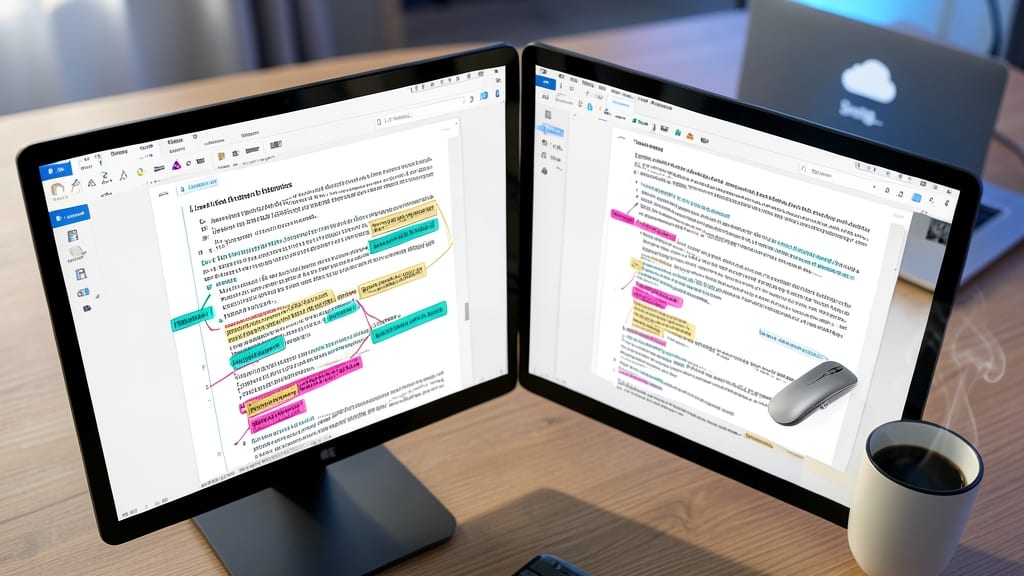
Collaborating on documents with multiple reviewers can turn into a messy guessing game—until now. Microsoft Word’s Track Changes feature lets you assign custom colors to different editors, instantly visualizing who suggested each edit. No more scrolling to find whose feedback you’re reviewing or accidentally accepting the wrong changes.
To set it up, enable Track Changes (Review tab), then click Highlight Changes and select Customize Colors. Assign a unique color—like blue for clients, green for internal teams, or red for urgent fixes—and watch edits appear in real-time with color-coded labels. This trick is a lifesaver for legal teams, marketing agencies, or academic groups where feedback comes from multiple sources.
Perfect for project managers, editors, or freelancers juggling client revisions, this feature turns chaotic edits into a clear, color-coded workflow. Say goodbye to confusion and hello to streamlined collaboration! 💡
One-Click Table of Contents with Auto-Updating Headings
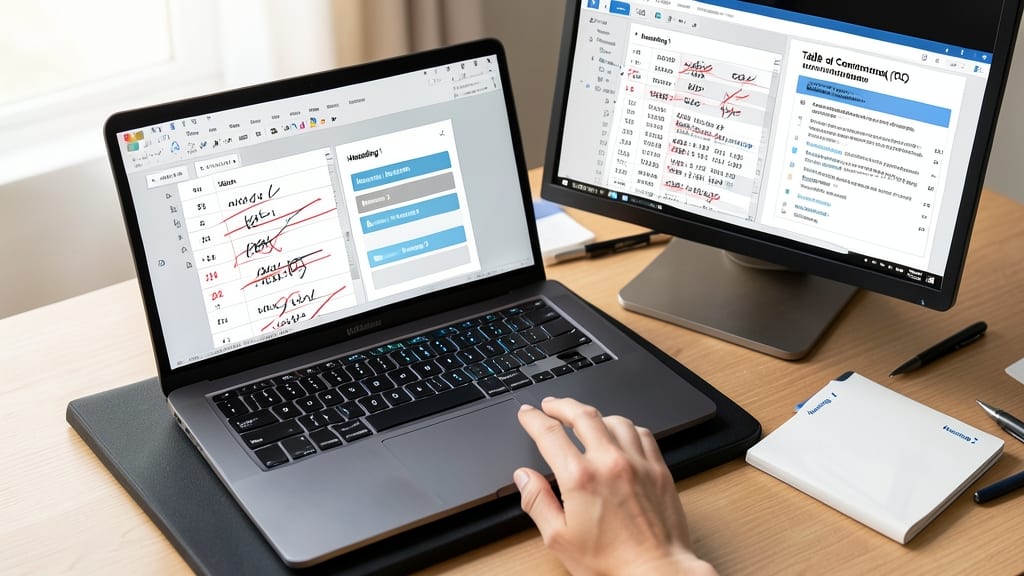
Struggling with manually updating your Table of Contents after every edit? Word’s auto-generated TOC feature does the work for you—no more tedious copy-pasting or page-number chasing. Simply format your headings with built-in styles (Heading 1, Heading 2, etc.), then insert the TOC in seconds.
This dynamic Table of Contents updates instantly when you modify headings, add sections, or rearrange content—ideal for academic papers, user manuals, or lengthy reports. You can even customize its appearance to match your document’s style, including hyperlinks for quick navigation. The best part? It works seamlessly across Microsoft 365 versions, so you’re covered whether you’re on Windows or Mac.
Perfect for researchers, technical writers, or anyone juggling lengthy documents, this trick turns a time-sink into a one-click solution. ✨
Dictate Text Hands-Free with Voice Commands
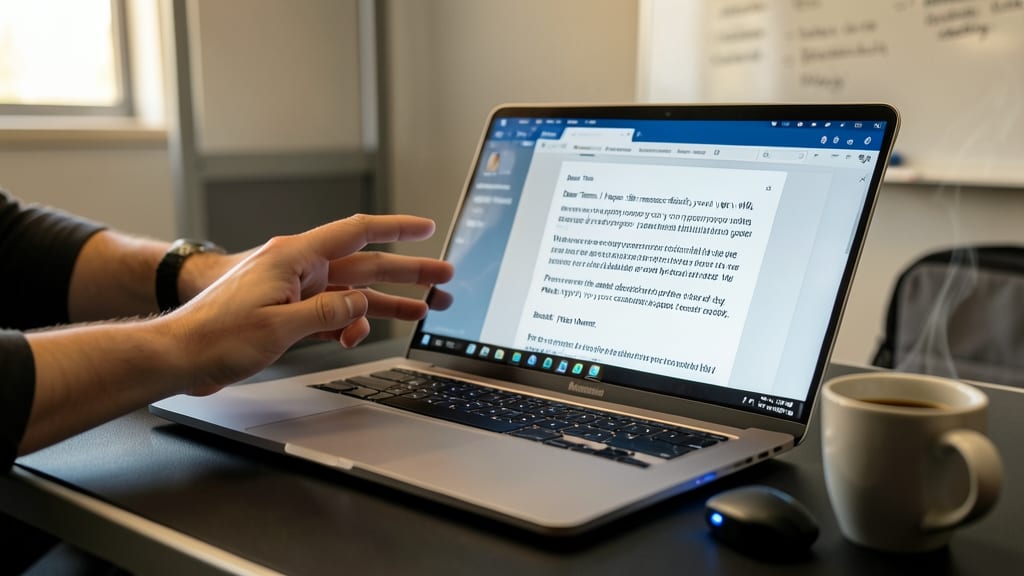
Tired of typing the same emails or reports while juggling meetings or commuting? Microsoft Word’s built-in speech-to-text tool lets you dictate text hands-free with near-perfect accuracy, turning your voice into polished documents in seconds.
Enable it via Dictate > Start Dictating (Windows) or Tools > Dictate (Mac), then speak naturally—Word handles punctuation, formatting, and even special commands like "new paragraph" or "insert table." The feature supports 40+ languages and adapts to accents, making it ideal for drafting notes, memos, or brainstorming ideas without lifting a finger.
Perfect for busy professionals, journalists, or anyone with repetitive typing tasks, this trick cuts down on screen time while keeping your hands free for other work. Try it today and reclaim hours of productivity! ✨
Split Screen for Side-by-Side Document Comparison
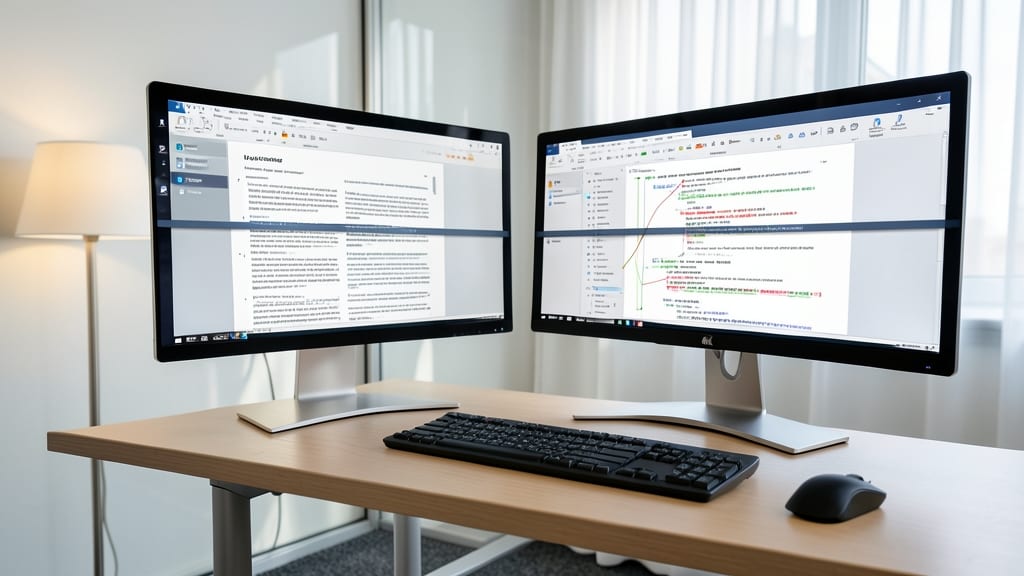
Struggling to cross-reference two lengthy documents or merge edits without flipping back and forth? Microsoft Word’s split-screen view lets you open two documents side-by-side—horizontally or vertically—so you can compare content, spot discrepancies, or align revisions in real time.
Enable it by dragging a document tab to the View Side by Side option in the Window menu, then adjust the split ratio with your mouse. Need to sync scrolling? Hold Ctrl+Shift+Alt while clicking the scrollbar to lock them together. This feature shines for legal contracts, technical manuals, or academic papers where precision matters.
Perfect for editors, lawyers, or researchers who juggle multiple versions of the same document. Say goodbye to tab-switching chaos! ✨
Mail Merge with Excel Data for Personalized Letters
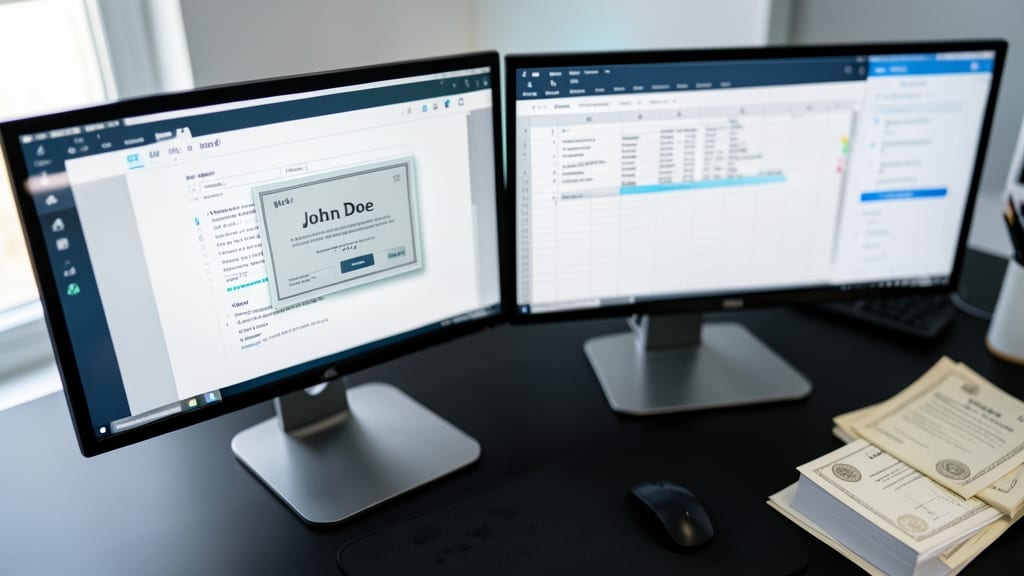
Tired of manually typing the same details into dozens of letters or certificates? Mail Merge in Microsoft Word lets you automate personalized bulk documents in minutes by pulling data from an Excel spreadsheet—no coding required.
Start by creating a Word template with placeholders like <
This trick is a game-changer for anyone drowning in repetitive formatting. Try it once, and you’ll wonder how you ever did it manually. ✨
Undo Multiple Actions with a Single Command
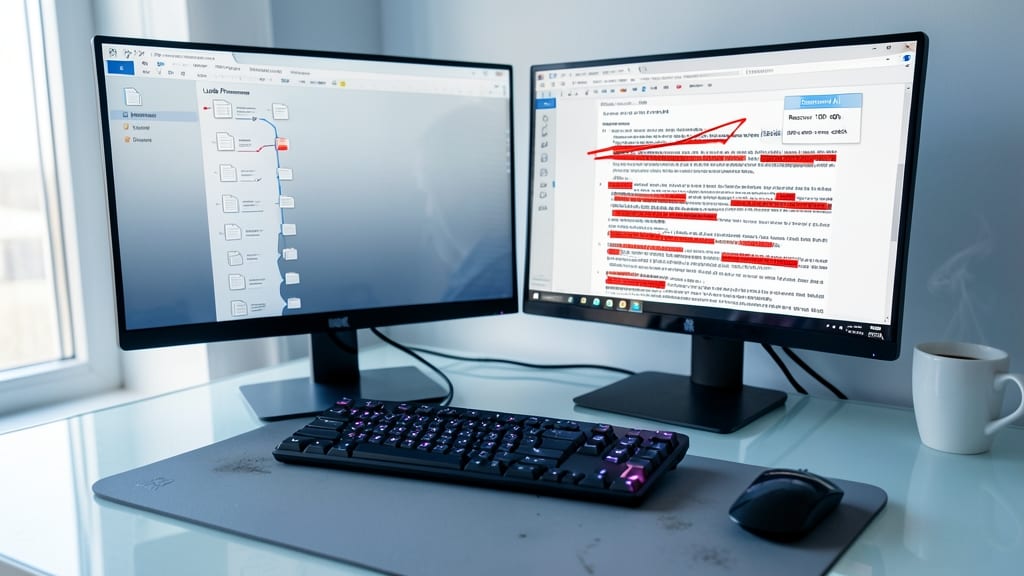
Ever hit Ctrl+Z too late and realize you’ve lost more than one action? Microsoft Word’s Undo Panorama lets you recover up to 100 steps with a single click—no more frantic redoing of every mistake. This hidden gem is especially useful when working with complex documents where formatting errors or accidental deletions can derail your workflow.
To access it, press Ctrl+Z repeatedly until you reach the Undo Panorama dropdown (a list of recent actions). Click the top item to undo all selected steps at once. Need to undo just a few? Hold Ctrl while clicking individual actions to deselect them. The feature also syncs across devices if you’re using Microsoft 365, so your progress stays safe.
This trick is a game-changer for lawyers, editors, and anyone handling high-stakes documents where precision matters. No more losing hours to manual fixes—just one click to restore your work. ✨