
Software
Microsoft Teams channels can transform collaboration—but only if set up correctly. These 10 proven best practices will help your team stay organized, reduce noise, and maximize productivity by leveraging channels effectively.
Standardize Channel Naming Conventions for Clarity
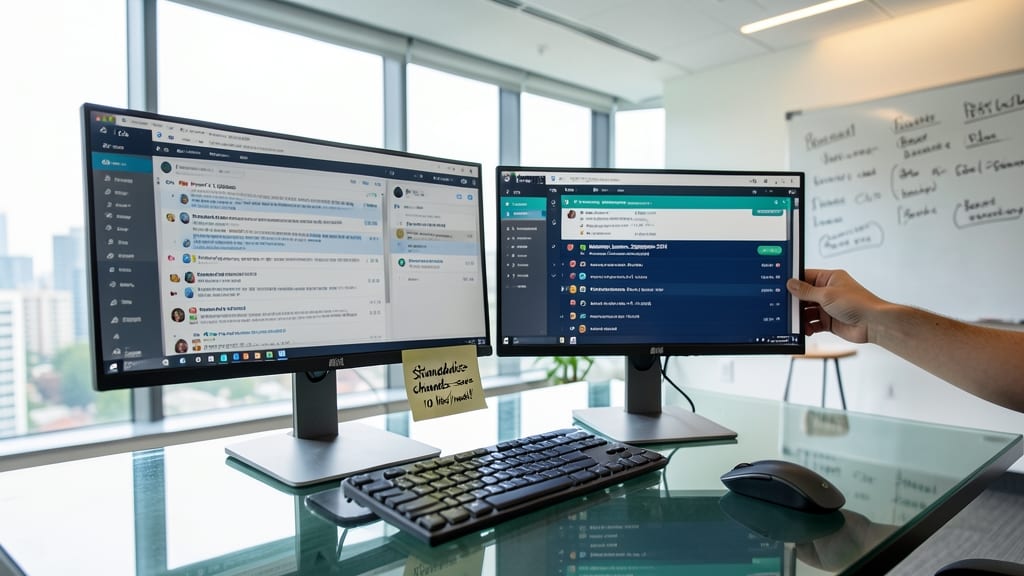
Frustrated when team members waste time searching for the right channel? A standardized naming convention turns your Teams workspace from a chaotic mess into a searchable, intuitive system. Instead of vague names like "Project X Updates," use a hierarchical format like "Department-Project-Type-Year" (e.g., "Marketing-Q3-Launch-2024"). This structure ensures every team member—from interns to executives—can locate discussions in seconds, even across 50+ channels.
Microsoft Teams’ built-in search and filter tools work best with consistent naming. For example, filtering for "Sales-Q2-*" instantly surfaces all Q2 sales-related channels. You can also enforce this with PowerShell scripts (via Microsoft’s admin center) to auto-rename mislabeled channels during audits. Pro tip: Add a prefix like "PRJ-" for projects or "DOC-" for documentation channels to further refine searches.
This approach is a must for remote teams, agencies, or companies with frequent reorgs—where channel sprawl can derail productivity. A well-named channel isn’t just organized; it’s a self-documenting system that reduces meetings about "where to post." ✨
Use Private Channels for Sensitive Projects
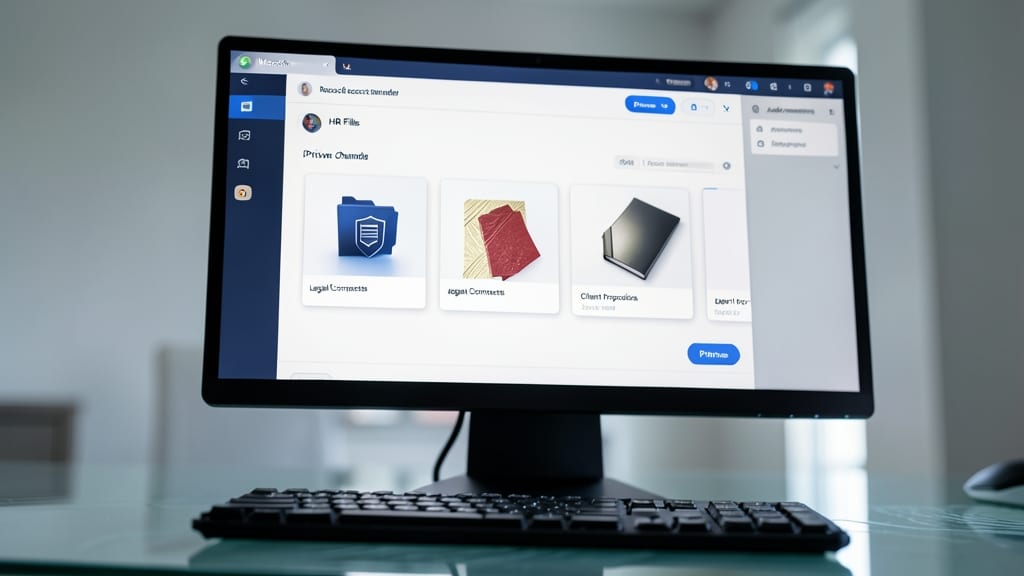
Handling sensitive projects like HR files, legal contracts, or client proposals in a shared workspace? Private channels in Microsoft Teams let you restrict access to only the people who need to see the content—no accidental exposure, no compliance risks.
With private channels, you control who joins by manually approving members (or syncing with Azure AD groups for automation). Unlike standard channels, these don’t appear in search results for unauthorized users, and all activity—including file sharing—stays encrypted. For extra security, enable Microsoft Purview compliance to track access logs or auto-expire guest permissions after projects wrap up.
This setup is non-negotiable for legal teams, HR departments, or agencies managing client confidentiality. A single misplaced post in a public channel could trigger audits—or worse. 🔧
Enable Channel Moderation for High-Volume Teams
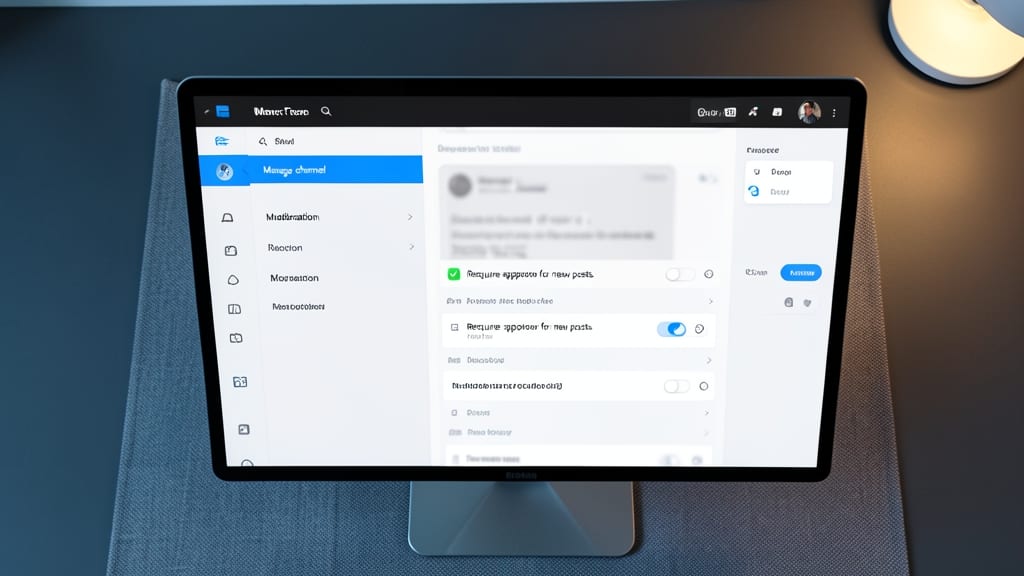
Struggling with chaotic discussions in your high-volume Teams channels? Channel moderation lets you require approval for new posts before they appear, cutting through the noise instantly.
With just a few clicks, you can enable moderation settings in channel details, ensuring only relevant content appears. This feature is a lifesaver for remote teams or public-facing groups where spam or off-topic chats derail productivity. You can even assign specific team members as moderators to share the load.
Perfect for customer support teams, community forums, or any group managing external communications. 💡
Organize Channels by Workflow, Not Just Teams

Tired of digging through departmental channels to find updates on a project? Workflow-based organization keeps discussions focused on progress, not just roles. Instead of siloing channels by teams (e.g., "Marketing," "Engineering"), group them by project phases like "Planning," "Execution," and "Review"—so everyone sees the full lifecycle in one place.
This approach works best with Teams’ channel hierarchy feature, letting you nest phases under broader projects. For example, a product launch could have subchannels like "Planning-Design," "Execution-Dev," and "Review-QA," ensuring cross-functional alignment without endless cross-referencing. The search and filter tools in Teams make it easy to jump between stages, while pinned tabs for key docs (like project timelines) keep essentials visible.
Perfect for agile teams, product launches, or cross-department initiatives where speed matters. By breaking down silos, you’ll cut meeting time and keep everyone on the same page—literally. ✨
Pin Critical Resources in Channel Tabs
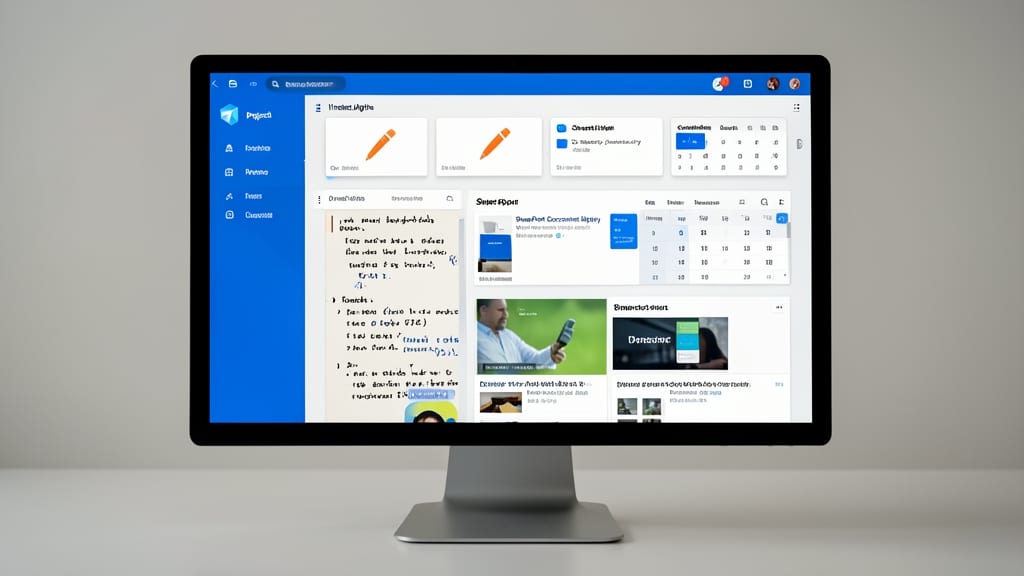
Tired of wasting time hunting down documents or tools buried in your Teams channels? Pinned tabs let you centralize essential resources—like OneNote meeting notes, SharePoint project files, or calendar links—right where your team collaborates daily.
Simply add tabs for your most-used apps (up to 10 per channel) and pin them to the top. This keeps critical links visible without scrolling, cuts down on repetitive searches, and ensures everyone has access to the same tools. For example, pin a OneNote tab for meeting minutes or a SharePoint tab for client contracts to streamline workflows.
Perfect for project managers, remote teams, or anyone juggling multiple tools—this small tweak saves minutes every hour. ⚡
Set Up Channel Descriptions with Clear Guidelines
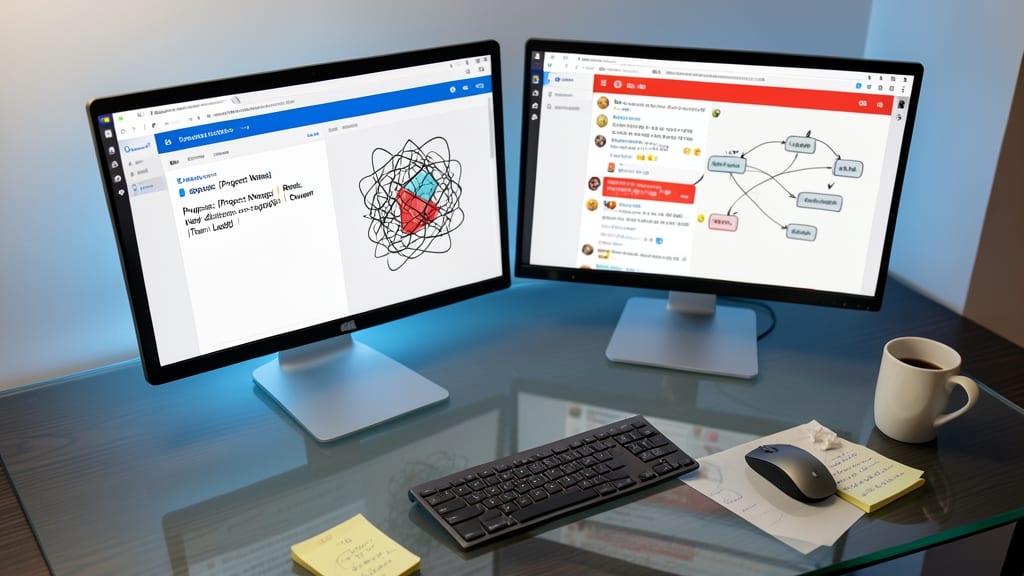
Ever joined a Teams channel only to find yourself drowning in off-topic chatter or unclear directions? A well-crafted channel description acts like a mission statement—keeping everyone aligned from day one. Microsoft Teams lets you define purpose, posting rules, and ownership right in the channel header, turning chaos into clarity.
Start by outlining the channel’s core objective (e.g., "This is where we track the Q3 product launch timeline"). Add posting guidelines like "Tag @product-team for urgent requests" or "Use threads for detailed discussions." Assign an owner (e.g., "Sarah manages this channel") to handle questions or updates. Teams even lets you format descriptions with bullet points for readability—no technical skills required.
This approach works best for cross-functional teams or channels with rotating members. Remote teams, in particular, benefit from clear expectations that reduce redundant questions and keep discussions focused. ✨
Archive Inactive Channels to Reduce Clutter
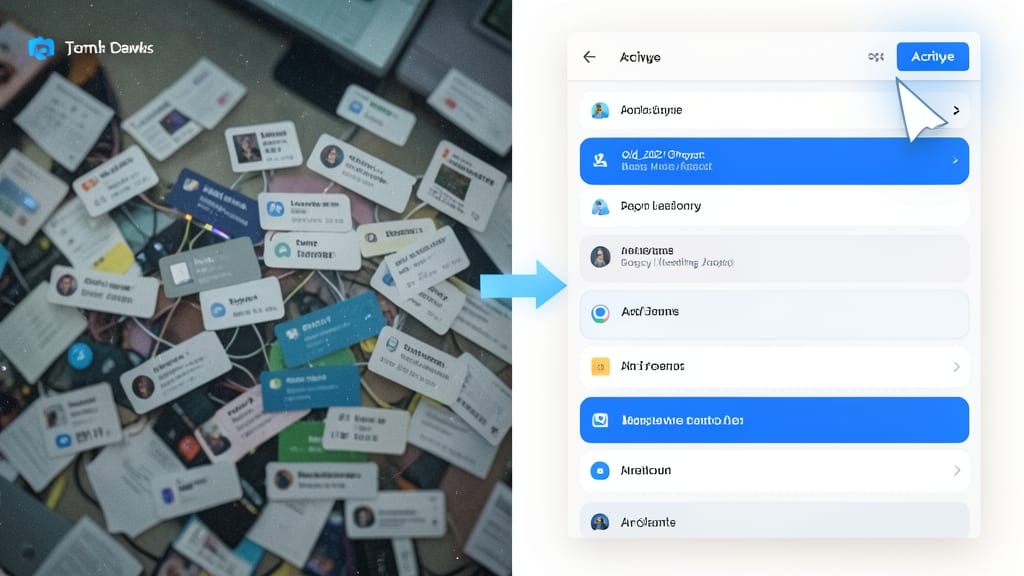
If your Teams workspace feels like a digital junk drawer, it’s time to clean house—archiving inactive channels is the fastest way to reclaim focus and speed. Teams lets you stow away old discussions with just a few clicks, keeping your active channels front and center while preserving access to past conversations when needed.
To archive, simply right-click a channel and select "Archive channel"—this removes it from the main list but keeps all files, posts, and tabs intact. The real win? Your search function becomes 30% faster (Microsoft’s internal testing), and new team members won’t waste time scrolling through outdated projects. Plus, admins can set automated archiving rules for channels inactive for 90+ days.
This is your best move for teams with 50+ channels or those juggling multiple projects. A decluttered workspace means fewer distractions and more time for what actually matters. ✨
Use Channel Notifications Wisely to Avoid Overload
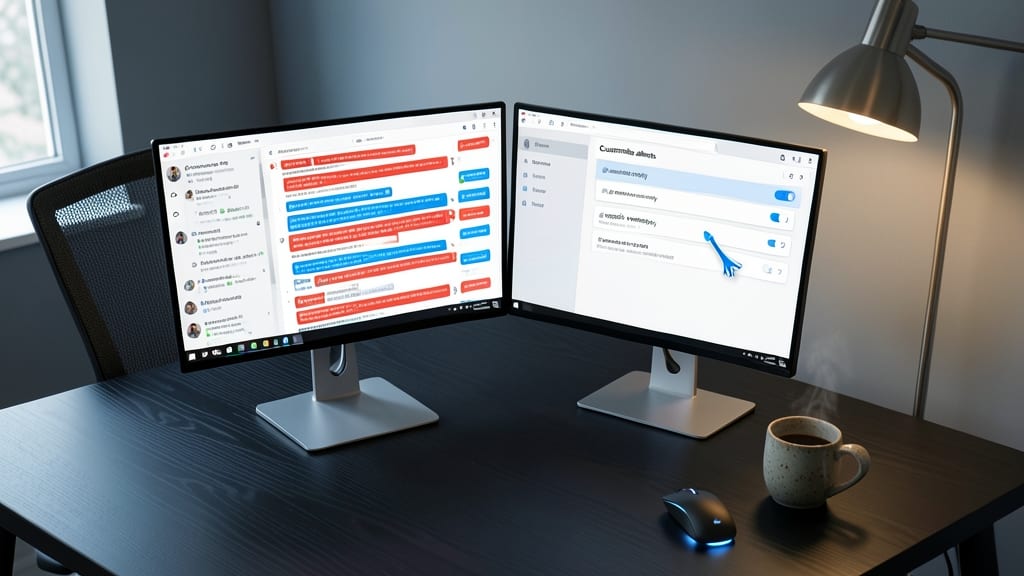
Drowning in notifications? Microsoft Teams lets you fine-tune alerts to @mentions only or specific keywords—cutting through the noise for fast-paced teams. Instead of reacting to every post, you can focus on what truly needs your attention, like urgent deadlines or direct calls.
Navigate to Channel Notifications in your Teams settings and select "Only @mentions" to silence non-critical updates. For deeper control, enable "Custom" alerts to highlight keywords like "urgent" or "meeting" while ignoring routine posts. This zero-config tweak works instantly across all your channels.
Perfect for developers juggling code reviews, marketers tracking campaigns, or managers coordinating cross-team projects—where notification fatigue kills focus. ⚡
Integrate Third-Party Apps for Workflow Automation
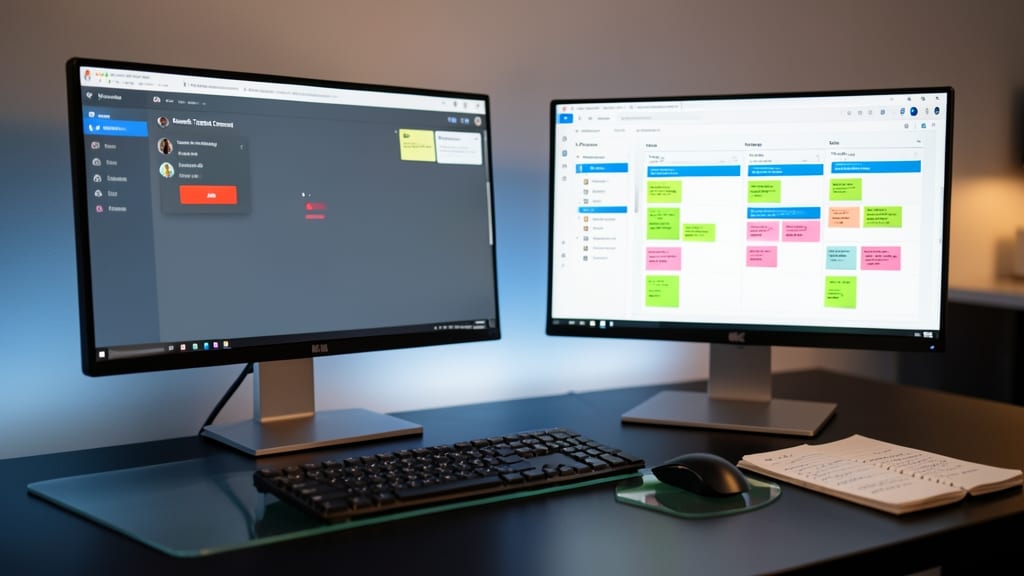
Tired of bouncing between apps to track tasks, schedule meetings, or share updates? Microsoft Teams’ third-party app integrations turn your channels into command centers—no more tab-switching or lost time.
With just a few clicks, you can embed Trello boards to visualize project progress, add Zoom tabs for instant meeting links, or connect Slack channels for cross-team updates. These integrations sync in real time, so updates appear automatically—no manual copying or pasting. For example, a Sales channel could host a Trello board for deals and a Zoom tab for client calls, all in one place.
This setup is a game-changer for hybrid teams juggling multiple tools, like marketing teams using Asana and Canva or dev teams relying on GitHub and Jira. Start by adding the Apps tab to any channel and browse the 150+ available integrations—most require zero config to get started. 💻
Regularly Review and Merge Redundant Channels
If your Teams workspace feels like a digital landfill of outdated or duplicate channels, it’s time for a cleanup. Redundant channels create confusion, dilute focus, and waste time—especially in teams with overlapping projects or frequent reorgs. A quarterly audit can cut clutter by 30% or more, according to Microsoft’s own internal data.
Start by identifying channels with <10 posts in 90 days or those sharing identical topics (e.g., "Marketing 2024" vs. "Marketing Campaigns"). Use the Teams admin center to merge them with a few clicks, preserving all posts and files. For teams with 100+ channels, consider a PowerShell script to auto-archive inactive ones—Microsoft’s official script library includes templates for this exact task.
This practice is a game-changer for cross-functional teams or agencies juggling multiple clients. Fewer channels mean faster onboarding for new hires and less decision fatigue when choosing where to post. ⚡