
Tip & Trick
Microsoft Word is packed with hidden features that can save you hours every week. These 10 underutilized tips and tricks will transform how you work—from automating repetitive tasks to creating professional documents with minimal effort.
Quick Parts Gallery for Reusable Content
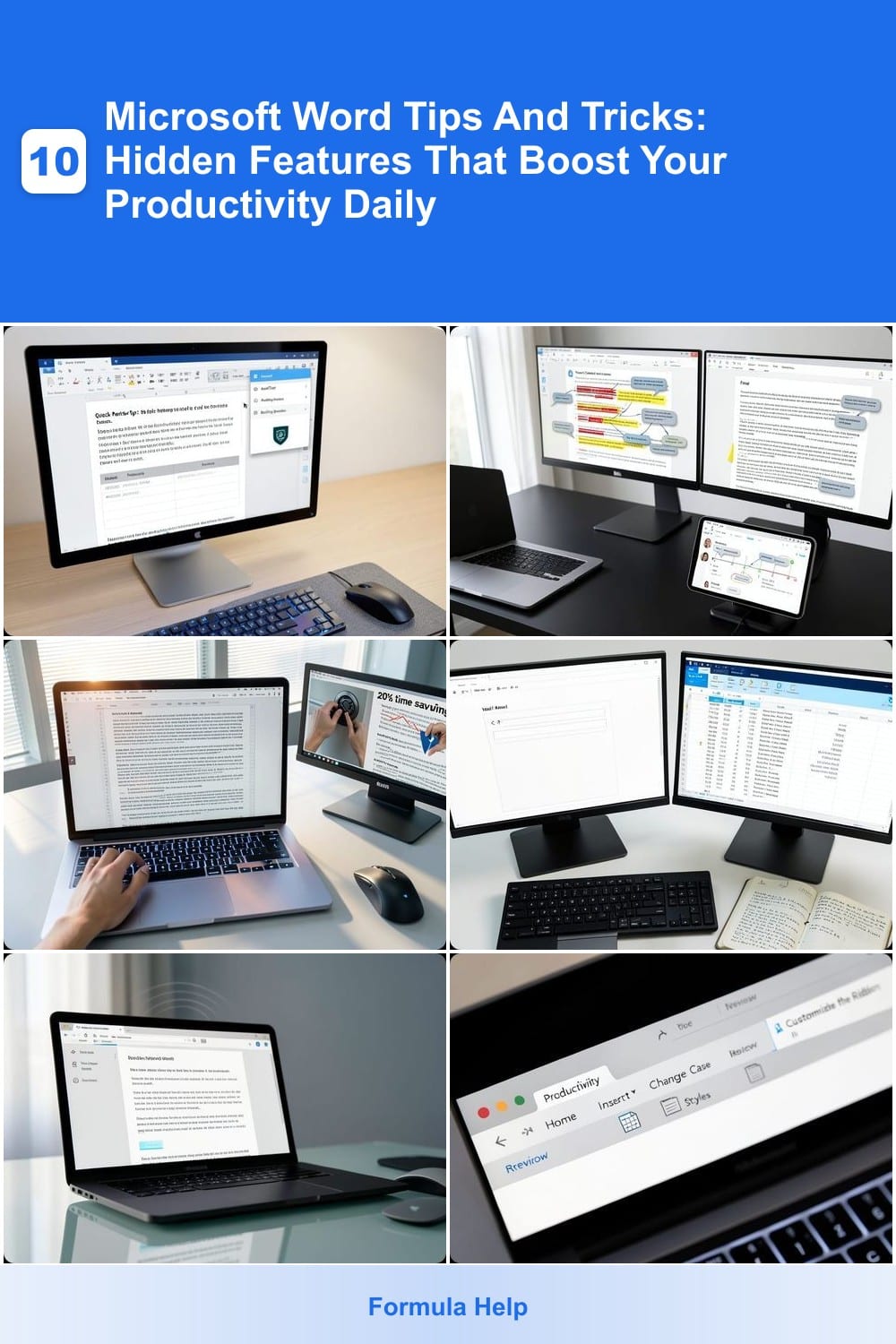
Ever spent 10 minutes retyping the same disclaimer or formatting a table you’ve used a dozen times before? The Quick Parts Gallery turns repetitive content into a one-click solution, storing text, tables, and graphics as reusable snippets—think of it as Word’s built-in clipboard on steroids.
To use it, highlight your content, click Insert > Quick Parts > Save Selection to Quick Parts Gallery, then name it (e.g., “Client Disclaimer” or “Project Timeline”). Next time, just press Alt+F3 to browse your saved snippets and insert them instantly—formatting preserved. Pro tip: Organize them into folders for chaos-free access. This feature even works across documents, so your standard headers, signatures, or boilerplate text travel with you.
Perfect for business professionals drafting contracts, educators reusing syllabus sections, or marketers sending templated emails—cut your workflow time by 30% with zero setup hassle. ⚡
Track Changes with Comments and Balloons
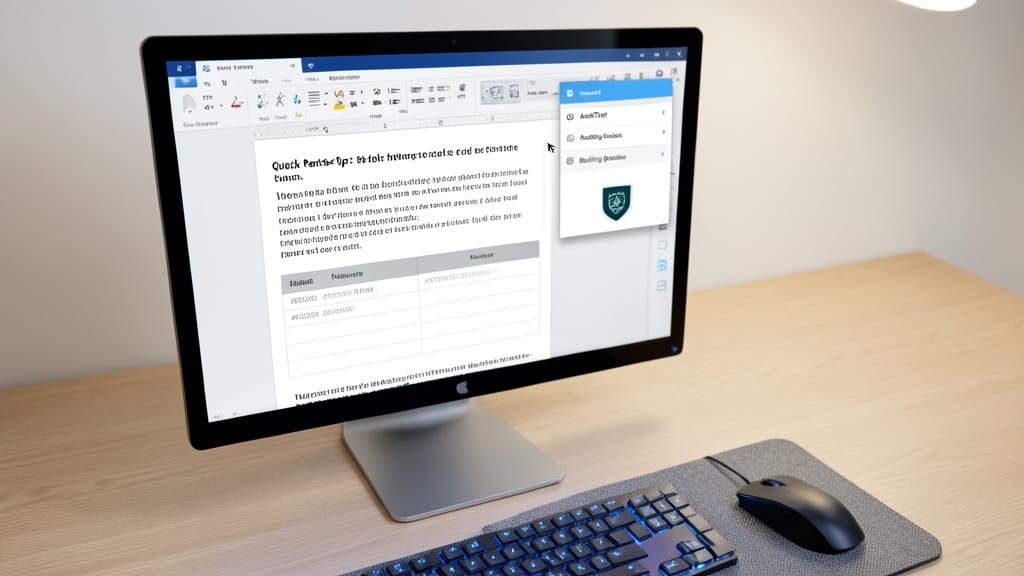
Need to collaborate on a document without endless email chains? Track Changes with Comments and Balloons lets you mark edits directly in the text—with strikethroughs, highlights, and inline notes—while keeping the original intact. This isn’t just redlining; it’s a full audit trail of who changed what and why, with comment balloons that appear alongside the text for context.
Enable it via Review > Track Changes, then use New Comment (Ctrl+Alt+M) to pin feedback to specific lines. The Balloons feature even lets you attach notes to edits without cluttering the margins. For legal or academic work, you can also accept/reject changes in bulk or finalize the document with one click. No more lost edits or confusing revisions—just a clean, annotated version history.
This is the go-to tool for legal teams reviewing contracts, academic researchers peer-reviewing papers, or marketing teams refining campaigns. Say goodbye to version chaos and hello to seamless collaboration. ✨
Keyboard Shortcuts for Navigation
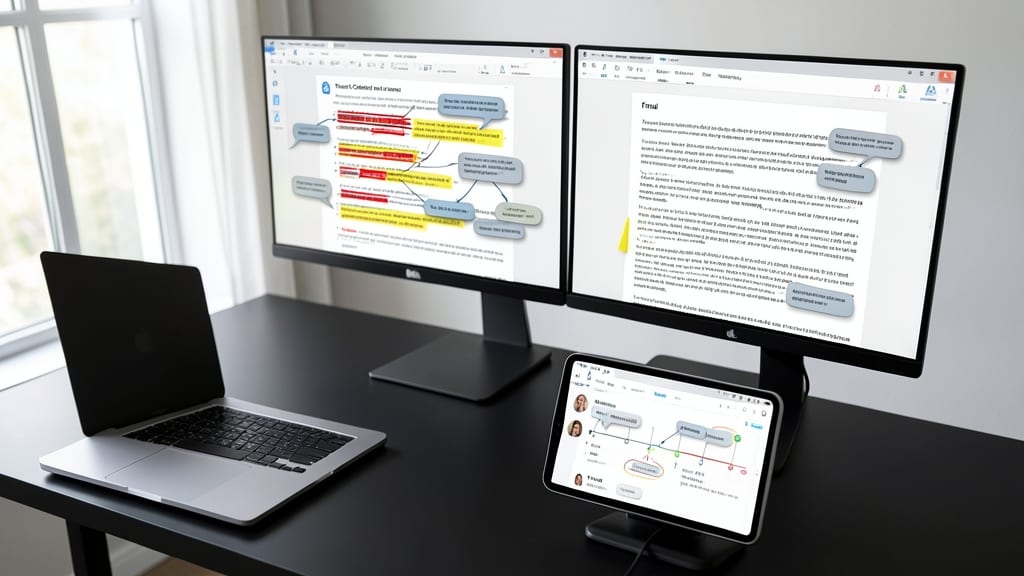
Tired of scrolling endlessly through long documents? Ctrl+Arrow keys instantly jump to the start/end of paragraphs, sentences, or even screens—no more tedious page-by-page navigation. This single trick alone can cut your editing time by 20% for documents over 10 pages.
Pair that with Alt+Ctrl+PgDn/PgUp to move between sections in a flash, or Ctrl+Home/End to zip to the top or bottom of your document. Need to find a specific heading? Ctrl+F followed by Alt+Down Arrow cycles through results faster than manual scrolling. These shortcuts work across Windows, Mac, and Word Online, making them universally useful.
Perfect for freelance writers, legal professionals, or anyone drowning in data-heavy reports, these shortcuts turn passive scrolling into active, lightning-fast navigation. Try them today and reclaim hours of your workweek. ⚡
Mail Merge for Personalized Letters
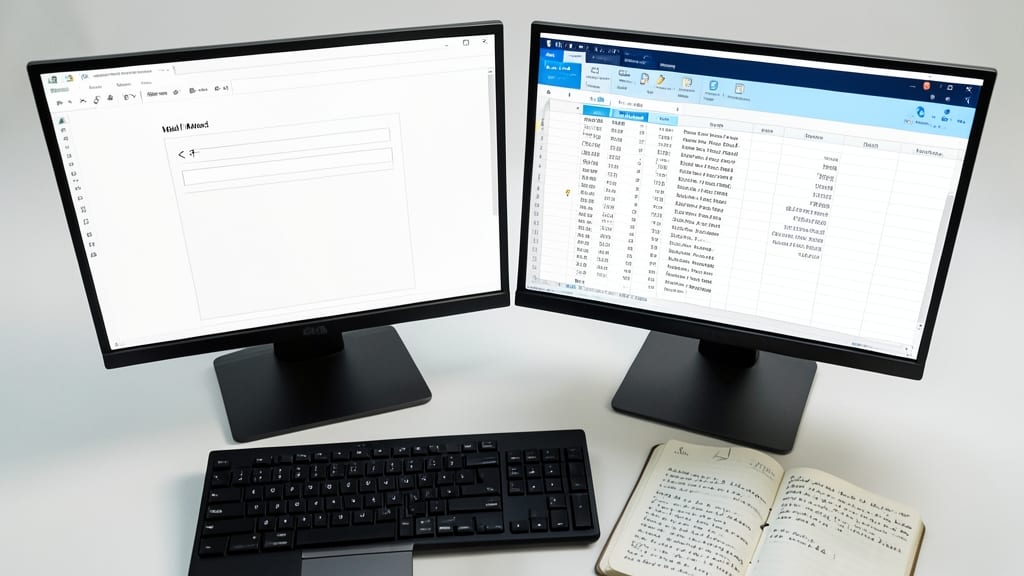
Tired of typing the same letter 100 times with only the name changing? Mail Merge in Word turns repetitive tasks into a breeze by pulling data from an Excel spreadsheet to personalize each document automatically.
Start by creating a template with placeholders like <
Perfect for small business owners sending invoices, HR teams onboarding new hires, or marketers blasting personalized campaigns. Say goodbye to copy-paste fatigue! ⚡
Text to Speech for Proofreading
Struggling to spot typos or awkward phrasing in your writing? Microsoft Word’s built-in Text to Speech (TTS) feature reads your document aloud, helping you catch errors you might miss while reading silently. It’s like having a virtual editor that highlights inconsistencies in rhythm or grammar.
To activate it, go to Review > Read Aloud (or press Alt+Ctrl+Shift+R). Choose from nine natural-sounding voices, adjust the speed, and even pause/resume as needed. The feature works offline, making it perfect for brainstorming sessions or late-night revisions without internet dependency.
Writers, students, and professionals who edit long documents will find this a game-changer—especially for catching repetitive phrasing or awkward sentence structures. Give your eyes a break and let Word’s TTS do the heavy lifting. ✨
Custom Tab for Favorite Commands
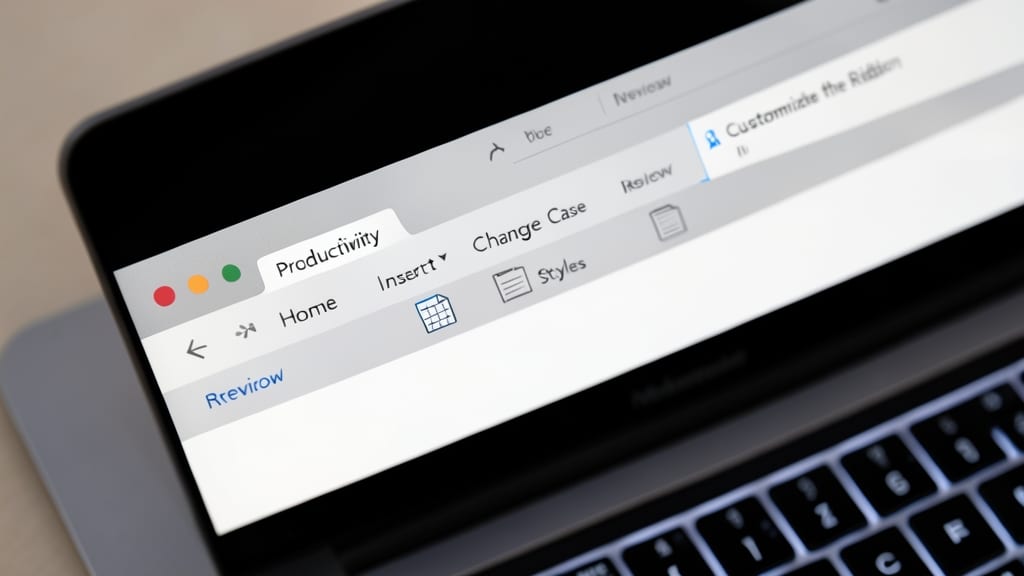
Tired of hunting through menus for the same commands every time you open Word? A custom tab lets you pin your most-used tools—like Insert Table, Change Case, or Styles—right where you need them, cutting clicks by half.
To create yours, right-click the ribbon and select "Customize the Ribbon", then drag commands from existing tabs (e.g., Home or Insert) into a new tab labeled "My Tools". You can even add Quick Access Toolbar favorites or macros for power users. The best part? Your tab stays put across documents, so it’s always ready when you are.
This trick is a game-changer for legal professionals, content creators, or anyone who repeats the same formatting tasks daily. ⚡
Find and Replace with Wildcards
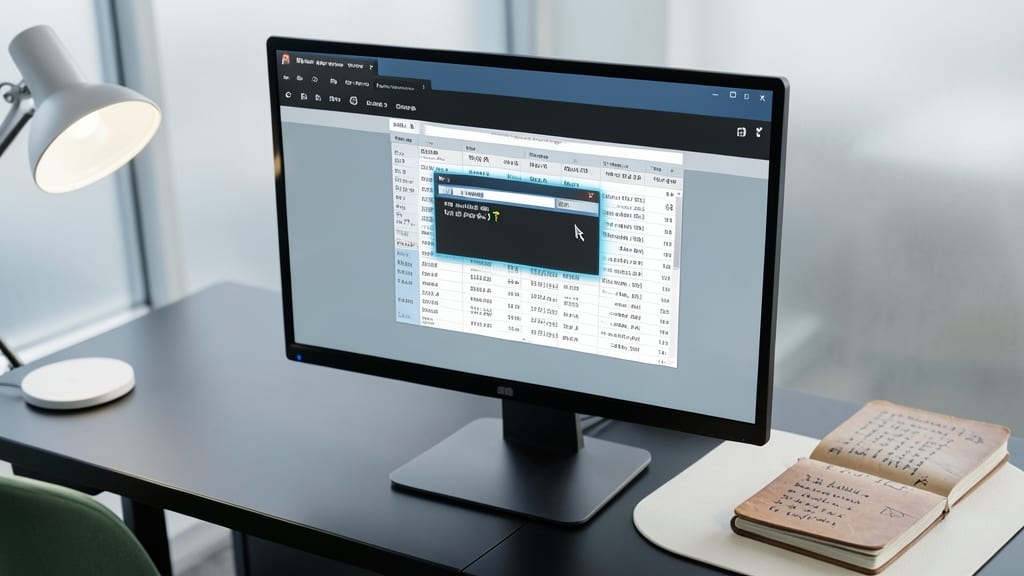
Tired of manually fixing messy data entries or inconsistent formats? Wildcards in Find and Replace let you search for patterns—not just exact text—using special characters like ? (single character) or * (multiple characters). This is a game-changer for cleaning up spreadsheets, standardizing dates (e.g., 01/01/2023 vs. 1-1-23), or extracting phone numbers from unstructured text.
To use it, press Ctrl+H to open Find and Replace, then click the More >> button and check "Use wildcards". For example, type ?/?/???? to find all dates in MM/DD/YYYY format, or (?\d{3}) \d{3}-\d{4} to catch phone numbers like (123) 456-7890. You can even replace them with standardized versions in one go.
This trick is especially useful for data analysts, HR teams, or anyone dealing with imported files—cutting hours of manual work down to minutes. Try it today and watch your document cleanup speed up dramatically! ✨
Document Comparison Tool
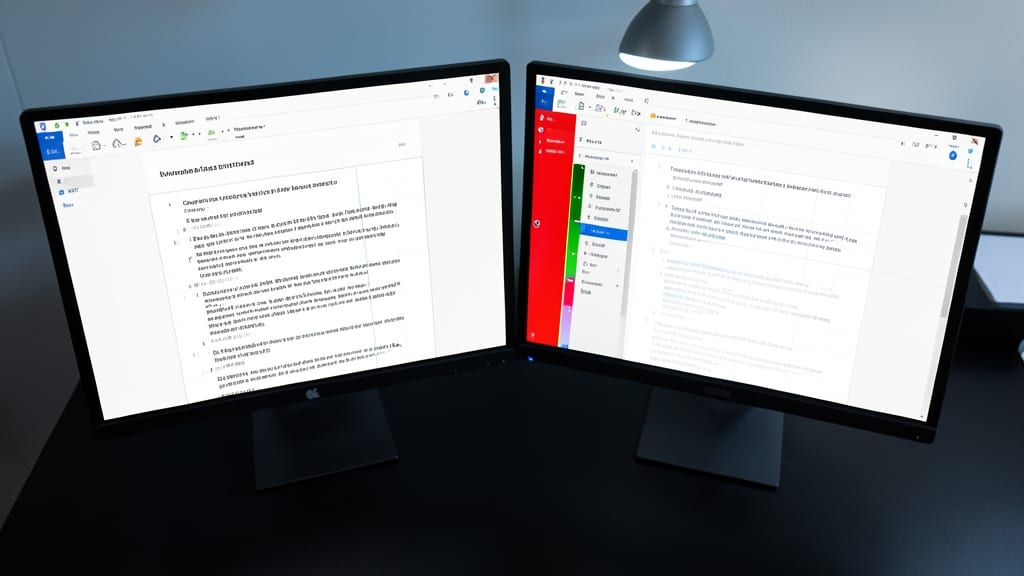
Ever spent hours manually cross-referencing two versions of a document, only to miss critical changes? Word’s Document Comparison Tool solves this with a split-screen view that highlights every addition, deletion, or formatting shift in real time.
To use it, go to Review > Compare, then select your original and revised documents. The tool instantly displays a side-by-side layout with color-coded changes (green for additions, red for deletions). You can even accept or reject changes individually without merging the files permanently—ideal for legal contracts, academic papers, or collaborative projects where version control is non-negotiable.
This feature is a lifesaver for editors, lawyers, or team leads managing multiple drafts. No more emailing back-and-forth or printing side-by-side copies—just one-click clarity. ✨
Shape and Diagram Tools
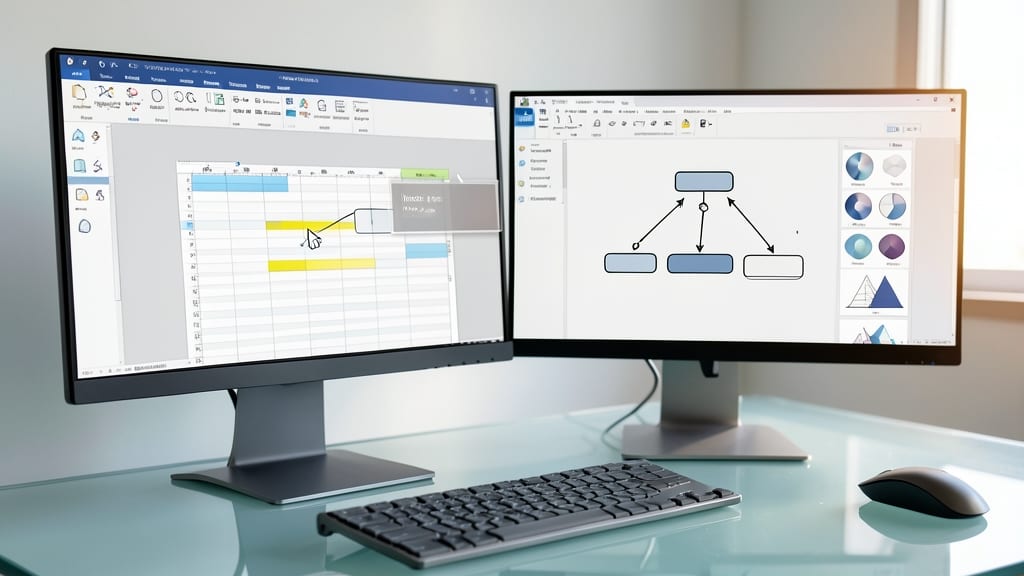
Tired of switching between apps to create visuals? Word’s Shape and Diagram Tools let you design flowcharts, org charts, and infographics without leaving your document—no extra software required.
Start with the Insert tab, then click Shapes to add rectangles, arrows, or flowchart symbols. Use SmartArt for pre-built layouts (like process diagrams or hierarchy charts), or connect shapes with dynamic connectors that auto-align as you move them. The Format tab lets you tweak colors, shadows, and effects for polished results.
Perfect for project managers mapping workflows, educators explaining concepts visually, or presenters adding diagrams to slides. Skip the complexity—Word’s built-in tools handle it all in one place. ✨
One-Drive Auto-Save and Version History
Tired of losing hours of work when Word crashes or you accidentally close without saving? OneDrive Auto-Save in Microsoft Word silently syncs your document to the cloud every few seconds—no extra clicks required. Even if your computer dies or you forget to save, your progress is preserved.
But the real game-changer is Version History, which keeps up to 100 previous versions of your document for 30 days (or longer with OneDrive storage upgrades). Need to revert to a cleaner draft after a formatting disaster? Just right-click the file in OneDrive, select "Version history," and restore any saved state instantly. The feature works seamlessly with Word Online too.
This is a must-have for freelancers, students, and professionals who can't afford to lose work. Enable it by going to File > Info > Manage Document > AutoSave Info—and breathe easy knowing your document is always backed up. ✨